> ## Documentation Index
> Fetch the complete documentation index at: https://docs.quickblox.com/llms.txt
> Use this file to discover all available pages before exploring further.
# Manage AI Agents
> Learn how to manage AI Agents
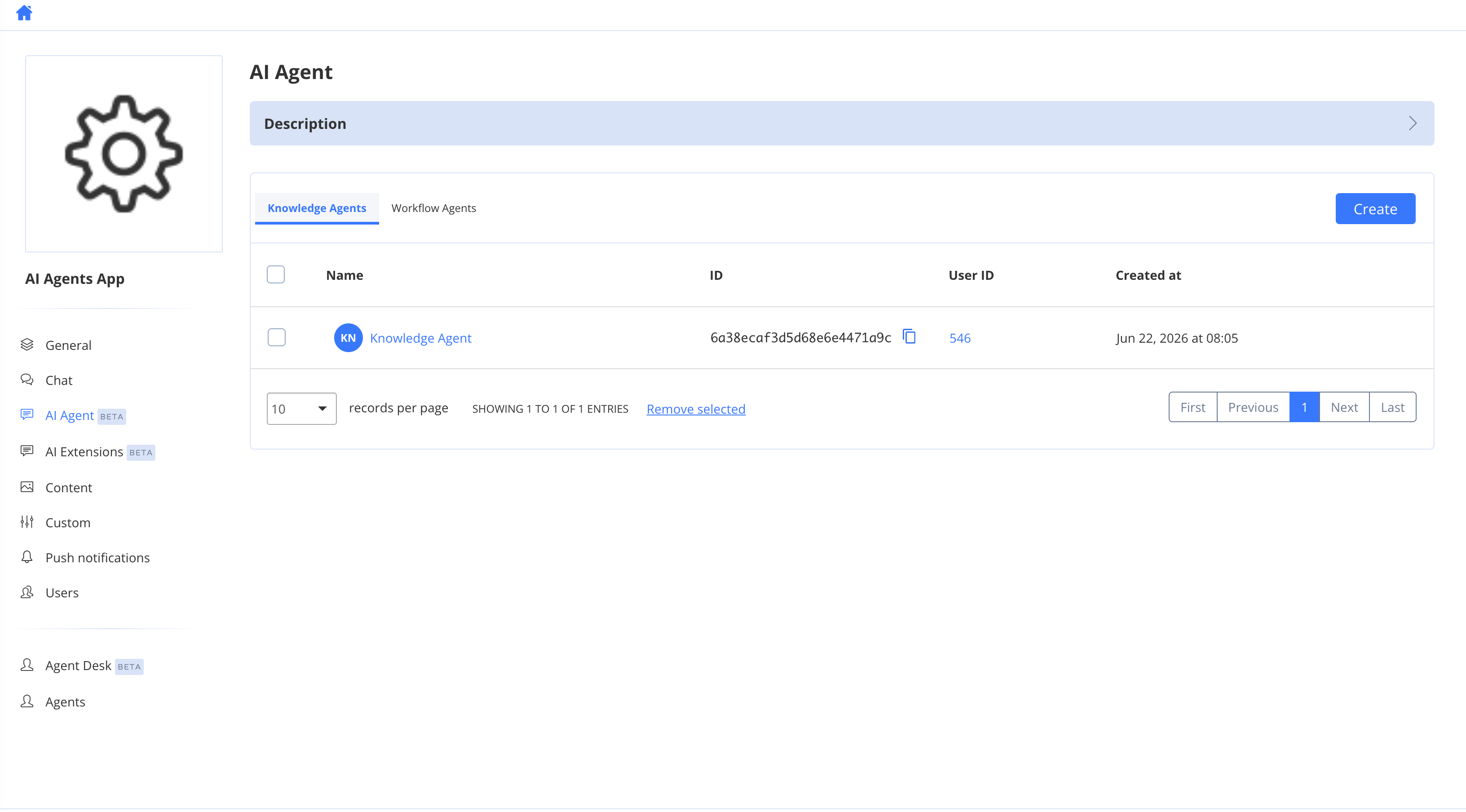
## View AI Agents
To view a list of AI Agents, follow the steps below:
1. Navigate to the ***Dashboard => YOUR\_APP => AI Agent*** page.
 ## Create AI Agent
To create an AI Agent, follow the steps below:
1. Navigate to the ***Dashboard => YOUR\_APP => AI Agent*** page.
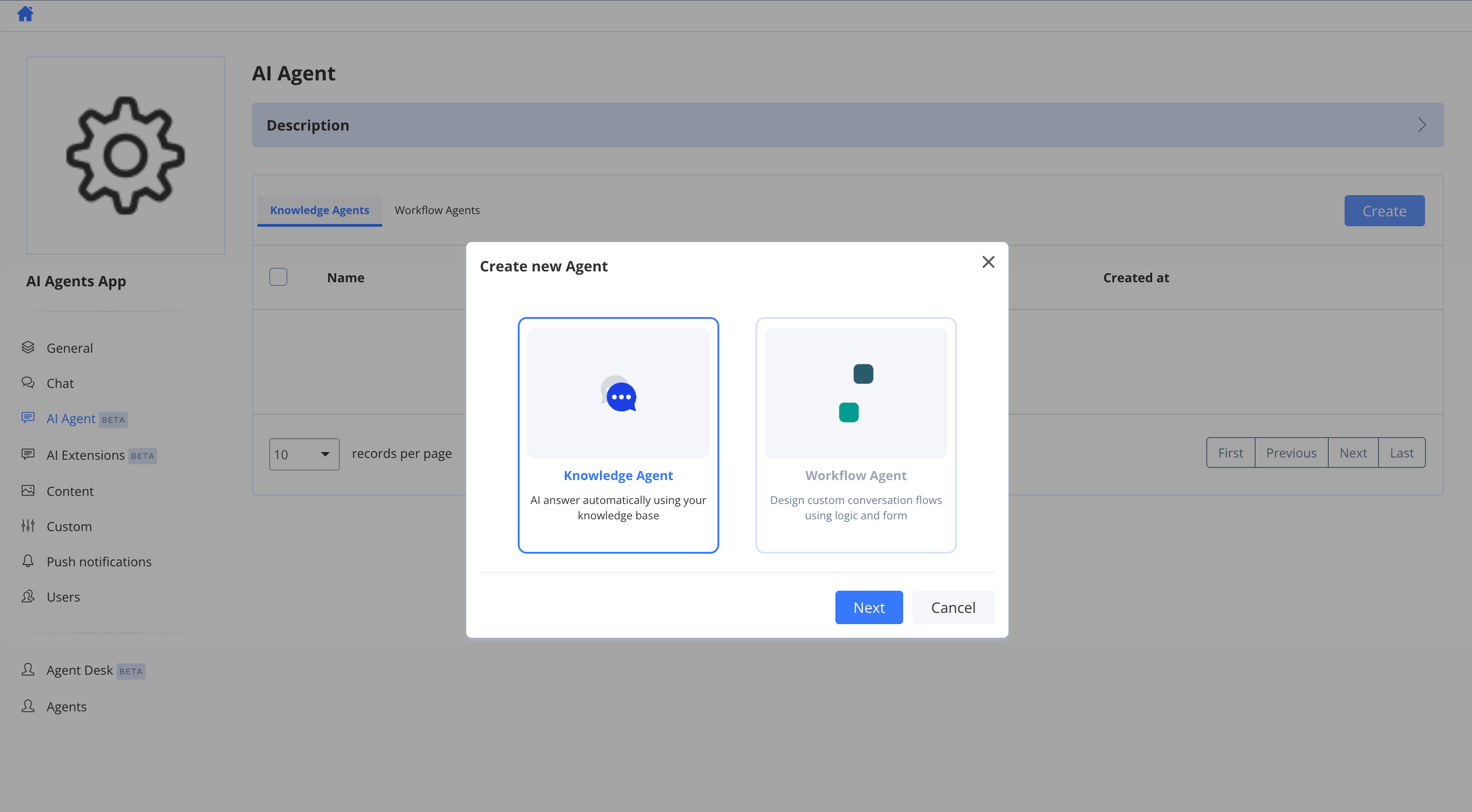
2. Click the **Create** button.
3. Choose an agent type — **Knowledge Agent** or **Workflow Agent** — and click **Next**. (See [Agent Types](/ai-agent/agent-types) for the difference.)
4. Enter a **Name** for the agent and click **Create**.
## Create AI Agent
To create an AI Agent, follow the steps below:
1. Navigate to the ***Dashboard => YOUR\_APP => AI Agent*** page.
2. Click the **Create** button.
3. Choose an agent type — **Knowledge Agent** or **Workflow Agent** — and click **Next**. (See [Agent Types](/ai-agent/agent-types) for the difference.)
4. Enter a **Name** for the agent and click **Create**.
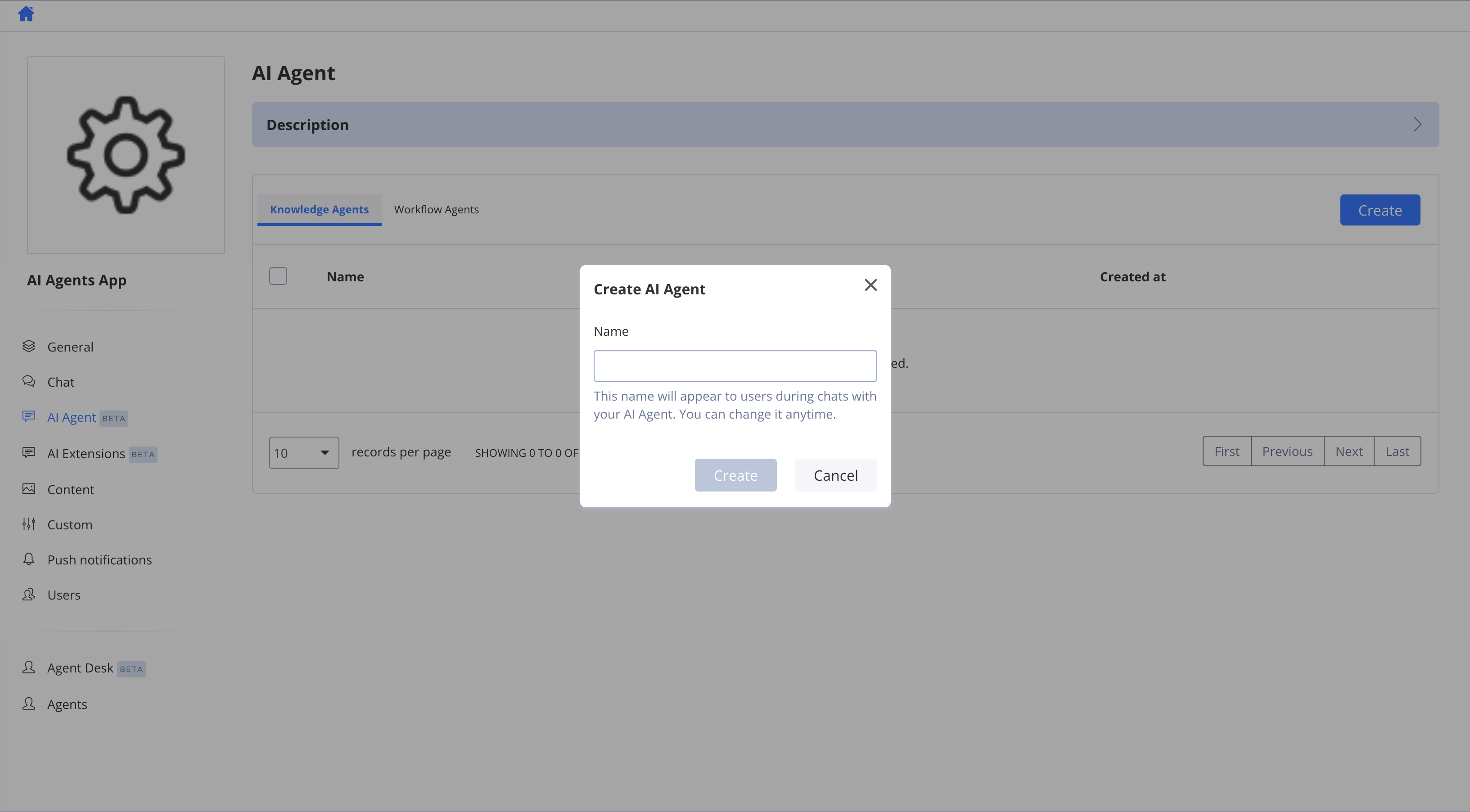
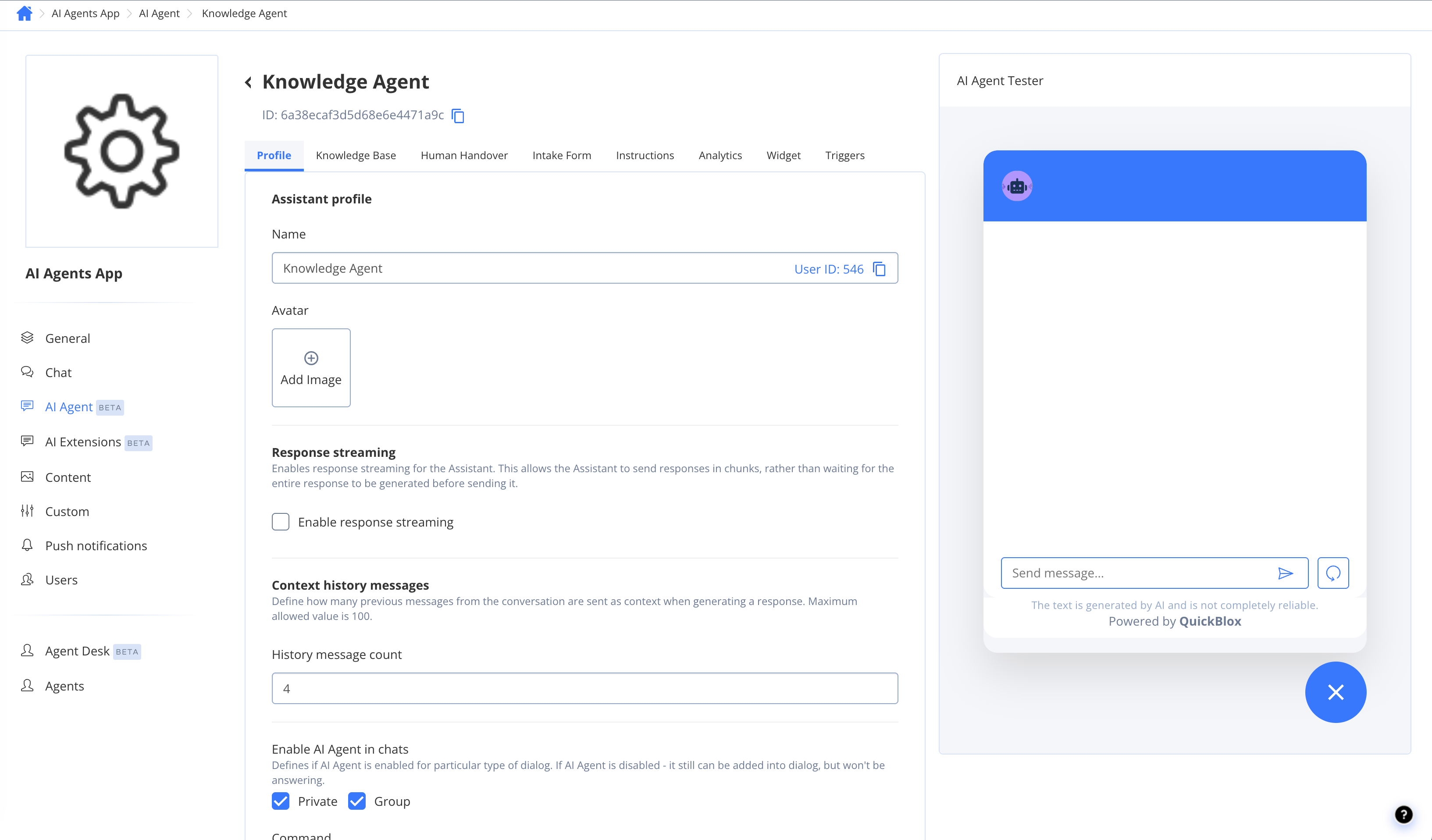 The agent is created and opens on its edit page, where the rest of the settings live. You can change the name at any time, and a unique user (login) for the agent is generated automatically — you do not set a username.
Agent type is chosen only at creation and cannot be changed afterwards. This page covers the settings shared by both agent types; for workflow-specific configuration, see [Workflows overview](/ai-agent/workflows/overview).
## Configure your AI Agent
The agent edit page is organised into tabs, and each editable tab has its own **Save** button.
### Profile
* **Name** — the name shown to users in chats. Can be changed anytime.
* **Avatar** — upload an image (JPG, JPEG, or GIF) used as the agent's avatar.
* **Enable AI Agent in chats** — choose where the agent responds using the **Private** and **Group** checkboxes. If it is disabled for a dialog type, the agent can still be added to a dialog but won't answer there.
* **Command** — a single word that activates the agent in group chats. When users type `/command`, they can talk to the agent in that group (the agent's user must be in the chat too).
The Profile tab also contains the **Delete AI Agent** action and, depending on your account, optional response settings.
### Knowledge Base
On the **Knowledge Base** tab you choose where answers come from — **Your uploaded content** or **OpenAI** — and manage the content the agent can use. Under **Unanswered questions**, choose what happens when the agent can't answer from its knowledge base:
| Option | Behaviour |
| --------------------- | --------------------------------------------------------------------------------------------------------------------------- |
| **Default answer** | Replies with the configured **"I don't know the answer"** message. |
| **Forward to OpenAI** | Forwards the question to OpenAI so the user gets a general AI answer. |
| **Send Webhook** | Forwards the question to your configured webhook URL. The agent does not post a reply itself — implement your own handling. |
| **Human handover** | Forwards the conversation to a human agent. Use **Configure** to set this up on the **Human Handover** tab. |
See [Knowledge Base](/ai-agent/knowledge-base) for full details on managing content.
### Instructions
The **Instructions** tab holds two prompts that shape the agent's tone and behaviour:
* **Knowledge base** — used when the knowledge base is set to **Your uploaded content**.
* **OpenAI** — used when the knowledge base is set to **OpenAI**, and when unanswered questions are forwarded to OpenAI.
### Other tabs
* **Human Handover** — configure transfer to human agents. See [Human handover](/ai-agent/human-handover).
* **Intake Form** — collect details before answering. See [Intake forms](/ai-agent/intake-forms).
* **Widget** — appearance and embedding of the chat widget. See [Widget](/ai-agent/widget).
* **Analytics** — usage charts and an unanswered-questions report (read-only).
## Update AI Agent
To update an AI Agent, follow the steps below:
1. Navigate to the ***Dashboard => YOUR\_APP => AI Agent*** page.
2. Click the AI Agent you want to update.
3. Open the relevant tab and edit its settings.
4. Click the **Save** button on that tab to save your changes.
The agent is created and opens on its edit page, where the rest of the settings live. You can change the name at any time, and a unique user (login) for the agent is generated automatically — you do not set a username.
Agent type is chosen only at creation and cannot be changed afterwards. This page covers the settings shared by both agent types; for workflow-specific configuration, see [Workflows overview](/ai-agent/workflows/overview).
## Configure your AI Agent
The agent edit page is organised into tabs, and each editable tab has its own **Save** button.
### Profile
* **Name** — the name shown to users in chats. Can be changed anytime.
* **Avatar** — upload an image (JPG, JPEG, or GIF) used as the agent's avatar.
* **Enable AI Agent in chats** — choose where the agent responds using the **Private** and **Group** checkboxes. If it is disabled for a dialog type, the agent can still be added to a dialog but won't answer there.
* **Command** — a single word that activates the agent in group chats. When users type `/command`, they can talk to the agent in that group (the agent's user must be in the chat too).
The Profile tab also contains the **Delete AI Agent** action and, depending on your account, optional response settings.
### Knowledge Base
On the **Knowledge Base** tab you choose where answers come from — **Your uploaded content** or **OpenAI** — and manage the content the agent can use. Under **Unanswered questions**, choose what happens when the agent can't answer from its knowledge base:
| Option | Behaviour |
| --------------------- | --------------------------------------------------------------------------------------------------------------------------- |
| **Default answer** | Replies with the configured **"I don't know the answer"** message. |
| **Forward to OpenAI** | Forwards the question to OpenAI so the user gets a general AI answer. |
| **Send Webhook** | Forwards the question to your configured webhook URL. The agent does not post a reply itself — implement your own handling. |
| **Human handover** | Forwards the conversation to a human agent. Use **Configure** to set this up on the **Human Handover** tab. |
See [Knowledge Base](/ai-agent/knowledge-base) for full details on managing content.
### Instructions
The **Instructions** tab holds two prompts that shape the agent's tone and behaviour:
* **Knowledge base** — used when the knowledge base is set to **Your uploaded content**.
* **OpenAI** — used when the knowledge base is set to **OpenAI**, and when unanswered questions are forwarded to OpenAI.
### Other tabs
* **Human Handover** — configure transfer to human agents. See [Human handover](/ai-agent/human-handover).
* **Intake Form** — collect details before answering. See [Intake forms](/ai-agent/intake-forms).
* **Widget** — appearance and embedding of the chat widget. See [Widget](/ai-agent/widget).
* **Analytics** — usage charts and an unanswered-questions report (read-only).
## Update AI Agent
To update an AI Agent, follow the steps below:
1. Navigate to the ***Dashboard => YOUR\_APP => AI Agent*** page.
2. Click the AI Agent you want to update.
3. Open the relevant tab and edit its settings.
4. Click the **Save** button on that tab to save your changes.
 ## Delete AI Agent
You can delete an AI Agent in two ways:
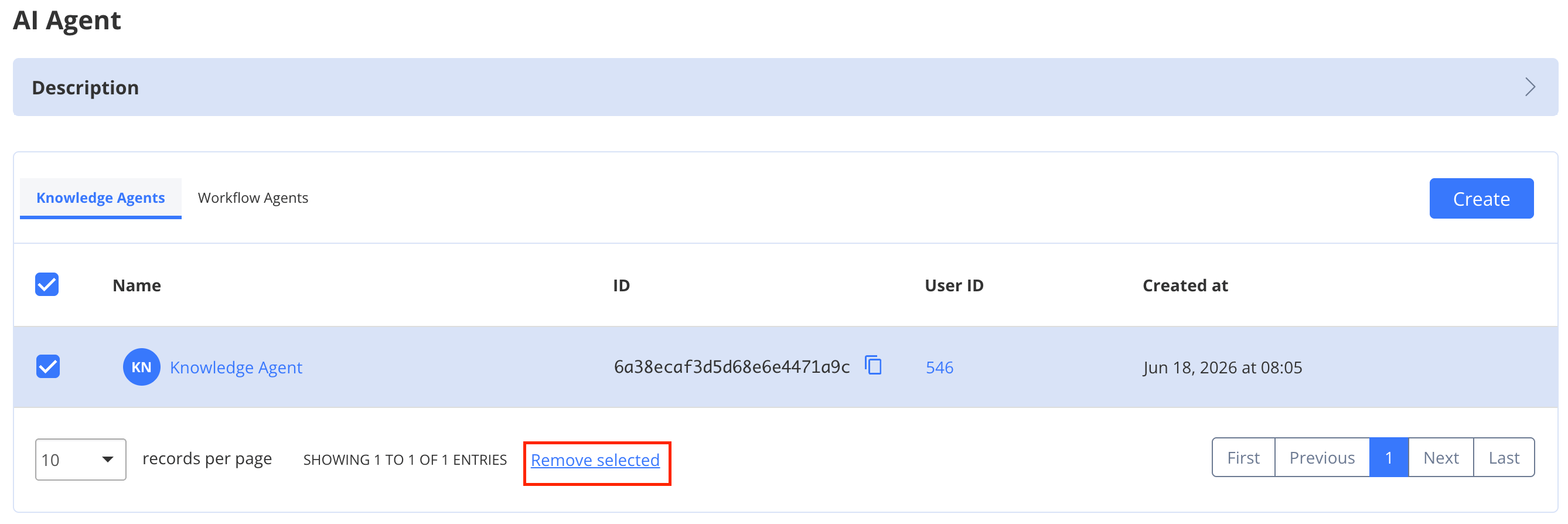
* **From the list:** on the ***Dashboard => YOUR\_APP => AI Agent*** page, select the agents using their checkboxes and click **Remove selected**.
* **From the agent:** open the agent and, on the **Profile** tab, click **Delete** in the **Delete AI Agent** section.
Deleting an agent permanently removes it from your application.
## Delete AI Agent
You can delete an AI Agent in two ways:
* **From the list:** on the ***Dashboard => YOUR\_APP => AI Agent*** page, select the agents using their checkboxes and click **Remove selected**.
* **From the agent:** open the agent and, on the **Profile** tab, click **Delete** in the **Delete AI Agent** section.
Deleting an agent permanently removes it from your application.
 ## Test AI Agent
Every agent edit page includes the **AI Agent Tester** on the right side, where you can chat with the agent to try out its behaviour.
## Test AI Agent
Every agent edit page includes the **AI Agent Tester** on the right side, where you can chat with the agent to try out its behaviour.
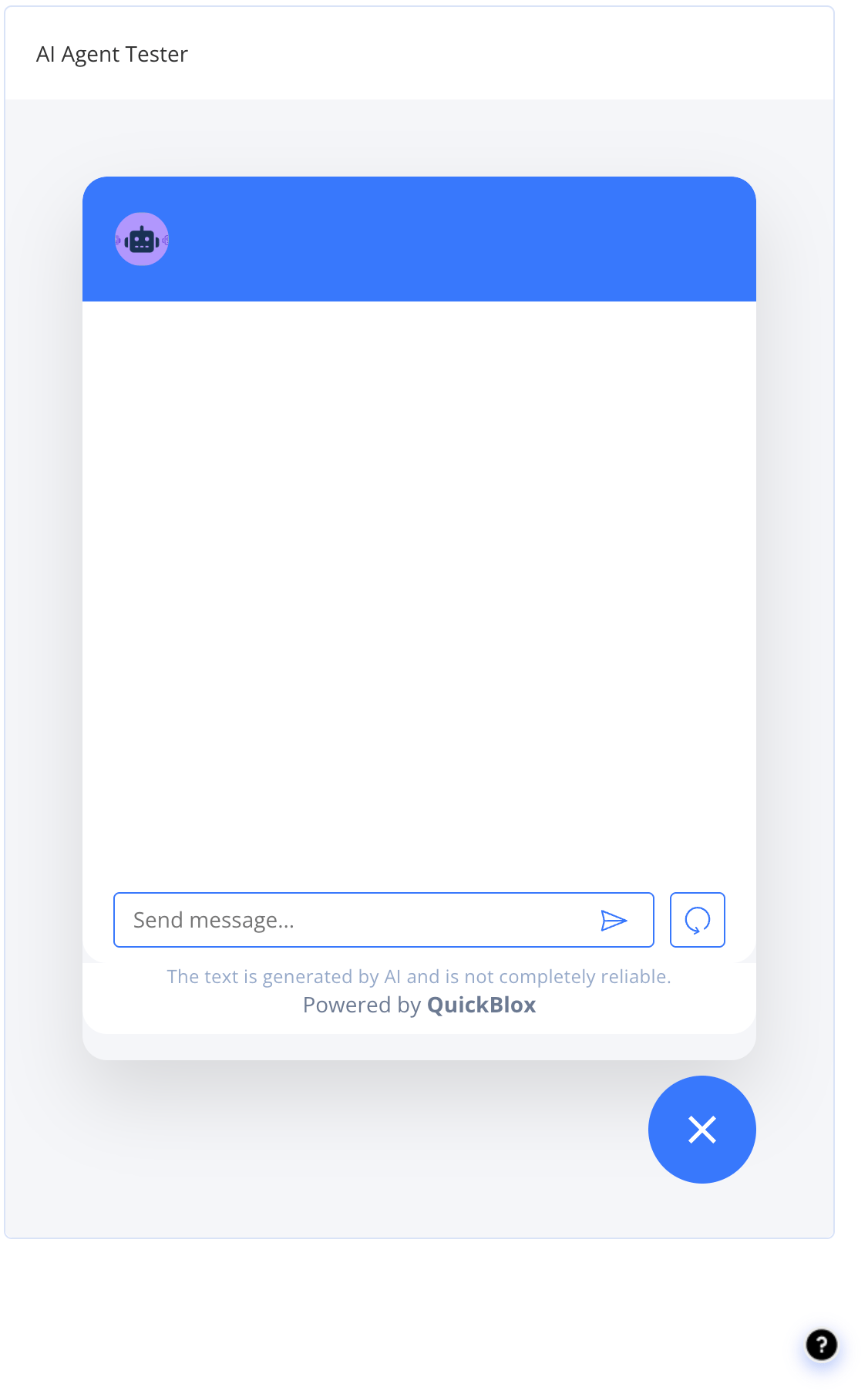 Some behaviours — such as Human handover — are only fully exercised in the widget or via SDKs. In the dashboard tester you may just receive the "I don't know the answer" message.