> ## Documentation Index
> Fetch the complete documentation index at: https://docs.quickblox.com/llms.txt
> Use this file to discover all available pages before exploring further.
# Variables, branching & testing
> Save user answers as variables, build conditional branches, and test your workflow
Variables let you capture what users say and carry that information forward through the flow. Combined with branching nodes, they allow your workflow to adapt to each user's specific situation. This page also covers how to test your workflow safely before it reaches live users.
## Variables
Every **Request** node has an optional **Variable** field. When you enter a name there, the user's answer is stored under that name for the rest of the workflow run.
### How to name variables
* Use short, descriptive names without spaces (for example, `user_name`, `issue_type`, `order_number`).
* Variable names are case-sensitive.
* You can define as many variables as you need across different Request nodes.
### How to use variables
Once saved, you can reference a variable in:
* **Message nodes** — personalise text by inserting the variable (for example, `Thanks, {{vars.user_name}}! Let me look into that for you.`).
* **Webhook nodes** — include variable values in the request URL, headers, or payload sent to your external system.
* **OpenAI Chat nodes** — pass variable values into the node's initial context.
* **If / Else conditions** — reference variable values in the condition expression to decide which branch to follow.
Reference variables using double curly braces with the `vars.` prefix: `{{vars.variable_name}}`. The variable is replaced with the user's actual answer at runtime. (Plain `{{variable_name}}` without the prefix is not substituted.)
### System variables
Alongside the variables you collect, every run carries a set of **read-only system variables** that describe the conversation context. Reference them with the `system.` prefix — the same way you reference `vars.`, but you never set or change them.
| Variable | Type | Description |
| ----------------------------- | ------ | ----------------------------------------------------------- |
| `{{system.application_id}}` | number | The QuickBlox application the conversation belongs to. |
| `{{system.ai_agent_id}}` | string | The AI Agent running the workflow. |
| `{{system.dialog_id}}` | string | The chat dialog the conversation is taking place in. |
| `{{system.ai_agent_user_id}}` | number | The AI Agent's bot user id. May be absent in some contexts. |
System variables are available everywhere `vars` are: Message node text, Webhook URL/headers/body, OpenAI Chat context, and If / Else conditions (as `system.application_id`, and so on).
```jsonc theme={null}
// Example Webhook body using both namespaces
{
"application": "{{system.application_id}}",
"dialog": "{{system.dialog_id}}",
"issue": "{{vars.issue_type}}"
}
```
### Save variables from an OpenAI Chat node
The **OpenAI Chat** node can save values to `vars` directly — but only if you tell it to in the node's **Instructions**. The node gives the model a built-in tool for storing workflow variables, and the model uses it whenever your instructions ask it to capture something.
Write the instruction in plain language naming the variable, for example:
```text theme={null}
Ask the user what product they are calling about. When they answer,
save their response in a variable named "product".
If they mention an order number, save it in a variable named "order_number".
```
When the model captures those values, they are written to `vars` immediately and persist for the rest of the run — exactly like a Request node's answer. You can then reference them downstream with `{{vars.product}}` in a Message or Webhook, or branch on `vars.order_number` in an If / Else.
Variable names follow the same rules as elsewhere — short, descriptive, case-sensitive, no spaces. Names starting with `__` are reserved and rejected. Stored values can be a string, number, boolean, a list of those, or a flat object of those.
The `set_variable` tool is available only on the **OpenAI Chat** node — it lets the model decide *what* to capture from the conversation. To save the node's *result* instead, use the **Output variable** field described next (available on both the OpenAI Chat and AI response nodes).
### Save the node result with Output variable
Both the **OpenAI Chat** and **AI response (RAG)** nodes have an **Output variable** field. When you set it, the node's completion result is saved to that variable, and you can read it downstream with `{{vars.*}}` or branch on it in an If / Else.
The stored value is the node's full result object, so reference nested fields with dot notation:
* **AI response (RAG)** — when the knowledge base cannot answer, the result is `{ status: "unknown_answer", last_reply: "..." }`. With **Output variable** set to `kb_answer`, you can use `{{vars.kb_answer.last_reply}}` or branch on `vars.kb_answer.status == "unknown_answer"`.
* **OpenAI Chat** — when the conversation reaches its **Max Turns** limit, the result is `{ status: "limit_reached", turns_used, last_reply: "..." }`. With **Output variable** set to `ai_chat`, you can use `{{vars.ai_chat.last_reply}}`.
Use **Output variable** when you want the node's *final reply or status* available later in the flow or in a Message/Webhook template. Use an OpenAI Chat **save instruction** (`set_variable`) when you want the model to extract a *specific piece of information* from what the user said.
### Reference the output of the previous node
When a node's result is not stored in a named variable, you can still react to it on the **conditions of the edges leaving that node** via `last_node.output`. This is handy for branching on an **AI response (RAG)** or **OpenAI Chat** node's result right after it runs, without setting an Output variable.
`last_node.output` is only available in **If / Else and edge conditions (CEL)** — not in `{{...}}` message or webhook templates. It always reflects the node that *just* completed and is overwritten by the next node, so branch on it immediately after the node.
**AI response (RAG) node** — when the knowledge base cannot answer (and a fallback is configured), the node completes with:
```jsonc theme={null}
{
"status": "unknown_answer", // the model could not answer from the knowledge base
"last_reply": "..." // the reply text (or your "don't know" message)
}
```
Branch on it from the RAG node's outgoing edge, for example:
```text theme={null}
last_node.output.status == "unknown_answer"
```
**OpenAI Chat node** — when the conversation reaches its **Max Turns** limit, the node completes with:
```jsonc theme={null}
{
"status": "limit_reached",
"turns_used": 5,
"last_reply": "..." // the assistant's final reply
}
```
```text theme={null}
last_node.output.last_reply.contains("refund")
```
`last_node.output` lives only on the edges directly leaving the node and is overwritten by the next node, so you cannot reference it later in the flow or inside a `{{...}}` Message/Webhook template. If you need a value downstream, save it to a variable instead — with a Request node, a Webhook or agentic node **Output variable**, or an OpenAI Chat **save** instruction (see above) — and then read it as `{{vars.*}}`.
***
## Branching
Branching lets your workflow follow different paths based on what users have answered. There are two ways to branch.
### If / Else node
The **If / Else** node evaluates one or more conditions in sequence:
1. Add a **Condition** and give it a **Label** plus an **Expression (CEL)** — for example, `vars.issue_type == "billing"`.
2. Click **Add Condition** for each additional branch you need.
3. Set a **Default branch (else)** as the path to follow when no condition matches.
Conditions are written as [CEL](https://github.com/google/cel-spec) expressions. Common operators include `==` (equals), `!=` (not equals), `>`, `>=`, `<`, and `<=` for numeric comparisons, `&&` / `||` to combine checks, and string helpers such as `.contains("...")` and `.matches("...")`. Conditions can reference saved answers with the `vars.` prefix (for example, `vars.order_number > 1000`), run context with the `system.` prefix (for example, `system.application_id`), and the previous node's result with `last_node.output` (for example, `last_node.output.status == "unknown_answer"` right after an AI response node).
### Conditional connections on Request nodes
**Single Choice** and **Smart Question** nodes let you connect a specific path for each answer option (or detected intent). You can route users directly to the right next step based on their selection without an extra If / Else node.
**Multiple Choice** nodes have a single onward path plus a fallback for invalid selections, so route their results with an If / Else node when you need to branch.
### Branch order matters
Conditions are evaluated top to bottom. Place your most specific conditions first and the default (Else) branch last.
Always connect an Else or default path. If no condition matches and there is no default, the workflow has an unresolved state.
***
## Testing
### Widget Preview
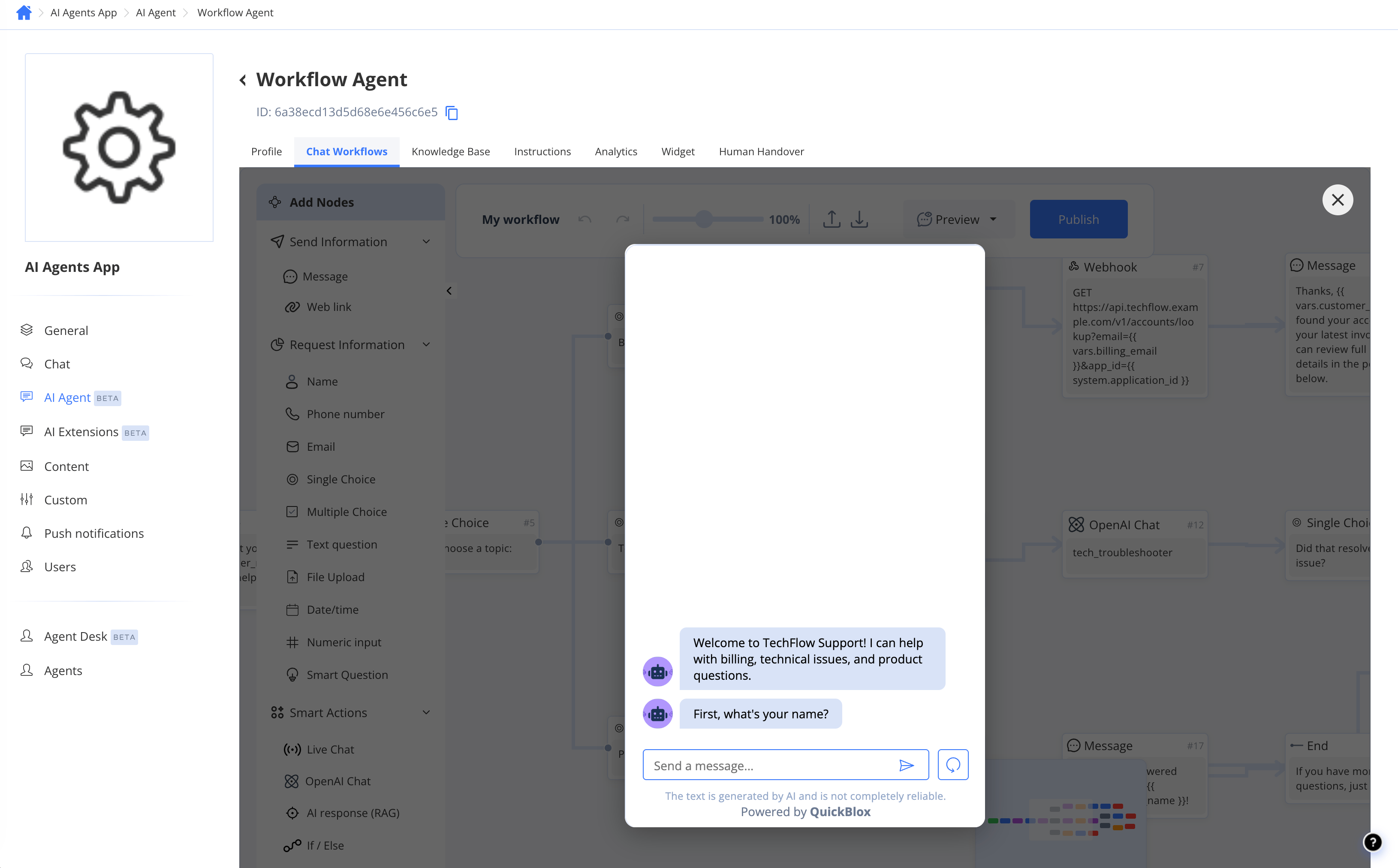
The fastest way to test is the **Preview** button in the editor toolbar. It opens an embedded chat widget so you can walk through the flow as a user would — entering answers, triggering branches, and seeing messages — without affecting live users.
### AI Agent Tester
The **AI Agent Tester** is available from the agent's main settings page. It runs the full agent logic, including the active workflow, in an isolated test environment. Use it to:
* Test edge cases and uncommon paths.
* Verify that variables are saved and referenced correctly.
* Confirm that webhook calls are being triggered with the right data.
 Live Chat handover is simulated in both Preview and the AI Agent Tester. The conversation will show a handover message, but no real human agent is notified during testing.
***
## Best practices
### Connect every path to an End node
Before publishing, confirm that every output port of every node leads somewhere — either to the next node or to an End node. Unconnected paths fail the publish validation check.
### Always set a webhook fallback
The **Webhook** node requires a fallback path. If the external server is unavailable or returns an error, the conversation follows the fallback path instead of stalling. Design the fallback to handle the situation gracefully — for example, an apology message followed by an End node or a Live Chat handover.
### Order branches from specific to general
In If / Else nodes, put the most specific conditions at the top and the broadest default (Else) at the bottom. This prevents a general condition from matching before a more specific one gets evaluated.
### Use descriptive variable names
Choose variable names that make your conditions readable (for example, `subscription_type`, not `var1`). This is especially helpful when collaborating with teammates or returning to a workflow after time away.
***
## Caveats
| Behaviour | Detail |
| ------------------------ | ----------------------------------------------------------------------------------------------------------------------------------------------------------------------------------------------------------------------------- |
| **Webhook failures** | If a Webhook node cannot reach the external URL or receives an error response, the conversation follows the configured fallback path. Check your webhook URL and server health if users report unexpected fallback behaviour. |
| **Live Chat in preview** | Live Chat handover is simulated in Preview and the AI Agent Tester. No live agent receives a notification. Test real handover behaviour in a staging environment with actual agent accounts. |
| **Draft vs published** | Editing a published workflow immediately returns it to draft. The previously published version remains live until you re-publish and, if necessary, reactivate the workflow. |
Live Chat handover is simulated in both Preview and the AI Agent Tester. The conversation will show a handover message, but no real human agent is notified during testing.
***
## Best practices
### Connect every path to an End node
Before publishing, confirm that every output port of every node leads somewhere — either to the next node or to an End node. Unconnected paths fail the publish validation check.
### Always set a webhook fallback
The **Webhook** node requires a fallback path. If the external server is unavailable or returns an error, the conversation follows the fallback path instead of stalling. Design the fallback to handle the situation gracefully — for example, an apology message followed by an End node or a Live Chat handover.
### Order branches from specific to general
In If / Else nodes, put the most specific conditions at the top and the broadest default (Else) at the bottom. This prevents a general condition from matching before a more specific one gets evaluated.
### Use descriptive variable names
Choose variable names that make your conditions readable (for example, `subscription_type`, not `var1`). This is especially helpful when collaborating with teammates or returning to a workflow after time away.
***
## Caveats
| Behaviour | Detail |
| ------------------------ | ----------------------------------------------------------------------------------------------------------------------------------------------------------------------------------------------------------------------------- |
| **Webhook failures** | If a Webhook node cannot reach the external URL or receives an error response, the conversation follows the configured fallback path. Check your webhook URL and server health if users report unexpected fallback behaviour. |
| **Live Chat in preview** | Live Chat handover is simulated in Preview and the AI Agent Tester. No live agent receives a notification. Test real handover behaviour in a staging environment with actual agent accounts. |
| **Draft vs published** | Editing a published workflow immediately returns it to draft. The previously published version remains live until you re-publish and, if necessary, reactivate the workflow. |