> ## Documentation Index
> Fetch the complete documentation index at: https://docs.quickblox.com/llms.txt
> Use this file to discover all available pages before exploring further.
# Chat Moderation
> Learn how to moderate messages and users in your app.
This feature is available for customers on the Enterprise plan only. Take advantage of Enterprise features to unlock new value and opportunities for users. For more information and if you want to request a Demo, please contact us by mail: [enterprise@quickblox.com](mailto:enterprise@quickblox.com.).
## Trust & Safety (TnS)
QuickBlox TnS helps you moderate chat messages in real-time. Whenever a user sends a message to the dialog, the functionality blocks potentially offensive messages from being delivered to the recipient or masks profanity or sensitive information such as social security numbers, addresses, names, and phone numbers, which helps prevent the loss of sensitive data.
TnS settings are not mixed up between multiple apps in one account. You can configure different TnS settings for each app.
### Add rule
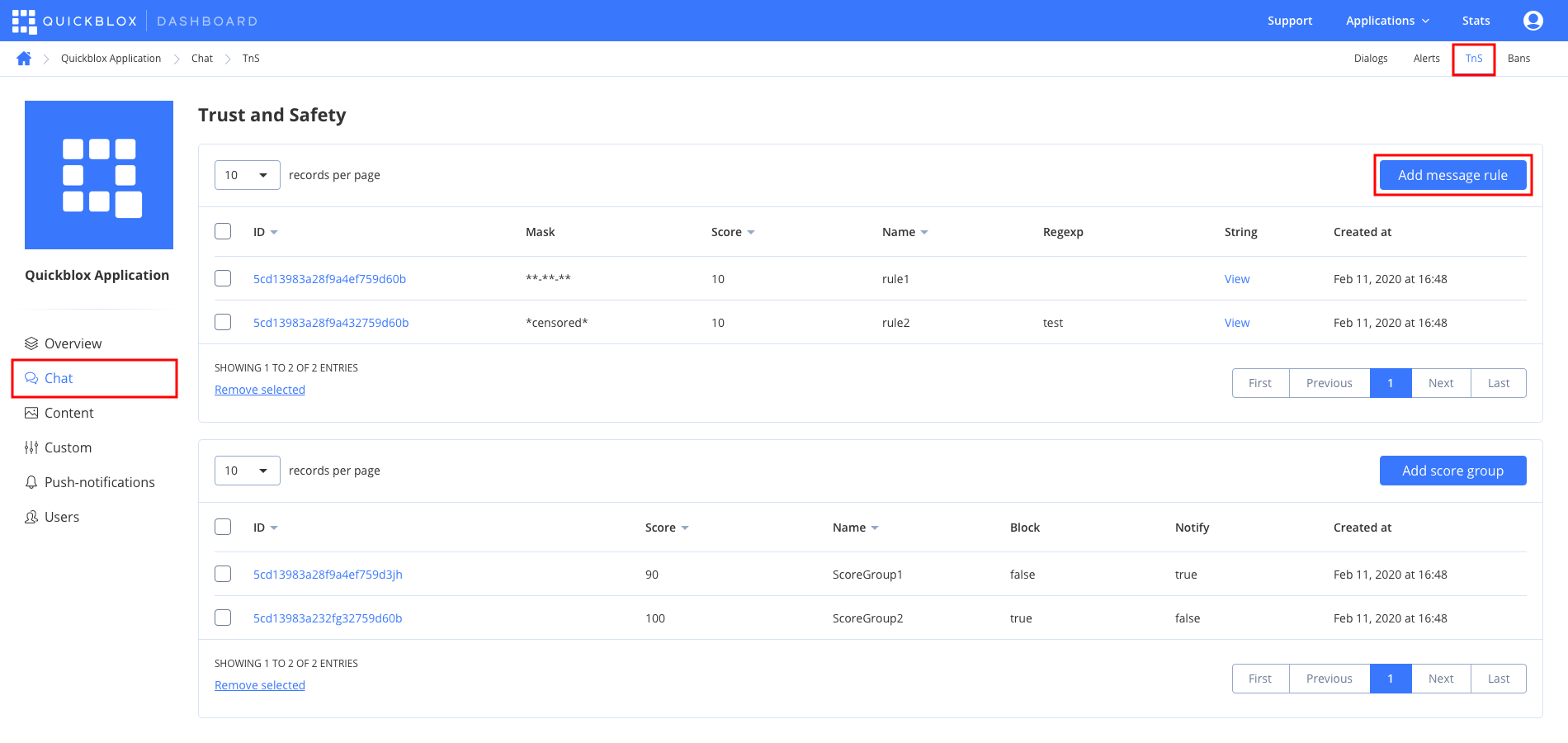
A **rule** defines moderation criteria based on the words or regexp that should be filtered. To create a moderation rule follow the steps below:
1. Go to the **Dashboard => *YOUR\_APP* => Chat => TnS** section. Click the **Add message rule** button.
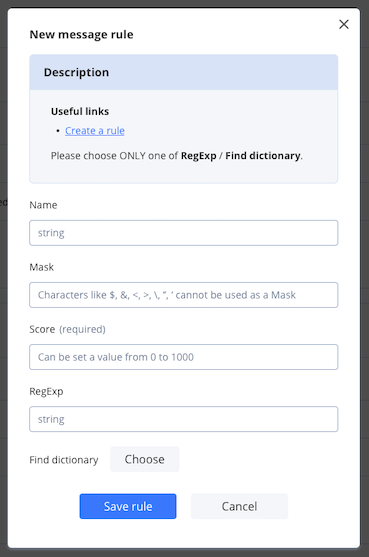
 1. Enter the name of the rule into the **Name** field.
2. Move to the **Mask** field and enter the symbols to be used instead of the inappropriate word. You can leave it empty if you don't want to use the mask.
3. Move to the **Score** field and enter a rule score indicating how bad a word is. Set a value from **0** to **1000** for this field. See how to calculate a message score [here](/docs/chat-moderation#how-message-score-is-calculated).
4. Use either a **RegExp field** or **Find dictionary** to save inappropriate words or expressions.
* The **RegExp** option allows entering a regular expression, which is a sequence of characters that define a search pattern; used mainly for pattern matching with strings.
* The **Find dictionary** option allows uploading a file with words that should be filtered. If you want to upload a dictionary file, use the **.txt** file. The cognates order in the dictionary should be from the longest to the shortest. See the screenshot below:
1. Enter the name of the rule into the **Name** field.
2. Move to the **Mask** field and enter the symbols to be used instead of the inappropriate word. You can leave it empty if you don't want to use the mask.
3. Move to the **Score** field and enter a rule score indicating how bad a word is. Set a value from **0** to **1000** for this field. See how to calculate a message score [here](/docs/chat-moderation#how-message-score-is-calculated).
4. Use either a **RegExp field** or **Find dictionary** to save inappropriate words or expressions.
* The **RegExp** option allows entering a regular expression, which is a sequence of characters that define a search pattern; used mainly for pattern matching with strings.
* The **Find dictionary** option allows uploading a file with words that should be filtered. If you want to upload a dictionary file, use the **.txt** file. The cognates order in the dictionary should be from the longest to the shortest. See the screenshot below:
 5. Click the **Save rule** button.
 The last created rule has the highest priority either it was created with the dictionary or RegExp value.
### Add score group
A **score group** defines blocking behavior based on the score provided and works in conjunction with the message score. See how to calculate a message score [here](/docs/chat-moderation#how-message-score-is-calculated). To add a score group, proceed as follows:
1. Go to the **Dashboard => *YOUR\_APP* => Chat => TnS** section. Click the **Add score group** button.
The last created rule has the highest priority either it was created with the dictionary or RegExp value.
### Add score group
A **score group** defines blocking behavior based on the score provided and works in conjunction with the message score. See how to calculate a message score [here](/docs/chat-moderation#how-message-score-is-calculated). To add a score group, proceed as follows:
1. Go to the **Dashboard => *YOUR\_APP* => Chat => TnS** section. Click the **Add score group** button.
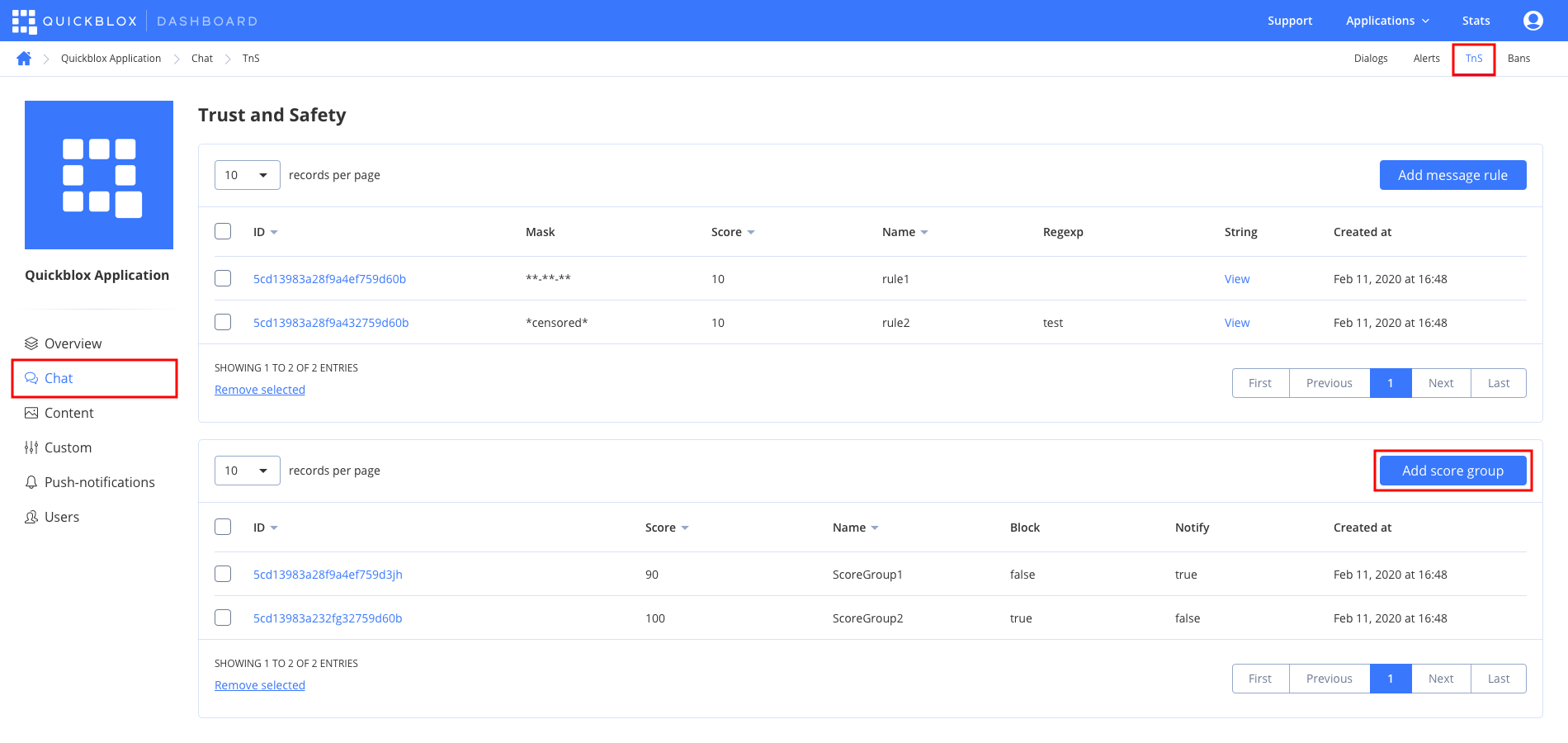 1. Enter the name of the score group into the **Name** field.
2. Set a score value into the **Score** field. Enter the value from **1** to **100 000** for this field.
The message is blocked by the TnS system if the message score is **more than** or **equals** the group score.
If the message score is **less than** the score group, the words or RegExp are masked by the TnS system. This is the case if the mask was set.
1. Click the **Save rule** button.
1. Enter the name of the score group into the **Name** field.
2. Set a score value into the **Score** field. Enter the value from **1** to **100 000** for this field.
The message is blocked by the TnS system if the message score is **more than** or **equals** the group score.
If the message score is **less than** the score group, the words or RegExp are masked by the TnS system. This is the case if the mask was set.
1. Click the **Save rule** button.
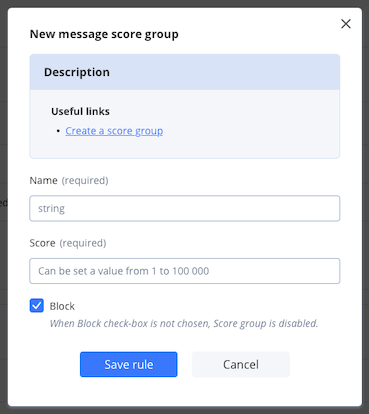 A **Block** option enables the score group. This means that blocking functionality is up and running. Thus, if a message is blocked, it isn't delivered to the recipient.
The score group with the lowest score value has the highest priority.
### How message score is calculated
A message score is a score assigned to a message based on the [rule score](/docs/chat-moderation#add-a-rule). If there are several inappropriate words in the message, a total score of all words is calculated.
*Example 1:*
An inappropriate word is repeated 3 times in a single message. According to the message rule, this word is given 2 scores. However, since it is repeated 3 times, the total message score equals 6.
*Example 2:*
There are 2 inappropriate words in a single message. However, these two words come from different rules. One word is assigned 3 scores and another word is assigned 2 scores according to different rules. Thus, the total message score equals 5.
### How it works
Once you've set a message rule and score group, let's check how message blocking/masking functionality works:
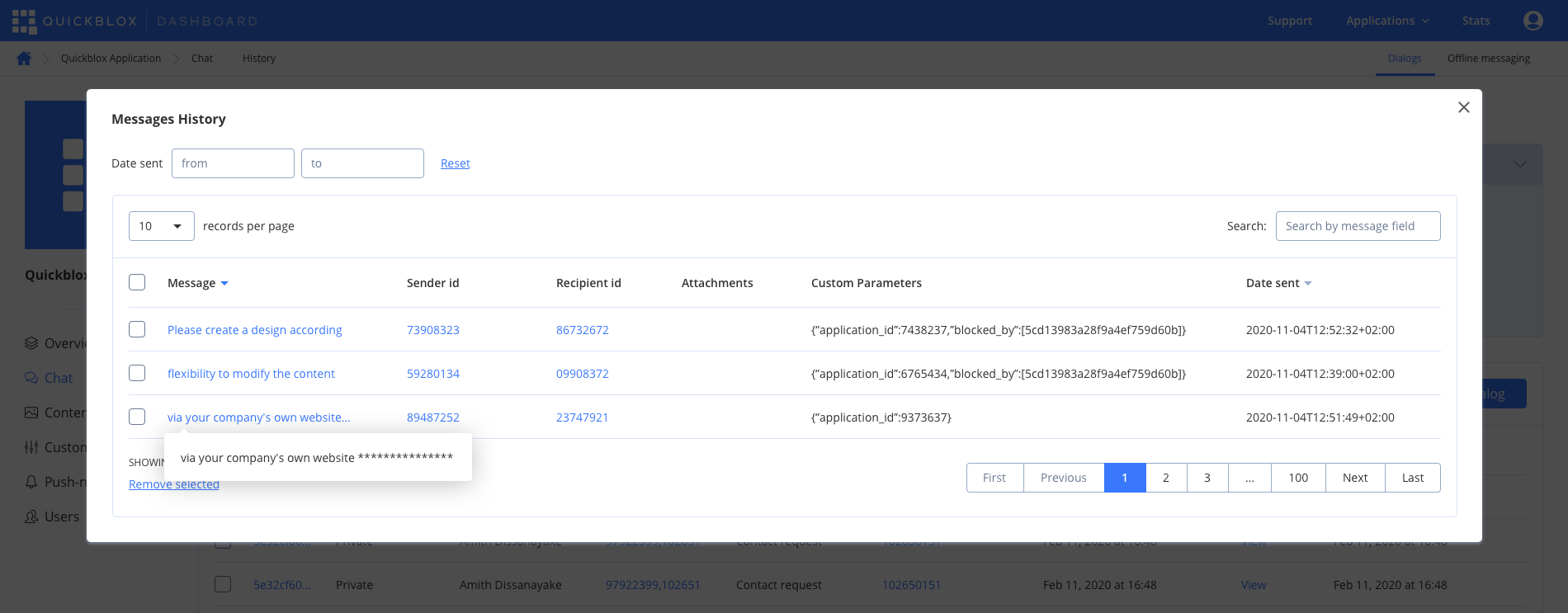
1. Send a message with an inappropriate word which score is less than the value set in the score group.
2. Go to the **Chat** tab and click the **view** button in the **History** column for the required dialog. You can see the **Messages History** pop-up showing that the message is masked and is received by the recipient.
A **Block** option enables the score group. This means that blocking functionality is up and running. Thus, if a message is blocked, it isn't delivered to the recipient.
The score group with the lowest score value has the highest priority.
### How message score is calculated
A message score is a score assigned to a message based on the [rule score](/docs/chat-moderation#add-a-rule). If there are several inappropriate words in the message, a total score of all words is calculated.
*Example 1:*
An inappropriate word is repeated 3 times in a single message. According to the message rule, this word is given 2 scores. However, since it is repeated 3 times, the total message score equals 6.
*Example 2:*
There are 2 inappropriate words in a single message. However, these two words come from different rules. One word is assigned 3 scores and another word is assigned 2 scores according to different rules. Thus, the total message score equals 5.
### How it works
Once you've set a message rule and score group, let's check how message blocking/masking functionality works:
1. Send a message with an inappropriate word which score is less than the value set in the score group.
2. Go to the **Chat** tab and click the **view** button in the **History** column for the required dialog. You can see the **Messages History** pop-up showing that the message is masked and is received by the recipient.
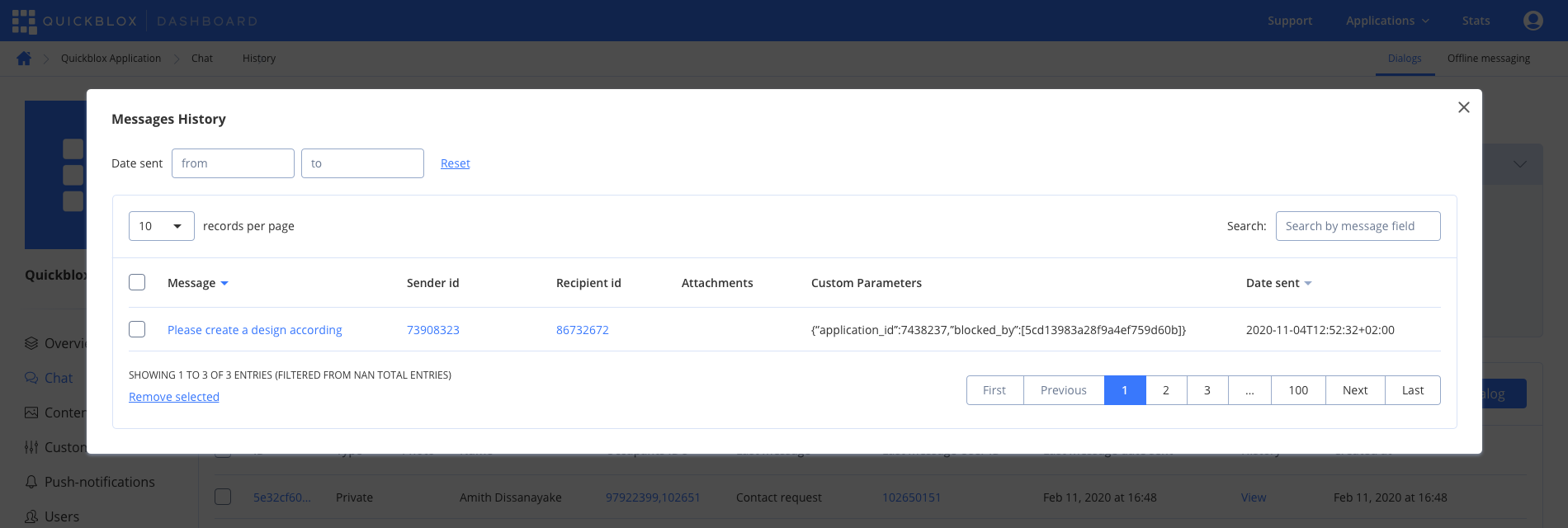
 1. Send a message with an inappropriate word which score is more than or equals the value set in the score group.
2. Go to the **Chat** tab and click the **view** in the **History** column for the required dialog. You can see the **Messages History** pop-up showing that the message is displayed with the **blocked\_by=\** custom parameter and is not delivered to the recipient.
1. Send a message with an inappropriate word which score is more than or equals the value set in the score group.
2. Go to the **Chat** tab and click the **view** in the **History** column for the required dialog. You can see the **Messages History** pop-up showing that the message is displayed with the **blocked\_by=\** custom parameter and is not delivered to the recipient.
 ## Ban user
You can ban a user account so the user can no longer connect to the chat. If a banned user tries to connect to chat, the system returns an error saying: “You are banned. Please contact your app customer support.”
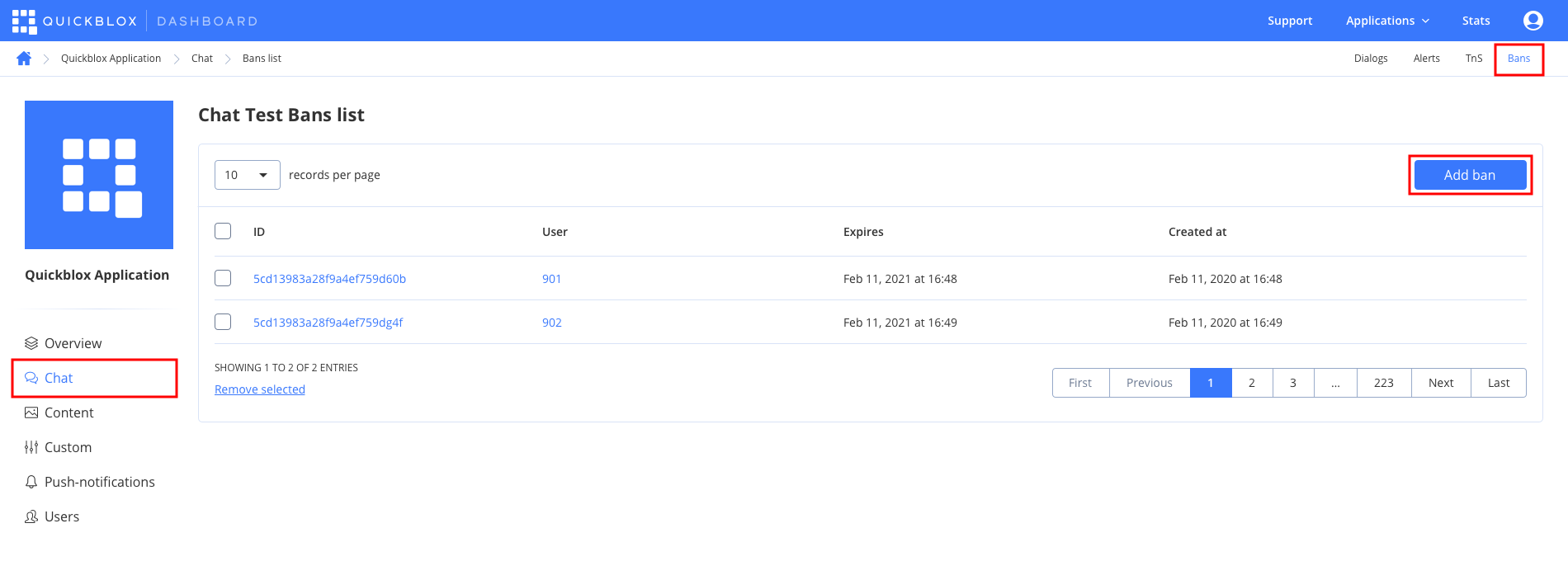
1. Go to the **Dashboard => *YOUR\_APP* => Chat => Bans** tab. Click the **Add ban** button.
## Ban user
You can ban a user account so the user can no longer connect to the chat. If a banned user tries to connect to chat, the system returns an error saying: “You are banned. Please contact your app customer support.”
1. Go to the **Dashboard => *YOUR\_APP* => Chat => Bans** tab. Click the **Add ban** button.
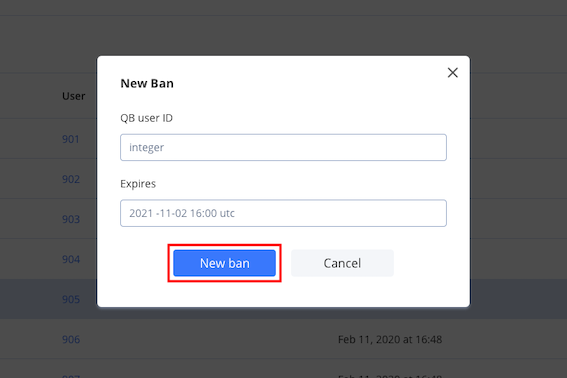
 1. Enter the user ID that is going to be banned into the **QB User ID** field.
2. Enter the ban expiration date into the **Expires** field.
3. Click the **New ban** button.
1. Enter the user ID that is going to be banned into the **QB User ID** field.
2. Enter the ban expiration date into the **Expires** field.
3. Click the **New ban** button.