> ## Documentation Index
> Fetch the complete documentation index at: https://docs.quickblox.com/llms.txt
> Use this file to discover all available pages before exploring further.
# Content
> Learn how to store and access files with QuickBlox file storage.
On this page, you will learn how to manage QuickBlox file storage using the Dashboard. QuickBlox file storage allows storing media files such as photos, video, documents, etc.
Visit [Key Concepts](/docs/key-concepts) page to learn the most important QuickBlox concepts.
## View list of files
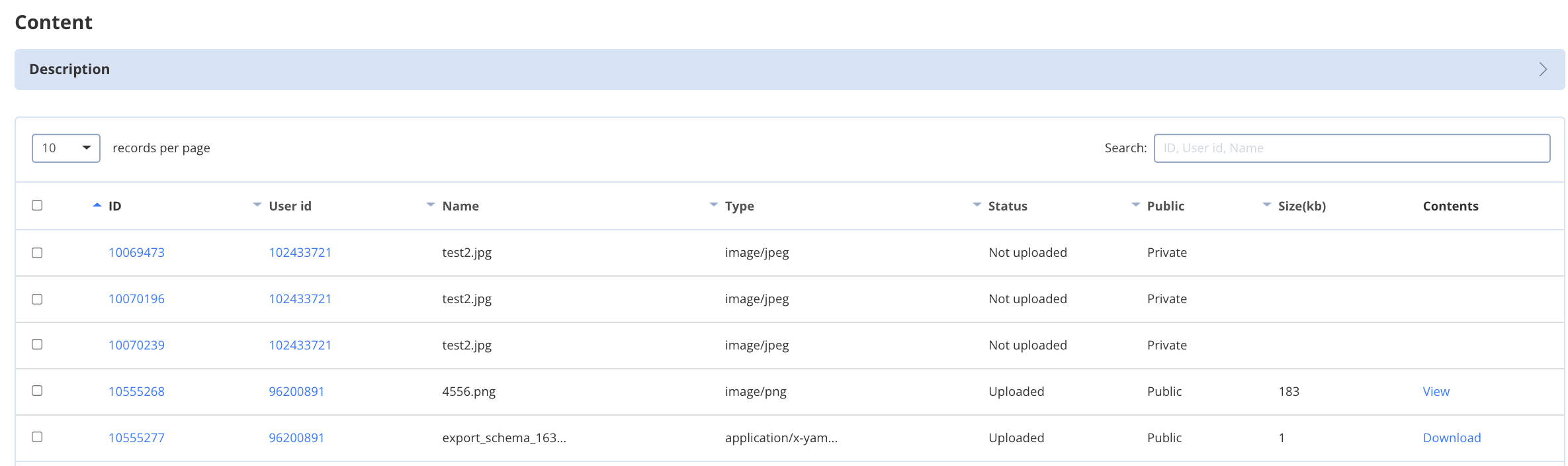
To view a list of files, follow the steps below:
1. Navigate to the **Dashboard => *YOUR\_APP* => Content** page. Here, you will see a list of uploaded files.
2. Use a **Search** area to display a file/files by file ID, user ID, or file name.
 ## Upload file
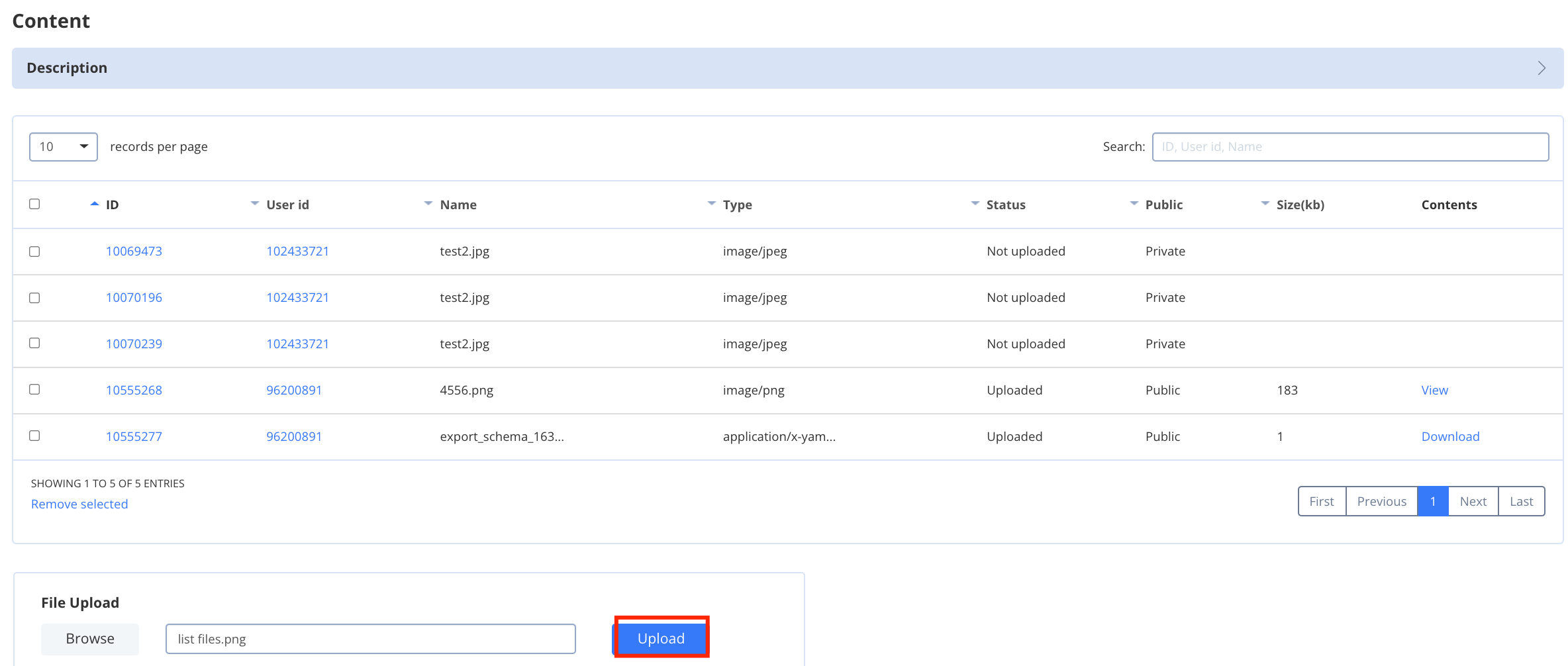
To upload a file to the file storage, follow the steps below:
1. Navigate to the **Dashboard => *YOUR\_APP* => Content** page. Here, you will see a list of uploaded files.
2. Click the **Browse** button and choose the file to be uploaded.
3. Click the **Upload** button.
## Upload file
To upload a file to the file storage, follow the steps below:
1. Navigate to the **Dashboard => *YOUR\_APP* => Content** page. Here, you will see a list of uploaded files.
2. Click the **Browse** button and choose the file to be uploaded.
3. Click the **Upload** button.
 The maximum size of the uploaded file depends on the membership plan.
| Basic | Startup | Growth | HIPAA | Enterprise | |
| --------------- | ------- | ------ | ----- | ---------- | --------------------------------------------------------------- |
| File size limit | 10 Mb | 25 Mb | 50Mb | 50Mb | [Contact our sales team](https://quickblox.com/enterprise/#get) |
## Download file
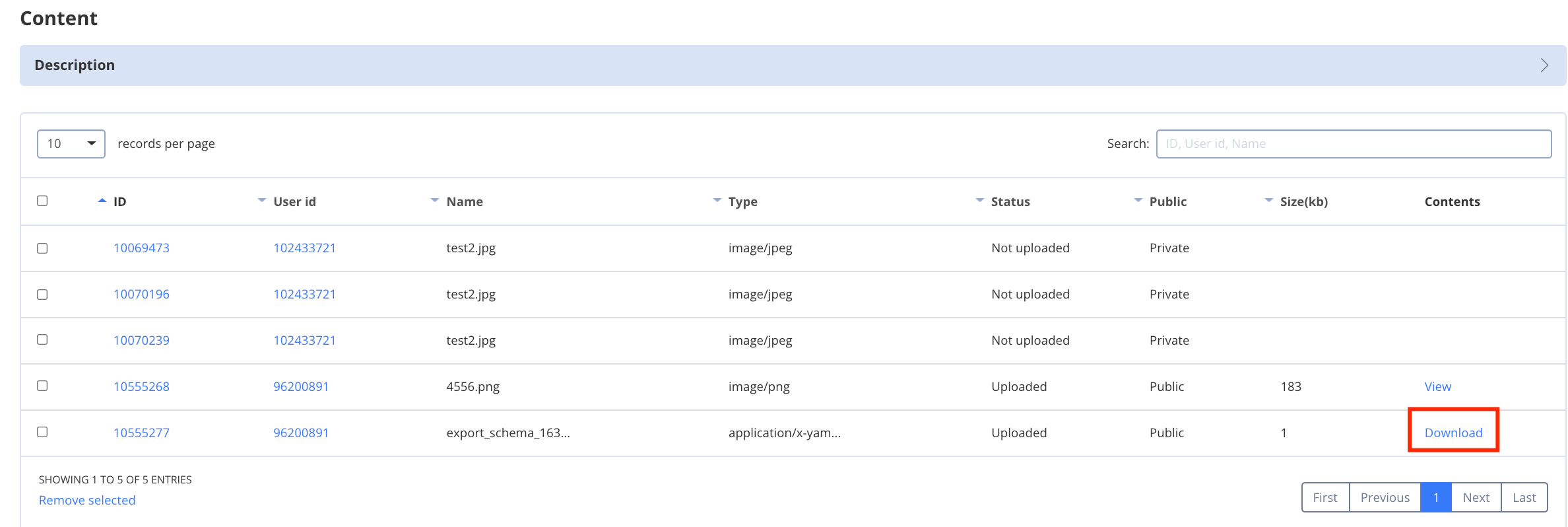
To download a file, follow the steps below:
1. Navigate to the **Dashboard => *YOUR\_APP* => Content** page. Here, you will see a list of uploaded files.
2. Choose a file you want to download.
3. Click the **Download** button in the **Contents** column for this file.
To download a graphic file:
1. Click the **View** button.
2. Right-click on the image.
3. Click the **Save image as** menu item.
The maximum size of the uploaded file depends on the membership plan.
| Basic | Startup | Growth | HIPAA | Enterprise | |
| --------------- | ------- | ------ | ----- | ---------- | --------------------------------------------------------------- |
| File size limit | 10 Mb | 25 Mb | 50Mb | 50Mb | [Contact our sales team](https://quickblox.com/enterprise/#get) |
## Download file
To download a file, follow the steps below:
1. Navigate to the **Dashboard => *YOUR\_APP* => Content** page. Here, you will see a list of uploaded files.
2. Choose a file you want to download.
3. Click the **Download** button in the **Contents** column for this file.
To download a graphic file:
1. Click the **View** button.
2. Right-click on the image.
3. Click the **Save image as** menu item.
 ## Delete file
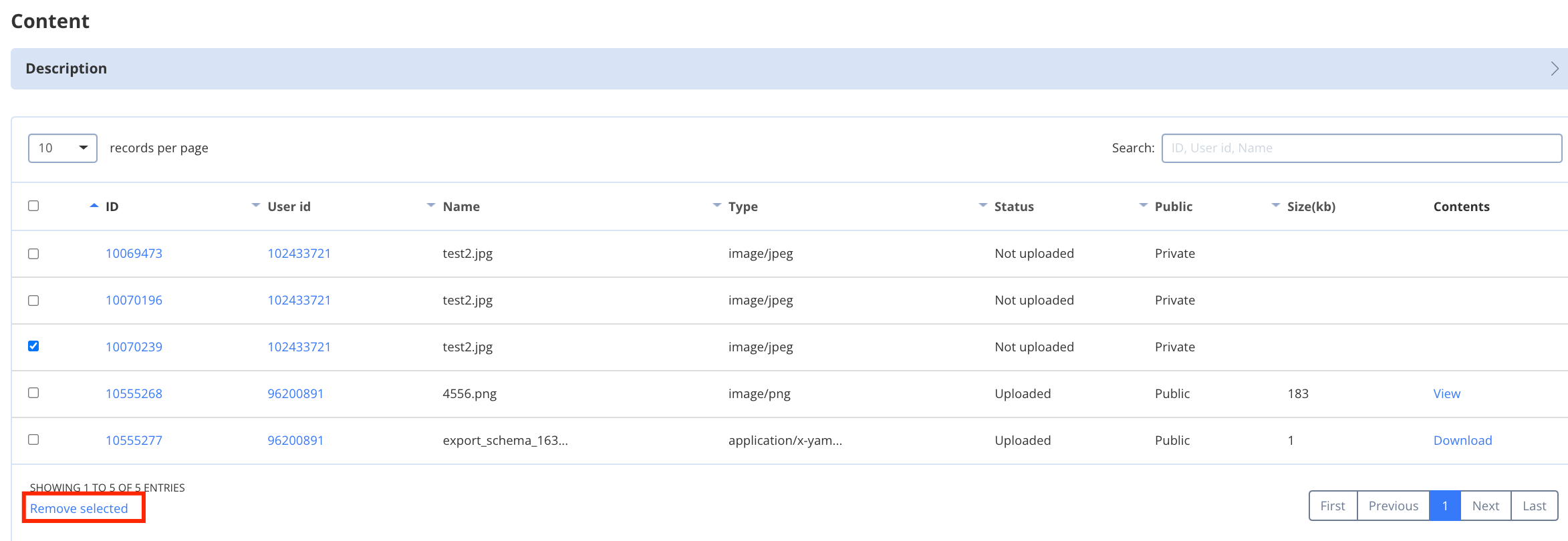
To delete a file, follow the steps below:
1. Navigate to the **Dashboard => *YOUR\_APP* => Content** page. Here, you will see a list of uploaded files.
2. Check the file/files you want to delete.
3. Click the **Remove selected** button.
## Delete file
To delete a file, follow the steps below:
1. Navigate to the **Dashboard => *YOUR\_APP* => Content** page. Here, you will see a list of uploaded files.
2. Check the file/files you want to delete.
3. Click the **Remove selected** button.