> ## Documentation Index
> Fetch the complete documentation index at: https://docs.quickblox.com/llms.txt
> Use this file to discover all available pages before exploring further.
# Data Export
> Learn how to export data from the Dashboard.
This feature is available for customers on the Enterprise plan only. Take advantage of Enterprise features to unlock new value and opportunities for users. For more information and if you want to request a Demo, please contact us by mail: [enterprise@quickblox.com](mailto:enterprise@quickblox.com.).
Users should be able to retrieve and reuse their personal data for their own purposes in different services. Therefore, we provide a possibility to export data in a format that can be read and imported into any program.
Visit [Key Concepts](/docs/key-concepts) page to learn the most important QuickBlox concepts.
## Export users
To export users data, follow the steps below:
1. Navigate to the **Dashboard => *YOUR\_APP* => Users** page. Here you can see a list of users.
2. Check users you want to export or leave them unchecked if you want export data of all users.
3. Click the **Export selected** button. You also can export all users by clicking the **Export all** button. As a result, the data are exported in CSV format.
 ## Export dialogs history
To export the history of dialogs, follow the steps below:
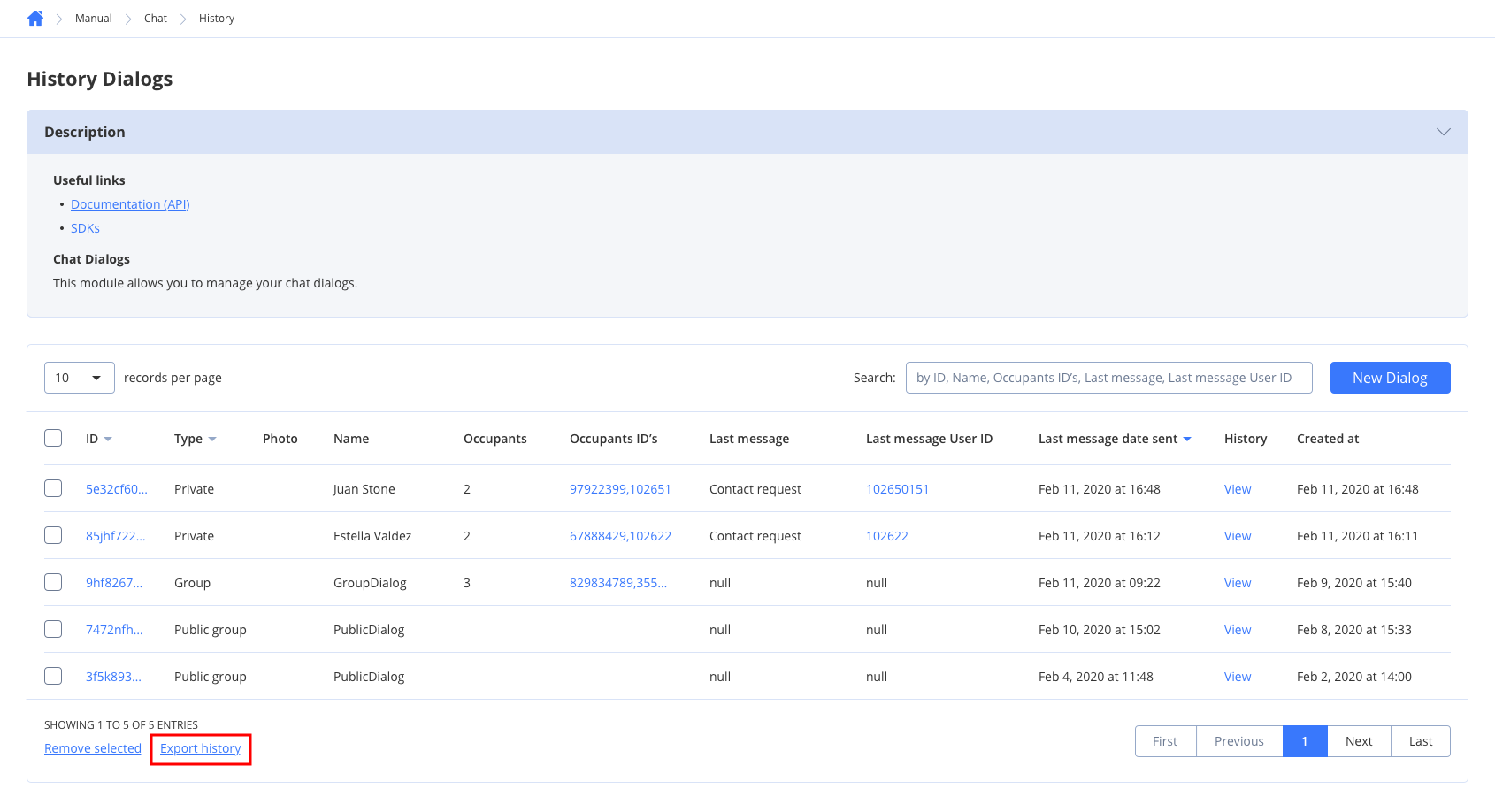
1. Navigate to the **Dashboard => *YOUR\_APP* => Chat** page. Here you can see a list of dialogs.
2. Check the dialogs if you want to export chat history for particular dialogs or leave them unchecked if you want to export chat history for all dialogs.
3. Click the **Export history** button. As a result, the data are exported in CSV format.
## Export dialogs history
To export the history of dialogs, follow the steps below:
1. Navigate to the **Dashboard => *YOUR\_APP* => Chat** page. Here you can see a list of dialogs.
2. Check the dialogs if you want to export chat history for particular dialogs or leave them unchecked if you want to export chat history for all dialogs.
3. Click the **Export history** button. As a result, the data are exported in CSV format.
 ## Export custom objects
To export custom objects, follow the steps below:
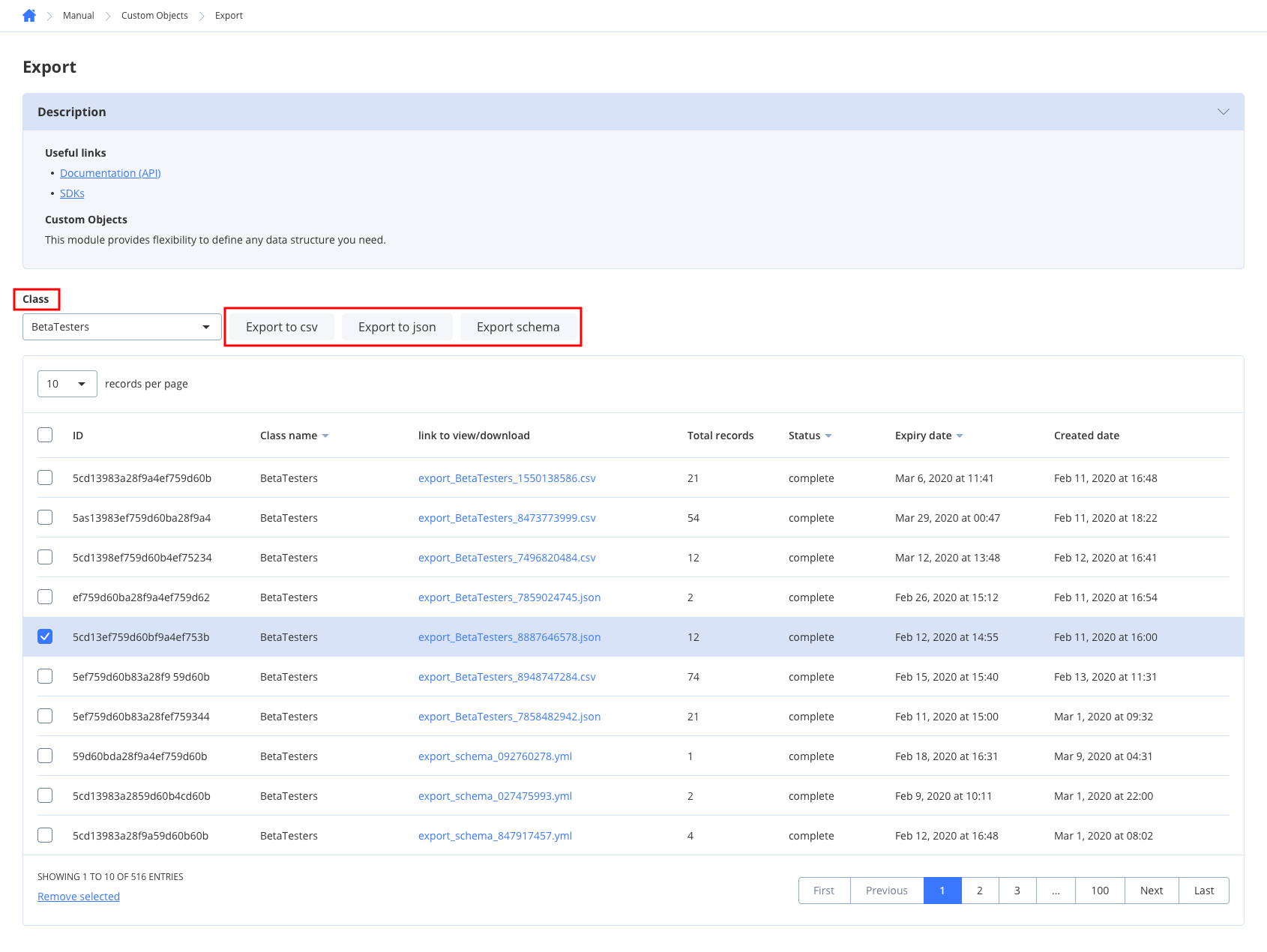
1. Navigate to the **Dashboard => *YOUR\_APP* => Custom => Export** page.
2. Choose a class in the **Class** dropdown to list records of a particular class.
3. Export custom objects in either of three ways:
* **Export to csv** - allows exporting class records in CSV format.
* **Export to json** - allows exporting class records in JSON format.
- **Export schema** - allows exporting class schema in YML format.
## Export custom objects
To export custom objects, follow the steps below:
1. Navigate to the **Dashboard => *YOUR\_APP* => Custom => Export** page.
2. Choose a class in the **Class** dropdown to list records of a particular class.
3. Export custom objects in either of three ways:
* **Export to csv** - allows exporting class records in CSV format.
* **Export to json** - allows exporting class records in JSON format.
- **Export schema** - allows exporting class schema in YML format.
 ## Export profile data
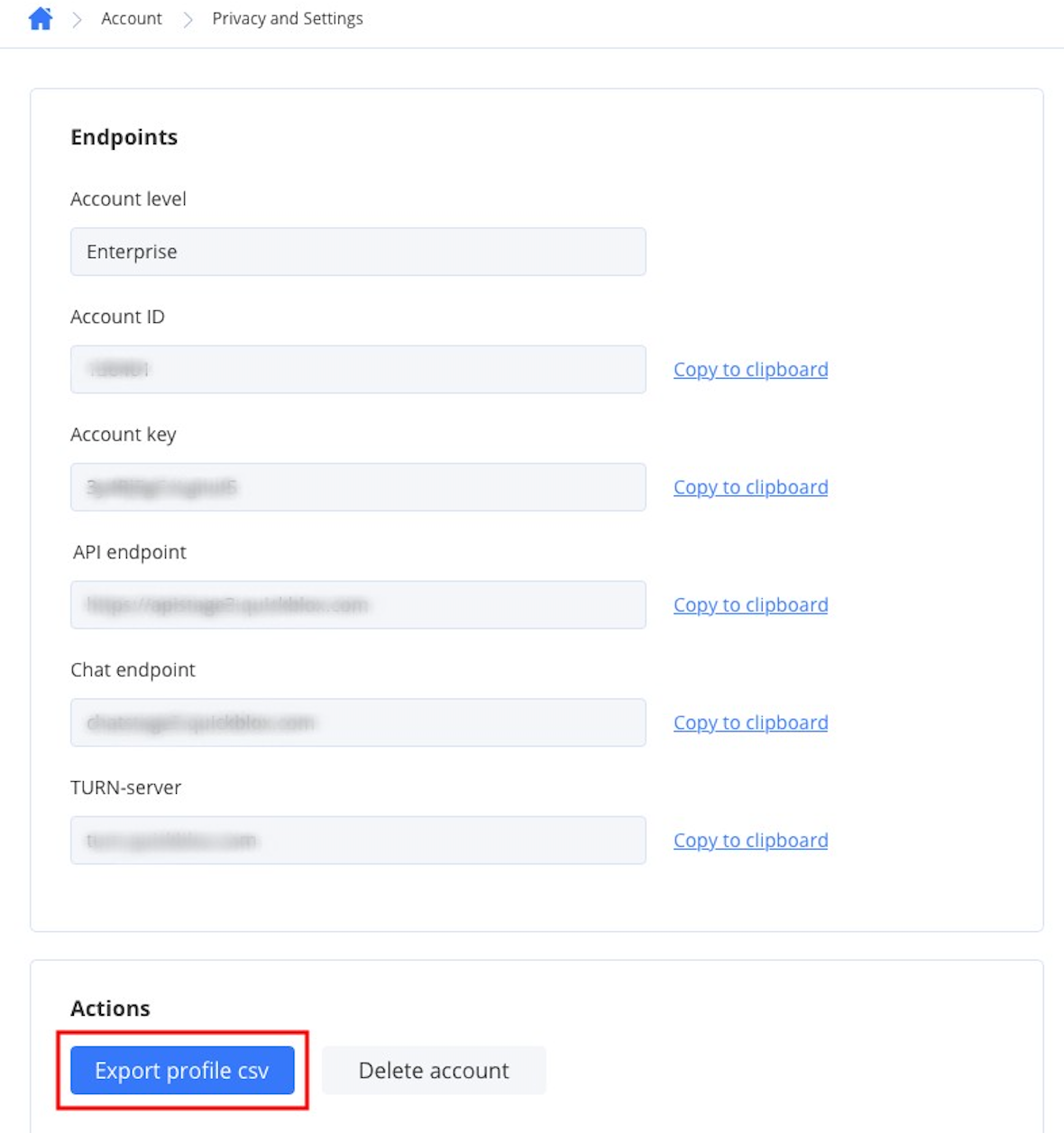
To export the profile data, follow the steps below:
1. Navigate to the **Dashboard => *YOUR\_APP* => Account settings => Privacy and Settings => Actions** section.
2) Click the **Export profile csv** to export data in CSV format.
## Export profile data
To export the profile data, follow the steps below:
1. Navigate to the **Dashboard => *YOUR\_APP* => Account settings => Privacy and Settings => Actions** section.
2) Click the **Export profile csv** to export data in CSV format.