> ## Documentation Index
> Fetch the complete documentation index at: https://docs.quickblox.com/llms.txt
> Use this file to discover all available pages before exploring further.
# Dashboard
To start using Custom Objects module, create a class:
1. Go to [QuickBlox Dashboard](https://admin.quickblox.com/signin).
2. Follow **Custom Objects => Add new class** direction. As a result, **Add new class** popup will appear.
3. Enter a class name, add any fields you want.
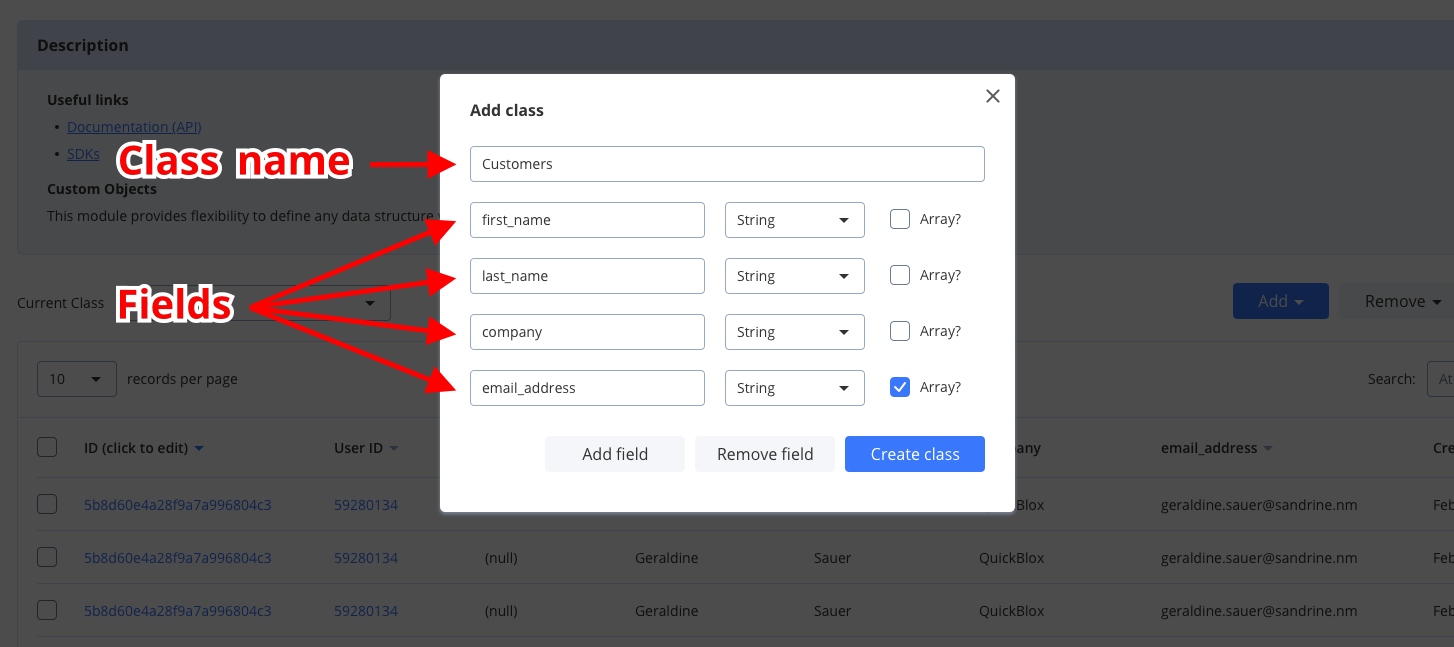 4. Click **Create class button** and a new class will be created.
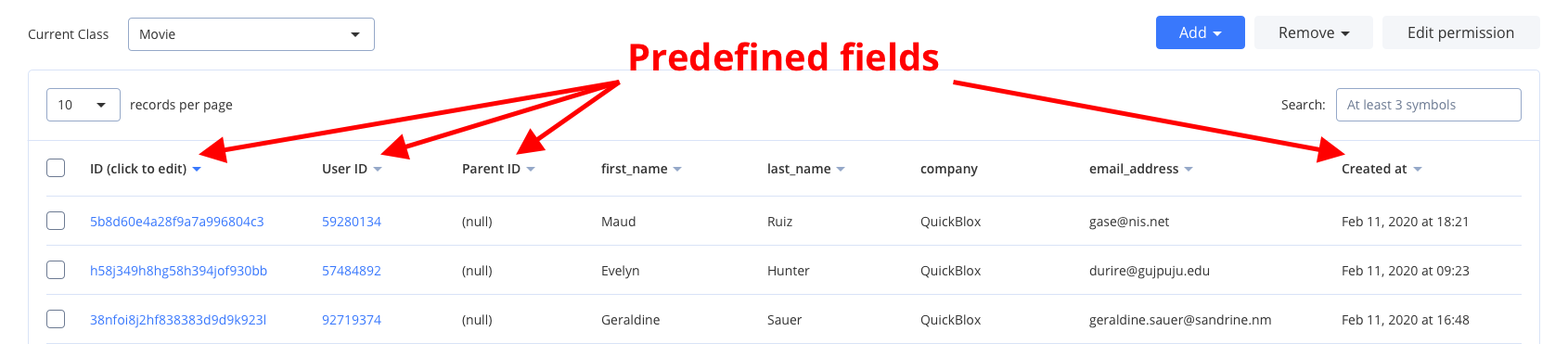 To add a record, do the following:
1. Click **Add record** button and **Add new record** popup will appear
2. Fill any fields you want.
3. Click **Add record button** and a new record will be added and shown in the table.
To add a record, do the following:
1. Click **Add record** button and **Add new record** popup will appear
2. Fill any fields you want.
3. Click **Add record button** and a new record will be added and shown in the table.