> ## Documentation Index
> Fetch the complete documentation index at: https://docs.quickblox.com/llms.txt
> Use this file to discover all available pages before exploring further.
# Custom Objects
> Learn how to store and sync data with QuickBlox key-value storage.
Custom Objects module provides flexibility to define any data structure (schema) you need, build one-to-many relations between schemas and control permissions for all operations made on data. Schema is defined in QuickBlox Dashboard.
There are two key concepts in Custom Objects:
* **Class** represents your schema and contains field names and types.
* **Record** represents the data you put into your schema.
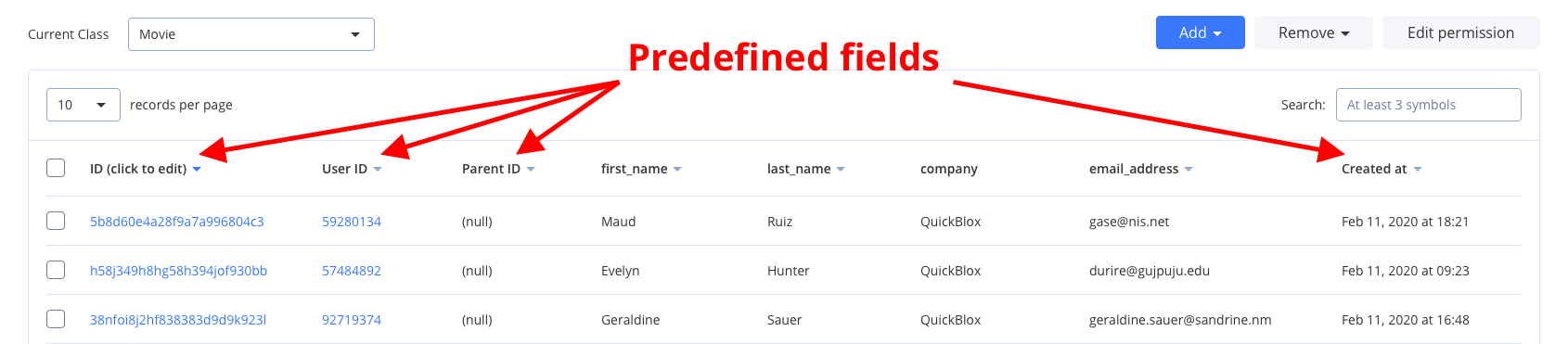
**Class** and **Record** are similar to table and row in relational database. Every class in Custom Object module comes with five mandatory predefined fields: `_id`, `user_id`, `parent_id`, `created_at`, and `updated_at`.
Allowed data types: **Integer** (or Array of Integer); **String** (or Array of String); **Float** (or Array of Float); **Boolean** (or Array of Boolean); **Location** (Array of \[, ]); **File**; **Date**.
Visit [Key Concepts](/docs/key-concepts) page to learn the most important QuickBlox concepts.
## Before you begin
1. Register a [QuickBlox account](https://admin.quickblox.com/signin). This is a matter of a few minutes and you will be able to use this account to build your apps.
2. Configure QuickBlox SDK for your app. Check out [Setup](/sdks/flutter-setup) page for more details.
3. Create a user session to be able to use QuickBlox functionality. See [Authentication](/sdks/flutter-authentication) page to learn how to do it.
## Create class
To start using Custom Objects module, create a class:
1. Go to [QuickBlox Dashboard](https://admin.quickblox.com/signin).
2. Follow **Custom => Add => Add new class** direction. As a result, **Add new class** popup will appear.
3. Enter a class name, add any fields you want.
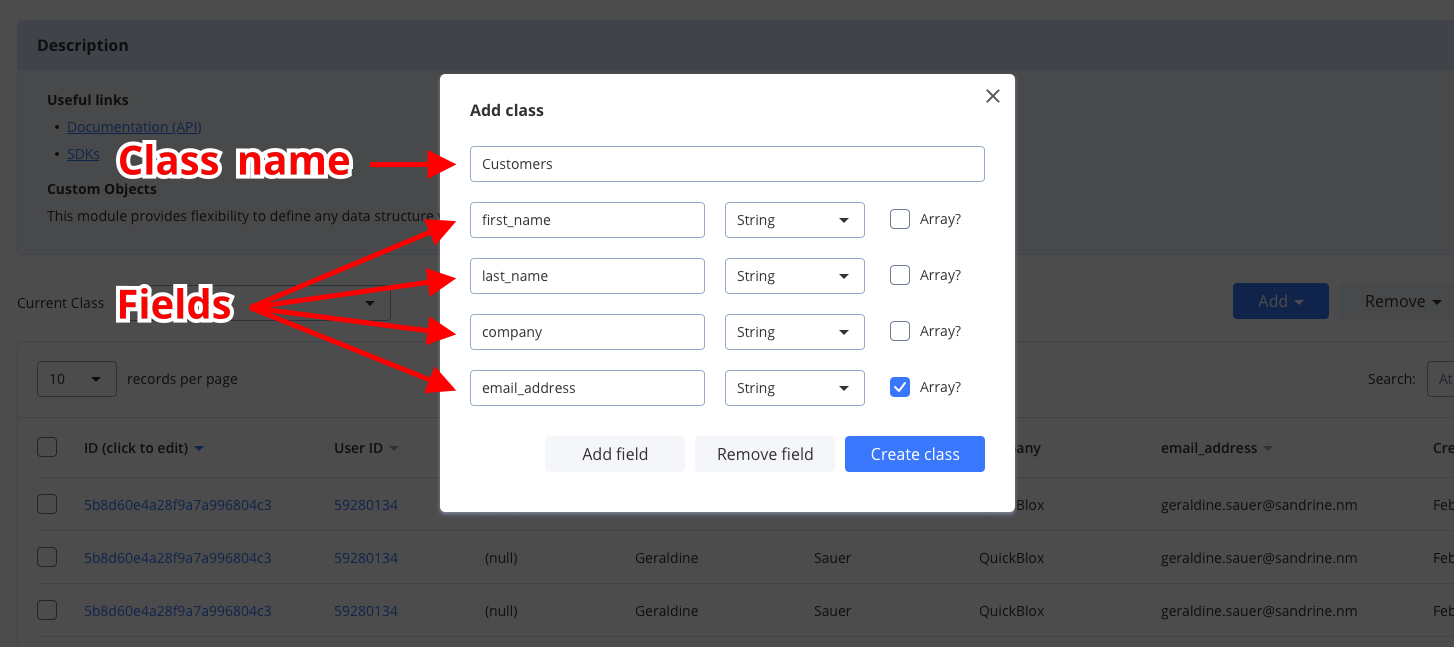 1. Click **Create class button** to create a new class.
 ## Create records
The easiest way to create a new record from the [QuickBlox Dashboard](https://admin.quickblox.com/signin), do the following:
1. Follow **Custom => Current class => Your Class** direction.
2. Click **Add => Add record** button and **Add new record** popup will appear.
3. Fill in any fields you want.
4. Click **Add record button** and a new record will be added and shown in the table.
To create a single object, use the code snippet below.
```Dart Dart theme={null}
String className = "TestFlutterClass";
Map fieldsMap = Map();
fieldsMap['testString'] = "testField";
fieldsMap['testInteger'] = 123;
fieldsMap['testBoolean'] = true;
try {
List customObjects = await QB.data.create(className: className, fields: fieldsMap);
} on PlatformException catch (e) {
// Some error occurred, look at the exception message for more details
}
```
| Argument | Required | Description |
| --------- | -------- | ----------------------------------- |
| className | no | Name of a custom object class. |
| fields | no | Data fields (Map\). |
To create a multiple objects, use the code snippet below.
```Dart Dart theme={null}
Map fieldsMapOne = Map();
fieldsMapOne['testString'] = "testField1";
fieldsMapOne['testInteger'] = 123;
fieldsMapOne['testBoolean'] = true;
Map fieldsMapTwo = Map();
fieldsMapTwo['testString'] = "testField2";
fieldsMapTwo['testInteger'] = 456;
fieldsMapTwo['testBoolean'] = false;
List> objectsList = new List();
objectsList.add(fieldsMapOne);
objectsList.add(fieldsMapTwo);
String className = "TestFlutterClass";
try {
List customObjects = await QB.data.create(className: className, objects: objectsList);
} on PlatformException catch (e) {
// Some error occurred, look at the exception message for more details
}
```
| Argument | Required | Description |
| --------- | -------- | -------------------------------------------------- |
| className | no | Name of a custom object class. |
| objects | no | Custom objects list (List\>). |
## Retrieve records by IDs
To get records with a particular record ID, use the `getByIds()` method. Set the record ID using the `ids` object. Go over [Sort operators](/sdks/flutter-custom-objects#sort-operators) and [Search operators](/sdks/flutter-custom-objects#search-operators) sections to learn about filters and search operators you can use to retrieve records.
```Dart Dart theme={null}
String className = "TestFlutterClass";
List ids = ["5d4175afa0eb4715cae5b63f", "5d4175afa0eb4715cae99783"];
try {
List customObjects = await QB.data.getByIds(className, ids);
} on PlatformException catch (e) {
// Some error occurred, look at the exception message for more details
}
```
| Argument | Required | Description |
| --------- | -------- | ------------------------------ |
| className | yes | Name of a custom object class. |
| ids | yes | Custom objects IDs. |
## Retrieve records
You can search for records of a particular class. The request below will return records of the `TestFlutterClass` class with the `version` field containing `1000` value, sorted by the `created_at` field in descending order, limited to 50 records on the page, and with 10 records skipped at the beginning.
```Dart Dart theme={null}
String className = "TestFlutterClass";
QBFilter filter = QBFilter();
filter.operator = QBCustomObjectsStringSearchTypes.CTN;
filter.value = "1000";
filter.type = QBCustomObjectsFilterTypes.STRING;
filter.field = "version";
QBSort sort = new QBSort();
sort.ascending = false;
sort.field = "created_at";
int limit = 50;
int skip = 10;
try {
List customObjects = await QB.data.get(className, sort: sort, filter: filter, limit: limit, skip: skip);
} on PlatformException catch (e) {
// Some error occurred, look at the exception message for more details
}
```
| Argument | Required | Description |
| -------- | -------- | ------------------------------------------------------------------------------------------- |
| sort | no | Specifies sorting criteria for the field. |
| filter | no | Specifies filtering criteria for the field. |
| skip | no | Skip N records in search results. Useful for pagination. Default (if not specified): **0**. |
| limit | no | Limit search results to N records. Useful for pagination. Default value: **100**. |
If you want to retrieve only records updated after some specific date time and order the search results, you can apply operators. Thus, you can apply [search](/sdks/flutter-custom-objects#search-operators) and [sort](/sdks/flutter-custom-objects#sort-operators) operators to the list of records on the page so that it is easier to view specific records.
### Search operators
You can use search operators to get more specific search results. The request below will return records of the `FlutterTestClass` class by the `flutterTestField` field with a value greater than `10`.
```Dart Dart theme={null}
try {
String className = "FlutterTestClass";
QBFilter filter = QBFilter();
filter.operator = QBCustomObjectsIntegerSearchTypes.GT;
filter.value = "10";
filter.field = "flutterTestField";
List customObjects = await QB.data.get(className, filter: filter);
} on PlatformException catch (e) {
// Some error occurred, look at the exception message for more details
}
```
Here are the search operators that you can use to search for the exact data that you need.
| Search operators | Applicable to types | Description |
| ---------------- | ------------------------------- | ---------------------------------------------------- |
| lt | integer, float | **Less Than** operator. |
| lte | integer, float | **Less Than** or **Equal** to operator. |
| gt | integer, float | **Greater Than** operator. |
| gte | integer, float | **Greater Than** or **Equal** to operator. |
| ne | integer, float, string, boolean | **Not Equal** to operator. |
| in | integer, float, string | **IN** array operator. |
| or | integer, float, string | All records that contain a value 1 **or** value 2. |
| nin | integer, float, string | Not **IN** array operator. |
| all | array | **ALL** are contained in array. |
| ctn | string | All records that **contain** a particular substring. |
### Sort operators
You can use sort operators to order the search results. The request below will return records of the `FlutterTestClass` class sorted by the `flutterTestField` field in descending order.
```Dart Dart theme={null}
try {
String className = "FlutterTestClass";
QBSort sort = QBSort();
sort.field = "flutterTestField";
sort.ascending = false;
List customObjects = await QB.data.get(className, sort: sort);
} on PlatformException catch (e) {
// Some error occurred, look at the exception message for more details
}
```
Here are the sort options that you can use to order the search results.
| Sort options | Aplicable to types | Description |
| ------------ | ------------------ | ------------------------------------------------------------------- |
| ascending | All types | Sort results in ascending order by setting the ascending as true. |
| descending | All types | Sort results in descending order by setting the ascending as false. |
## Update records
To update a single record with a particular record ID, use the code snippet below.
```Dart Dart theme={null}
String className = "TestFlutterClass";
String id = "5d4175afa0eb4715cae5b63f";
Map fieldsMap = Map();
fieldsMap['testString'] = "testField1";
fieldsMap['testInteger'] = 123;
fieldsMap['testBoolean'] = true;
try {
List customObjects = await QB.data.update(className, id: id, fields: fieldsMap);
} on PlatformException catch (e) {
// Some error occurred, look at the exception message for more details
}
```
| Argument | Required | Description |
| --------- | -------- | ------------------------------ |
| className | yes | Name of a custom object class. |
| id | no | Custom object ID. |
| fields | no | List of updating fields. |
You can update multiple records using the code snippet below.
```Dart Dart theme={null}
String className = "TestFlutterClass";
Map fieldsMapOne = Map();
fieldsMapOne['testString'] = "testField1";
fieldsMapOne['testInteger'] = 123;
fieldsMapOne['testBoolean'] = true;
Map fieldsMapTwo = Map();
fieldsMapTwo['testString'] = "testField2";
fieldsMapTwo['testInteger'] = 456;
fieldsMapTwo['testBoolean'] = false;
List> objectsList = new List();
objectsList.add(fieldsMapOne);
objectsList.add(fieldsMapTwo);
try {
List customObjects = await QB.data.update(className, objects: objectsList);
} on PlatformException catch (e) {
// Some error occurred, look at the exception message for more details
}
```
| Argument | Required | Description |
| --------- | -------- | ------------------------------------------- |
| className | yes | Name of a custom object class. |
| objects | no | Custom objects list (Map\). |
## Delete records
To delete a single record, use the code snippet below.
```Dart Dart theme={null}
String className = "TestFlutterClass";
List ids = ["5d4175afa0eb4715cae5b63f"];
try {
await QB.data.remove(className, ids);
} on PlatformException catch (e) {
// Some error occurred, look at the exception message for more details
}
```
| Argument | Required | Description |
| --------- | -------- | ---------------------------------------- |
| className | yes | Name of a custom object class. |
| idsList | yes | Custom objects IDs list (List\). |
To delete a multiple records, use the code snippet below.
```Dart Dart theme={null}
String className = "TestFlutterClass";
List ids = ["5d4175afa0eb4715cae5b63f", "5d4175afa0eb4715cae99783"];
try {
await QB.data.remove(className, ids);
} on PlatformException catch (e) {
// Some error occurred, look at the exception message for more details
}
```
| Argument | Required | Description |
| --------- | -------- | ---------------------------------------- |
| className | yes | Name of a custom object class. |
| idsList | yes | Custom objects IDs list (List\). |
## Relations
It is possible to create a relation between objects of **two different classes** via `_parent_id` field.
For example, we have the class **Rating** that contains `score`, `review`, and `comment` fields. We also have a **Movie** class. So we can create a record of class **Rating** that will point to the record of the class **Movie** via its `_parent_id` field, so the `_parent_id` field will contain the ID of record from class **Movie**.
This is not a simple soft link. This is actually a **hard link**. When you delete the **Movie** class record then all its children (records of class **Rating** with `_parent_id` field set to the **Movie** class record ID) will be automatically **deleted** as well.
If you need to retrieve all children, you can retrieve records with the filter `_parent_id=`.
## Create records
The easiest way to create a new record from the [QuickBlox Dashboard](https://admin.quickblox.com/signin), do the following:
1. Follow **Custom => Current class => Your Class** direction.
2. Click **Add => Add record** button and **Add new record** popup will appear.
3. Fill in any fields you want.
4. Click **Add record button** and a new record will be added and shown in the table.
To create a single object, use the code snippet below.
```Dart Dart theme={null}
String className = "TestFlutterClass";
Map fieldsMap = Map();
fieldsMap['testString'] = "testField";
fieldsMap['testInteger'] = 123;
fieldsMap['testBoolean'] = true;
try {
List customObjects = await QB.data.create(className: className, fields: fieldsMap);
} on PlatformException catch (e) {
// Some error occurred, look at the exception message for more details
}
```
| Argument | Required | Description |
| --------- | -------- | ----------------------------------- |
| className | no | Name of a custom object class. |
| fields | no | Data fields (Map\). |
To create a multiple objects, use the code snippet below.
```Dart Dart theme={null}
Map fieldsMapOne = Map();
fieldsMapOne['testString'] = "testField1";
fieldsMapOne['testInteger'] = 123;
fieldsMapOne['testBoolean'] = true;
Map fieldsMapTwo = Map();
fieldsMapTwo['testString'] = "testField2";
fieldsMapTwo['testInteger'] = 456;
fieldsMapTwo['testBoolean'] = false;
List> objectsList = new List();
objectsList.add(fieldsMapOne);
objectsList.add(fieldsMapTwo);
String className = "TestFlutterClass";
try {
List customObjects = await QB.data.create(className: className, objects: objectsList);
} on PlatformException catch (e) {
// Some error occurred, look at the exception message for more details
}
```
| Argument | Required | Description |
| --------- | -------- | -------------------------------------------------- |
| className | no | Name of a custom object class. |
| objects | no | Custom objects list (List\>). |
## Retrieve records by IDs
To get records with a particular record ID, use the `getByIds()` method. Set the record ID using the `ids` object. Go over [Sort operators](/sdks/flutter-custom-objects#sort-operators) and [Search operators](/sdks/flutter-custom-objects#search-operators) sections to learn about filters and search operators you can use to retrieve records.
```Dart Dart theme={null}
String className = "TestFlutterClass";
List ids = ["5d4175afa0eb4715cae5b63f", "5d4175afa0eb4715cae99783"];
try {
List customObjects = await QB.data.getByIds(className, ids);
} on PlatformException catch (e) {
// Some error occurred, look at the exception message for more details
}
```
| Argument | Required | Description |
| --------- | -------- | ------------------------------ |
| className | yes | Name of a custom object class. |
| ids | yes | Custom objects IDs. |
## Retrieve records
You can search for records of a particular class. The request below will return records of the `TestFlutterClass` class with the `version` field containing `1000` value, sorted by the `created_at` field in descending order, limited to 50 records on the page, and with 10 records skipped at the beginning.
```Dart Dart theme={null}
String className = "TestFlutterClass";
QBFilter filter = QBFilter();
filter.operator = QBCustomObjectsStringSearchTypes.CTN;
filter.value = "1000";
filter.type = QBCustomObjectsFilterTypes.STRING;
filter.field = "version";
QBSort sort = new QBSort();
sort.ascending = false;
sort.field = "created_at";
int limit = 50;
int skip = 10;
try {
List customObjects = await QB.data.get(className, sort: sort, filter: filter, limit: limit, skip: skip);
} on PlatformException catch (e) {
// Some error occurred, look at the exception message for more details
}
```
| Argument | Required | Description |
| -------- | -------- | ------------------------------------------------------------------------------------------- |
| sort | no | Specifies sorting criteria for the field. |
| filter | no | Specifies filtering criteria for the field. |
| skip | no | Skip N records in search results. Useful for pagination. Default (if not specified): **0**. |
| limit | no | Limit search results to N records. Useful for pagination. Default value: **100**. |
If you want to retrieve only records updated after some specific date time and order the search results, you can apply operators. Thus, you can apply [search](/sdks/flutter-custom-objects#search-operators) and [sort](/sdks/flutter-custom-objects#sort-operators) operators to the list of records on the page so that it is easier to view specific records.
### Search operators
You can use search operators to get more specific search results. The request below will return records of the `FlutterTestClass` class by the `flutterTestField` field with a value greater than `10`.
```Dart Dart theme={null}
try {
String className = "FlutterTestClass";
QBFilter filter = QBFilter();
filter.operator = QBCustomObjectsIntegerSearchTypes.GT;
filter.value = "10";
filter.field = "flutterTestField";
List customObjects = await QB.data.get(className, filter: filter);
} on PlatformException catch (e) {
// Some error occurred, look at the exception message for more details
}
```
Here are the search operators that you can use to search for the exact data that you need.
| Search operators | Applicable to types | Description |
| ---------------- | ------------------------------- | ---------------------------------------------------- |
| lt | integer, float | **Less Than** operator. |
| lte | integer, float | **Less Than** or **Equal** to operator. |
| gt | integer, float | **Greater Than** operator. |
| gte | integer, float | **Greater Than** or **Equal** to operator. |
| ne | integer, float, string, boolean | **Not Equal** to operator. |
| in | integer, float, string | **IN** array operator. |
| or | integer, float, string | All records that contain a value 1 **or** value 2. |
| nin | integer, float, string | Not **IN** array operator. |
| all | array | **ALL** are contained in array. |
| ctn | string | All records that **contain** a particular substring. |
### Sort operators
You can use sort operators to order the search results. The request below will return records of the `FlutterTestClass` class sorted by the `flutterTestField` field in descending order.
```Dart Dart theme={null}
try {
String className = "FlutterTestClass";
QBSort sort = QBSort();
sort.field = "flutterTestField";
sort.ascending = false;
List customObjects = await QB.data.get(className, sort: sort);
} on PlatformException catch (e) {
// Some error occurred, look at the exception message for more details
}
```
Here are the sort options that you can use to order the search results.
| Sort options | Aplicable to types | Description |
| ------------ | ------------------ | ------------------------------------------------------------------- |
| ascending | All types | Sort results in ascending order by setting the ascending as true. |
| descending | All types | Sort results in descending order by setting the ascending as false. |
## Update records
To update a single record with a particular record ID, use the code snippet below.
```Dart Dart theme={null}
String className = "TestFlutterClass";
String id = "5d4175afa0eb4715cae5b63f";
Map fieldsMap = Map();
fieldsMap['testString'] = "testField1";
fieldsMap['testInteger'] = 123;
fieldsMap['testBoolean'] = true;
try {
List customObjects = await QB.data.update(className, id: id, fields: fieldsMap);
} on PlatformException catch (e) {
// Some error occurred, look at the exception message for more details
}
```
| Argument | Required | Description |
| --------- | -------- | ------------------------------ |
| className | yes | Name of a custom object class. |
| id | no | Custom object ID. |
| fields | no | List of updating fields. |
You can update multiple records using the code snippet below.
```Dart Dart theme={null}
String className = "TestFlutterClass";
Map fieldsMapOne = Map();
fieldsMapOne['testString'] = "testField1";
fieldsMapOne['testInteger'] = 123;
fieldsMapOne['testBoolean'] = true;
Map fieldsMapTwo = Map();
fieldsMapTwo['testString'] = "testField2";
fieldsMapTwo['testInteger'] = 456;
fieldsMapTwo['testBoolean'] = false;
List> objectsList = new List();
objectsList.add(fieldsMapOne);
objectsList.add(fieldsMapTwo);
try {
List customObjects = await QB.data.update(className, objects: objectsList);
} on PlatformException catch (e) {
// Some error occurred, look at the exception message for more details
}
```
| Argument | Required | Description |
| --------- | -------- | ------------------------------------------- |
| className | yes | Name of a custom object class. |
| objects | no | Custom objects list (Map\). |
## Delete records
To delete a single record, use the code snippet below.
```Dart Dart theme={null}
String className = "TestFlutterClass";
List ids = ["5d4175afa0eb4715cae5b63f"];
try {
await QB.data.remove(className, ids);
} on PlatformException catch (e) {
// Some error occurred, look at the exception message for more details
}
```
| Argument | Required | Description |
| --------- | -------- | ---------------------------------------- |
| className | yes | Name of a custom object class. |
| idsList | yes | Custom objects IDs list (List\). |
To delete a multiple records, use the code snippet below.
```Dart Dart theme={null}
String className = "TestFlutterClass";
List ids = ["5d4175afa0eb4715cae5b63f", "5d4175afa0eb4715cae99783"];
try {
await QB.data.remove(className, ids);
} on PlatformException catch (e) {
// Some error occurred, look at the exception message for more details
}
```
| Argument | Required | Description |
| --------- | -------- | ---------------------------------------- |
| className | yes | Name of a custom object class. |
| idsList | yes | Custom objects IDs list (List\). |
## Relations
It is possible to create a relation between objects of **two different classes** via `_parent_id` field.
For example, we have the class **Rating** that contains `score`, `review`, and `comment` fields. We also have a **Movie** class. So we can create a record of class **Rating** that will point to the record of the class **Movie** via its `_parent_id` field, so the `_parent_id` field will contain the ID of record from class **Movie**.
This is not a simple soft link. This is actually a **hard link**. When you delete the **Movie** class record then all its children (records of class **Rating** with `_parent_id` field set to the **Movie** class record ID) will be automatically **deleted** as well.
If you need to retrieve all children, you can retrieve records with the filter `_parent_id=`.