> ## Documentation Index
> Fetch the complete documentation index at: https://docs.quickblox.com/llms.txt
> Use this file to discover all available pages before exploring further.
# Dialogs
> Learn how to create and manage dialogs.
## Before you begin
1. Register a [QuickBlox account](https://admin.quickblox.com/signin). This is a matter of a few minutes and you will be able to use this account to build your apps.
2. Configure QuickBlox SDK for your app. Check out [Setup](/sdks/ios-setup) page for more details.
3. Create a user session to be able to use QuickBlox functionality. See [Authentication](/sdks/ios-authentication) page to learn how to do it.
4. Connect to the Chat server. See [Connection](/sdks/ios-chat-connection) page to learn how to do it.
Visit [Key Concepts](/docs/key-concepts) page to learn the most important QuickBlox concepts.
## Dialog types
All chats between users are organized in dialogs. There are 3 types of dialogs:
* **private dialog** - a dialog between 2 users.
* **group dialog** - a dialog between the specified list of users.
* **public dialog** - an open dialog. Any user from your app can be joined to it.
You need to create a new dialog and then use it to chat with other users. You also can obtain a list of your existing dialogs.
## Create dialog
To create a **private** dialog, you need to set the dialog type field to `private` and ID of the opponent you want to create a chat with.
```Swift theme={null}
let dialogInfo = QBChatDialog.create(.private)
dialogInfo.occupantIDs = [34]
let dialog = try await QBRequest.createDialog(dialogInfo)
```
```Swift theme={null}
let dialogInfo = QBChatDialog.create(.private)
dialogInfo.occupantIDs = [34]
QBRequest.createDialog(dialogInfo, successBlock: { (response, dialog) in
}, errorBlock: { (response) in
})
```
```objc theme={null}
QBChatDialog *dialogInfo = [QBChatDialog create:QBChatDialogTypePrivate];
dialogInfo.occupantIDs = @[@34]; // an ID of opponent
[QBRequest createDialog:dialogInfo successBlock:^(QBResponse * _Nonnull response, QBChatDialog * _Nonnull dialog) {
} errorBlock:^(QBResponse * _Nonnull response) {
}];
```
To create **group** dialog for a predefined number of occupants, you need to set the dialog type field to `group` and IDs of opponents you want to create a chat with.
```Swift theme={null}
let dialogInfo = QBChatDialog.create(.group)
dialogInfo.name = "New group dialog"
dialogInfo.occupantIDs = [34, 45, 55]
// Photo can be a link to a file in Content module, Custom Objects module or just a web link.
// dialogInfo.photo = "...";
let dialog = try await QBRequest.createDialog(dialogInfo)
try await dialog.join()
```
```Swift theme={null}
let dialogInfo = QBChatDialog.create(.group)
dialogInfo.name = "New group dialog"
dialogInfo.occupantIDs = [34, 45, 55]
// Photo can be a link to a file in Content module, Custom Objects module or just a web link.
// dialogInfo.photo = "...";
QBRequest.createDialog(dialogInfo, successBlock: { (response, dialog) in
dialog.join(completionBlock: { (error) in
})
}, errorBlock: { (response) in
})
```
```objc theme={null}
QBChatDialog *dialogInfo = [QBChatDialog create:QBChatDialogTypeGroup];
dialogInfo.name = @"Group dialog name";
dialogInfo.occupantIDs = @[@34, @45, @55];
// Photo can be a link to a file in Content module, Custom Objects module or just a web link.
// dialogInfo.photo = @"...";
[QBRequest createDialog:dialogInfo successBlock:^(QBResponse * _Nonnull response, QBChatDialog * _Nonnull dialog) {
[dialog joinWithCompletionBlock:^(NSError * _Nullable error) {
}];
} errorBlock:^(QBResponse * _Nonnull response) {
}];
```
It's possible to create a **public** dialog, so any user from your application can be joined to it. There is no list of occupants. This dialog is open for everybody. You need to set the dialog type field to `public`.
```Swift theme={null}
let dialogInfo = QBChatDialog.create(.publicGroup)
dialogInfo.name = "Public dialog name"
dialogInfo.dialogDescription = "Public dialog description"
// Photo can be a link to a file in Content module, Custom Objects module or just a web link.
// dialogInfo.photo = "...";
let dialog = try await QBRequest.createDialog(dialogInfo)
```
```Swift theme={null}
let dialogInfo = QBChatDialog.create(.publicGroup)
dialogInfo.name = "Public dialog name"
dialogInfo.dialogDescription = "Public dialog description"
// Photo can be a link to a file in Content module, Custom Objects module or just a web link.
// dialogInfo.photo = "...";
QBRequest.createDialog(dialogInfo, successBlock: { (response, dialog) in
dialog.join(completionBlock: { (error) in
})
}, errorBlock: { (response) in
})
```
```objc theme={null}
QBChatDialog *dialogInfo = [QBChatDialog create:QBChatDialogTypePublicGroup];
dialogInfo.name = @"Public dialog name";
dialogInfo.dialogDescription = @"Public dialog description";
// Photo can be a link to a file in Content module, Custom Objects module or just a web link.
// dialogInfo.photo = @"...";
[QBRequest createDialog:dialogInfo successBlock:^(QBResponse * _Nonnull response, QBChatDialog * _Nonnull dialog) {
[dialog joinWithCompletionBlock:^(NSError * _Nullable error) {
}];
} errorBlock:^(QBResponse * _Nonnull response) {
}]
```
## Create dialog with custom parameters
Any dialog can be extended with additional parameters whether it is a **private**, **group**, or **public**. These parameters can be used to store additional data. Also, these parameters can be used in dialogs retrieval request.
To start using additional parameters, create an additional schema of your parameters. This is a Custom Objects class. Just create an empty class with all fields that you need. These fields will be additional parameters in your dialog. See [this section](/sdks/ios-custom-objects) to learn how to create a schema using Custom Objects.
Then, specify the parameters defined in the schema in a new dialog.
```Swift theme={null}
let dialogInfo = QBChatDialog.create(.group)
dialogInfo.name = "Movies"
dialogInfo.occupantIDs = [34, 45, 55]
let customParameters = ["class_name": "Movie", "name": "Star Wars", "rating": 9.1, "documentary": false, "genre": "fantasy", "descriptions": "Star Wars is an American epic space opera."]
dialogInfo.data = customParameters
let dialog = try await QBRequest.createDialog(dialogInfo)
```
```Swift theme={null}
let dialogInfo = QBChatDialog.create(.group)
dialogInfo.name = "Movies"
dialogInfo.occupantIDs = [34, 45, 55]
let customParameters = ["class_name": "Movie", "name": "Star Wars", "rating": 9.1, "documentary": false, "genre": "fantasy", "descriptions": "Star Wars is an American epic space opera."]
dialogInfo.data = customParameters
QBRequest.createDialog(dialogInfo, successBlock: { (response, dialog) in
//Block with response and user instances if the request is succeeded.
dialog.join(completionBlock: { (error) in
})
}, errorBlock: { (response) in
//Block with response instance if the request is failed.
})
```
```objc theme={null}
QBChatDialog *dialogInfo = [QBChatDialog create:QBChatDialogTypeGroup];
dialogInfo.name = @"Movies";
dialogInfo.occupantIDs = @[@34, @45, @55];
NSDictionary *customParameters = @{@"class_name": @"Movie", @"name": @"Star Wars", @"rating": @(9.1), @"documentary": @(false), @"genre": @"fantasy", @"descriptions": @"Star Wars is an American epic space opera franchise consisting of a film series created by George Lucas."};
dialogInfo.data = customParameters;
[QBRequest createDialog:dialogInfo successBlock:^(QBResponse * _Nonnull response, QBChatDialog * _Nonnull dialog) {
//Block with response and user instances if the request is succeeded.
[dialog joinWithCompletionBlock:^(NSError * _Nullable error) {
}];
} errorBlock:^(QBResponse * _Nonnull response) {
//Block with response instance if the request is failed.
}];
```
## Create group dialog with join required
Available since **QuickBlox iOS SDK v2.22.0**.
Prior to **server version 2.34.0**, all group dialogs required joining. Starting from **server version 2.34.0**, new applications do not require joining, while existing applications retain the previous behavior. You can change the default in [application settings](/docs/application#set-default-join-required-for-new-group-dialogs).
If `isJoinRequired` is explicitly set when creating a dialog, the provided value takes priority over the default in [application settings](/docs/application#set-default-join-required-for-new-group-dialogs).
Most applications do not need this feature. The default behavior where participants can send and receive real-time messages without joining is recommended for most use cases.
When creating a **group** dialog, you can set the `isJoinRequired` parameter to `true` to require participants to explicitly join the dialog before they can send or receive real-time messages. This is only needed when you want to restrict real-time messaging in specific dialogs until participants explicitly join.
By default, `isJoinRequired` is `false` and participants can message without joining. This parameter applies **only to group dialogs**. You can change the default in [application settings](/docs/application#set-default-join-required-for-new-group-dialogs).
```Swift theme={null}
let dialogInfo = QBChatDialog.create(.group)
dialogInfo.isJoinRequired = true
dialogInfo.name = "Group dialog name"
dialogInfo.occupantIDs = [34, 45, 55]
let dialog = try await QBRequest.createDialog(dialogInfo)
let isJoinRequired = dialog.isJoinRequired
```
```Swift theme={null}
let dialogInfo = QBChatDialog.create(.group)
dialogInfo.isJoinRequired = true
dialogInfo.name = "Group dialog name"
dialogInfo.occupantIDs = [34, 45, 55]
QBRequest.createDialog(dialogInfo, successBlock: { (response, dialog) in
let isJoinRequired = dialog.isJoinRequired
}, errorBlock: { (response) in
})
```
```objc theme={null}
QBChatDialog *dialogInfo = [QBChatDialog create:QBChatDialogTypeGroup];
dialogInfo.isJoinRequired = YES;
dialogInfo.name = @"Group dialog name";
dialogInfo.occupantIDs = @[@34, @45, @55];
[QBRequest createDialog:dialogInfo successBlock:^(QBResponse * _Nonnull response, QBChatDialog * _Nonnull dialog) {
BOOL isJoinRequired = dialog.isJoinRequired;
} errorBlock:^(QBResponse * _Nonnull response) {
}];
```
## Check if join required for group dialog
The `isJoinRequired` field is available starting from **QuickBlox iOS SDK v2.22.0**. See [Create group dialog with join required](/sdks/ios-chat-dialogs#create-group-dialog-with-join-required) for details.
You can get the `isJoinRequired` value for any group dialog:
```Swift theme={null}
let isJoinRequired = groupDialog.isJoinRequired
```
```Objective-C theme={null}
BOOL isJoinRequired = groupDialog.isJoinRequired;
```
## Join group dialog
Starting from **QuickBlox iOS SDK v2.22.0**, joining a group dialog is required only when `isJoinRequired` is set to `true` for a dialog. See [Create group dialog with join required](/sdks/ios-chat-dialogs#create-group-dialog-with-join-required) for details.
If `isJoinRequired` is set to `true` for a group dialog, you need to join it by calling the `join()` method before you can send or receive real-time messages. See [this section](/sdks/ios-chat-messaging#send-text-message) to learn how to send/receive real-time messages.
You must join the dialog after every new connection or reconnection. If the connection is lost and then restored, whether manually or automatically, you need to call `join()` again for each dialog where `isJoinRequired` is `true`.
```Swift theme={null}
try await groupDialog.join()
```
```Swift theme={null}
groupDialog.join { (error) in
}
```
```objc theme={null}
[groupDialog joinWithCompletionBlock:^(NSError * _Nullable error) {
}];
```
You can join a group dialog **only** if your user ID is present in the `occupantIDs` array in the dialog model.
Your user ID is added to the `occupantIDs` array if you create a dialog **or** you are added to the dialog by another user. See [this section](/sdks/ios-chat-dialogs#add-occupants) to learn how to add occupants to the group dialog.
To subscribe to the `onJoinOccupant` event, use the code snippet below. As a result, you will be notified by the SDK about the `onJoinOccupant()` event whenever the occupant has joined the current group dialog.
```Swift theme={null}
chatDialog.onJoinOccupant = { (userID) in
}
```
```Objective-C theme={null}
chatDialog.onJoinOccupant = ^(NSUInteger userID) {
};
```
## Join public dialog
Before you start chatting in a **public** dialog, you must join it by calling the `join()` method. Unlike group dialogs, joining a public dialog is always required. If you've successfully joined the dialog, you can send/receive real-time messages. See [this section](/sdks/ios-chat-messaging#send-text-message) to learn how to send/receive real-time messages.
You must join the dialog after every new connection or reconnection. If the connection is lost and then restored, whether manually or automatically, you need to call `join()` again.
```Swift theme={null}
try await publicDialog.join()
```
```Swift theme={null}
publicDialog.join { (error) in
}
```
```objc theme={null}
[publicDialog joinWithCompletionBlock:^(NSError * _Nullable error) {
}];
```
## Leave group dialog
You can leave the **group** dialog by calling the `leave()` method. After leaving, you will stop receiving real-time messages from this dialog. You need to join the dialog again to resume receiving real-time messages.
Starting from **QuickBlox iOS SDK v2.22.0**, leaving a group dialog is only needed when `isJoinRequired` is set to `true`. If `isJoinRequired` is `false`, you do not need to call `leave()`.
```Swift theme={null}
try await groupDialog.leave()
```
```Swift theme={null}
groupDialog.leave { (error) in
}
```
```Objective-C theme={null}
[groupDialog leaveWithCompletionBlock:^(NSError * _Nullable error) {
}];
```
When you leave a group dialog, your user ID is still present in the `occupantIDs` array in the dialog model. The dialog will still appear in the list of dialogs and you will still have access to the chat history.
To remove yourself from the group dialog, use the `update()` method. See [this section](/sdks/ios-chat-dialogs#remove-occupants) to learn how to remove occupants from the group dialog.
To subscribe to the `onLeaveOccupant` event, use the code snippet below. As a result, you will be notified by the SDK about the `onLeaveOccupant()` event whenever the occupant has left the current group dialog.
```Swift theme={null}
chatDialog.onLeaveOccupant = { (userID) in
}
```
```Objective-C theme={null}
chatDialog.onLeaveOccupant = ^(NSUInteger userID) {
};
```
## Leave public dialog
You can leave the **public** dialog by calling the `leave()` method. After leaving, you will stop receiving real-time messages from this dialog. You need to join the dialog again to resume receiving real-time messages.
```Swift theme={null}
try await publicDialog.leave()
```
```Swift theme={null}
publicDialog.leave { (error) in
}
```
```Objective-C theme={null}
[publicDialog leaveWithCompletionBlock:^(NSError * _Nullable error) {
}];
```
## Retrieve online users
You can get a list of online users from the `chatDialog` dialog. Call the `requestOnlineUsers()` method to get the list of online users who are joined to the dialog. As a result, a completion block with an array of user IDs or failure error is called.
```Swift theme={null}
chatDialog.requestOnlineUsers { (onlineUsersIDs, error) in
}
```
```Objective-C theme={null}
[chatDialog requestOnlineUsersWithCompletionBlock:^(NSMutableArray *onlineUsers, NSError *error) {
}];
```
Let's see, how the `requestOnlineUsers()` method is used with regard to the dialog type.
| Capabilities | Public | Group | Private |
| --------------------- | ------ | ----- | ------- |
| Retrieve online users | ✗ | ✓ | ✗ |
You can retrieve online users from the group dialog **only** if are joined to it.
## Retrieve list of dialogs
It's common to request all your dialogs on every app login. The request below will return **private**, **group**, and **public** dialogs that have been updated during the last month, sorted by the `last_message_date_sent` in descending order, and limited to 10 dialogs per page.
```Swift theme={null}
//get dialogs that have been updated during the last month and sort by the date of the last message in descending order
let monthAgoDate = Calendar.current.date( byAdding: .month, value: -1, to: Date())
let timeInterval = monthAgoDate!.timeIntervalSince1970
let paramSort = "sort_desc"
let sortValue = "last_message_date_sent"
let paramFilter = "updated_at[gte]"
let filterValue = "\(timeInterval)"
var extendedRequest: [String: String] = [:]
extendedRequest[paramSort] = sortValue
extendedRequest[paramFilter] = filterValue
let responsePage = QBResponsePage(limit: 10)
QBRequest.dialogs(for: responsePage, extendedRequest: extendedRequest, successBlock: { response, dialogs, dialogsUsersIDs, page in
}, errorBlock: { response in
})
```
```Objective-C theme={null}
//get dialogs that have been updated during the last month and sort by the date of the last message in descending order
NSDate *monthAgoDate = [NSCalendar.currentCalendar dateByAddingUnit:NSCalendarUnitMonth value:-1 toDate:[NSDate date] options:0];
NSTimeInterval timeInterval = [monthAgoDate timeIntervalSince1970];
NSString *paramSort = @"sort_desc";
NSString *sortValue = @"last_message_date_sent";
NSString *paramFilter = @"updated_at[gte]";
NSString *filterValue = @(timeInterval).stringValue;
NSMutableDictionary *extendedRequest = [NSMutableDictionary dictionary];
extendedRequest[paramSort] = [NSString stringWithFormat:@"%@", sortValue];
extendedRequest[paramFilter] = [NSString stringWithFormat:@"%@", filterValue];
QBResponsePage *responsePage = [QBResponsePage responsePageWithLimit:10];
[QBRequest dialogsForPage:responsePage extendedRequest:extendedRequest successBlock:^(QBResponse *response, NSArray *dialogs, NSSet *dialogsUsersIDs, QBResponsePage *page) {
} errorBlock:^(QBResponse *response) {
}];
```
| Argument | Required | Description |
| --------------- | -------- | --------------------------------------------------------------------------------------------------------------------------------------------------------------------------------------------------------------------------------------------------------------------------------- |
| responsePage | no | If you want to get a paginated list of users from the server, you can set the following fields of the responsePage:- skip allows to skip N records in search results. Default (if not specified): **0**.- limit allows limit search results to N records. Default value: **100**. |
| extendedRequest | yes | A dictionary that stores keys and values of the String type. The keys are formed as parameters of the [List Dialogs](https://docs.quickblox.com/reference/chat#list-dialogs) request. |
If you want to retrieve only dialogs updated after some specific date time and order the search results, you can apply operators. This is useful if you cache dialogs somehow and do not want to obtain the whole list of dialogs on every app start. Thus, you can apply [search](/sdks/ios-chat-dialogs#search-operators) and [sort](/sdks/ios-chat-dialogs#sort-operators) operators to list dialogs on the page so that it is easier to view specific dialogs. The operators are set as key-value parameters in the `extendedRequest` dictionary.
### Search operators
You can use search operators to get more specific search results. The request below will return 10 dialogs that were updated over the last month.
```Swift theme={null}
//get dialogs that have been updated over the last month
let monthAgoDate = Calendar.current.date( byAdding: .month, value: -1, to: Date())
let timeInterval = monthAgoDate!.timeIntervalSince1970
let paramFilter = "updated_at[gte]"
let filterValue = "\(timeInterval)"
var extendedRequest: [String: String] = [:]
extendedRequest[paramFilter] = filterValue
let responsePage = QBResponsePage(limit: 10)
QBRequest.dialogs(for: responsePage, extendedRequest: extendedRequest, successBlock: { response, dialogs, dialogsUsersIDs, page in
}, errorBlock: { response in
})
```
```Objective-C theme={null}
//get dialogs that have been updated during the last month and sort by the date of the last message in descending order
NSDate *monthAgoDate = [NSCalendar.currentCalendar dateByAddingUnit:NSCalendarUnitMonth value:-1 toDate:[NSDate date] options:0];
NSTimeInterval timeInterval = [monthAgoDate timeIntervalSince1970];
NSString *paramFilter = @"updated_at[gte]";
NSString *filterValue = @(timeInterval).stringValue;
NSMutableDictionary *extendedRequest = [NSMutableDictionary dictionary];
extendedRequest[paramFilter] = [NSString stringWithFormat:@"%@", filterValue];
QBResponsePage *responsePage = [QBResponsePage responsePageWithLimit:10];
[QBRequest dialogsForPage:responsePage extendedRequest:extendedRequest successBlock:^(QBResponse *response, NSArray *dialogs, NSSet *dialogsUsersIDs, QBResponsePage *page) {
} errorBlock:^(QBResponse *response) {
}];
```
Here are the search operators that you can use to search for the exact data that you need.
| Search operators | Applicable to types | Applicable to fields | Description |
| ---------------- | -------------------- | --------------------------------------------------- | ---------------------------------------------------- |
| lt | number, string, date | last\_message\_date\_sent, created\_at, updated\_at | **Less Than** operator. |
| lte | number, string, date | last\_message\_date\_sent, created\_at, updated\_at | **Less Than** or **Equal** to operator. |
| gt | number, string, date | last\_message\_date\_sent, created\_at, updated\_at | **Greater Than** operator. |
| gte | number, string, date | last\_message\_date\_sent, created\_at, updated\_at | **Greater Than** or **Equal** to operator. |
| ne | number, string, date | \_id, name, last\_message\_date\_sent | **Not Equal** to operator. |
| in | number, string, date | type, last\_message\_date\_sent, name | **IN** array operator. |
| nin | number, string, date | last\_message\_date\_sent | **IN** array operator. |
| all | number, string, date | last\_message\_date\_sent | **ALL** are contained in array. |
| ctn | number, string, date | name | All records that **contain** a particular substring. |
### Sort operators
You can use sort operators to order the search results. The request below will return dialogs sorted in descending order by the `last_message_date_sent` field.
```Swift theme={null}
let paramSort = "sort_desc"
let sortValue = "last_message_date_sent"
var extendedRequest: [String: String] = [:]
extendedRequest[paramSort] = sortValue
let responsePage = QBResponsePage(limit: 10)
QBRequest.dialogs(for: responsePage, extendedRequest: extendedRequest, successBlock: { response, dialogs, dialogsUsersIDs, page in
}, errorBlock: { response in
})
```
```Objective-C theme={null}
NSString *paramSort = @"sort_desc";
NSString *sortValue = @"last_message_date_sent";
NSMutableDictionary *extendedRequest = [NSMutableDictionary dictionary];
extendedRequest[paramSort] = [NSString stringWithFormat:@"%@", sortValue];
QBResponsePage *responsePage = [QBResponsePage responsePageWithLimit:10];
[QBRequest dialogsForPage:responsePage extendedRequest:extendedRequest successBlock:^(QBResponse *response, NSArray *dialogs, NSSet *dialogsUsersIDs, QBResponsePage *page) {
} errorBlock:^(QBResponse *response) {
}];
```
Here are the sort operators that you can use to order the search results:
| Sort operator | Applicable to types | Applicable to fields | Description |
| ------------- | ------------------- | ------------------------------------------------ | ------------------------------------------------------------------------- |
| sort\_asc | All types | id, created\_at, name, last\_message\_date\_sent | Search results will be sorted in ascending order by the specified field. |
| sort\_desc | All types | id, created\_at, name, last\_message\_date\_sent | Search results will be sorted in descending order by the specified field. |
## Update dialog
You can update the information for a **private**, **group**, and **public** dialog.
```Swift theme={null}
chatDialog.name = "New dialog name"
chatDialog.dialogDescription = "New dialog description"
chatDialog.photo = "https://new_photo_url" // or it can be an ID to some file in Storage module
QBRequest.update(chatDialog, successBlock: { (response, updatedDialog) in
}, errorBlock: { (response) in
})
```
```Objective-C theme={null}
dialog.name = @"New dialog name";
dialog.dialogDescription = @"New dialog description";
dialog.photo = @"https://new_photo_url"; // or it can be an ID to some file in Storage module
[QBRequest updateDialog:dialog successBlock:^(QBResponse * _Nonnull response, QBChatDialog * _Nonnull updatedDialog) {
} errorBlock:^(QBResponse * _Nonnull response) {
}];
```
Let's see what capabilities a particular user role has with regard to the dialog type.
| Capabilities | Public dialog | Group dialog | Private dialog |
| ------------------------ | -------------- | -------------- | -------------- |
| Update a dialog name | Owner | Owner | ✗ |
| Update a photo | Owner | Owner | ✗ |
| Update custom parameters | Owner,Occupant | Owner,Occupant | Owner,Occupant |
## Add occupants
Set `pushOccupantsIDs` field to add occupants to the **group** dialog. As a result, the user ID will be added to the `occupantIDs` array.
```Swift theme={null}
chatDialog.pushOccupantsIDs = ["10056", "75432"]
QBRequest.update(chatDialog, successBlock: { (response, updatedDialog) in
}, errorBlock: { (response) in
})
```
```Objective-C theme={null}
chatDialog.pushOccupantsIDs = @[@"10056", @"75432"];
[QBRequest updateDialog:chatDialog successBlock:^(QBResponse * _Nonnull response, QBChatDialog * _Nonnull updatedDialog) {
} errorBlock:^(QBResponse * _Nonnull response) {
}];
```
| Parameters | Required | Description |
| ---------- | -------- | ----------------------------------------------- |
| chatDialog | Yes | Specifies chatDialog fields that should be set. |
Let's see what capabilities a particular user role has with regard to the dialog type.
| Capabilities | Public dialog | Group dialog | Private dialog |
| --------------- | ------------- | -------------- | -------------- |
| Add other users | ✗ | Owner,Occupant | ✗ |
## Remove occupants
Set the `pullOccupantsIDs` field to remove occupants from the **group** dialog. As a result, the user ID will be removed from the `occupantIDs` array.
```Swift theme={null}
chatDialog.pullOccupantsIDs = ["10056", "75432"]
QBRequest.update(chatDialog, successBlock: { (response, updatedDialog) in
}, errorBlock: { (response) in
})
```
```Objective-C theme={null}
chatDialog.pullOccupantsIDs = @[@"10056", @"75432"];
[QBRequest updateDialog:chatDialog successBlock:^(QBResponse * _Nonnull response, QBChatDialog * _Nonnull updatedDialog) {
} errorBlock:^(QBResponse * _Nonnull response) {
}];
```
| Parameters | Required | Description |
| ---------- | -------- | ----------------------------------------------- |
| chatDialog | Yes | Specifies chatDialog fields that should be set. |
Let's see what capabilities a particular user role has with regard to the dialog type.
| Capabilities | Public dialog | Group dialog | Private dialog |
| ------------------ | ------------- | -------------- | -------------- |
| Remove other users | ✗ | Owner | ✗ |
| Remove yourself | ✗ | Owner,Occupant | ✗ |
## Delete dialog
A request below will remove a dialog for a current user, but other users will be still able to chat there.
```Swift theme={null}
let result = try await QBRequest.deleteDialogs(withIDs: ["5356c64ab35c12bd3b108a41", "d256c64ab35c12bd3b108bc5"], forAllUsers: true)
```
```Swift theme={null}
QBRequest.deleteDialogs(withIDs: Set(["5356c64ab35c12bd3b108a41", "d256c64ab35c12bd3b108bc5"]), forAllUsers: false, successBlock: { (response, deletedObjectsIDs, notFoundObjectsIDs, wrongPermissionsObjectsIDs) in
}, errorBlock: { (response) in
})
```
```objc theme={null}
[QBRequest deleteDialogsWithIDs:[NSSet setWithArray:@[@"5356c64ab35c12bd3b108a41", @"d256c64ab35c12bd3b108bc5"]] forAllUsers:NO successBlock:^(QBResponse * _Nonnull response, NSArray * _Nonnull deletedObjectsIDs, NSArray * _Nonnull notFoundObjectsIDs, NSArray * _Nonnull wrongPermissionsObjectsIDs) {
} errorBlock:^(QBResponse * _Nonnull response) {
}];
```
Set the `forAllUsers` parameter as `true` to completely remove the dialog for all users. You can also delete multiple dialogs in a single request.
Let's see what capabilities a particular user role has with regard to the dialog type.
| Capabilities | Public | Group | Private |
| ----------------------------------------------------------- | ------ | -------------- | -------------- |
| Delete a dialog for all usersusing the forAllUsersparameter | Owner | Owner | Owner |
| Delete a dialog for a current user | Owner | Owner,Occupant | Owner,Occupant |
## Get number of dialogs
You can get a number of dialogs using the `countOfDialogs(withExtendedRequest:)` method. The request below will return a count of dialogs updated over the last month.
```Swift theme={null}
//get dialogs that have been updated during the last month and sort by the date of the last message in descending order
let monthAgoDate = Calendar.current.date( byAdding: .month, value: -1, to: Date())
let timeInterval = monthAgoDate!.timeIntervalSince1970
let paramFilter = "updated_at[gte]"
let filterValue = "\(timeInterval)"
var extendedRequest: [String: String] = [:]
extendedRequest[paramFilter] = filterValue
QBRequest.countOfDialogs(withExtendedRequest: extendedRequest, successBlock: { response, count in
}, errorBlock: { response in
})
```
```Objective-C theme={null}
//get dialogs that have been updated during the last month and sort by the date of the last message in descending order
NSDate *monthAgoDate = [NSCalendar.currentCalendar dateByAddingUnit:NSCalendarUnitMonth value:-1 toDate:[NSDate date] options:0];
NSTimeInterval timeInterval = [monthAgoDate timeIntervalSince1970];
NSString *paramFilter = @"updated_at[gte]";
NSString *filterValue = @(timeInterval).stringValue;
NSMutableDictionary *extendedRequest = [NSMutableDictionary dictionary];
extendedRequest[paramFilter] = [NSString stringWithFormat:@"%@", filterValue];
[QBRequest countOfDialogsWithExtendedRequest:extendedRequest successBlock:^(QBResponse * _Nonnull response, NSUInteger count) {
} errorBlock:^(QBResponse *response) {
}];
```
| Argument | Required | Description |
| --------------- | -------- | ------------------------------------------------------------------------------------------------------------------------------------------------------------------------------------- |
| extendedRequest | yes | A dictionary that stores keys and values of the String type. The keys are formed as patameters of the [List Dialogs](https://docs.quickblox.com/reference/chat#list-dialogs) request. |
## Get number of unread messages
To get a number of unread messages from a particular dialog, use the code snippet below.
```Swift theme={null}
let unreadMessagesCount = dialog.unreadMessagesCount
```
```Objective-C theme={null}
NSUInteger unreadMessagesCount = chatDialog.unreadMessagesCount;
```
You can also retrieve the **total** number of unread messages using the `totalUnreadMessageCountForDialogs()` method . It returns the total count of unread messages for all dialogs of the user in `totalUnreadCount`. It also returns unread messages count for dialogs with IDs in `dialogsDictionary` if any `dialogIDs` are specified.
```Swift theme={null}
let dialogIDs: Set = ["8b23aa4f5d0b0be0900041aa", "1c23aa4f5d0b0be0900041ad"]
QBRequest.totalUnreadMessageCountForDialogs(withIDs: dialogIDs, successBlock: { ( response, totalUnreadCount, dialogsDictionary) in
}, errorBlock: { (response) in
})
```
```Objective-C theme={null}
[QBRequest totalUnreadMessageCountForDialogsWithIDs:[NSSet setWithArray:@[@"8b23aa4f5d0b0be0900041aa", @"1c23aa4f5d0b0be0900041ad"]]
successBlock:^(QBResponse * _Nonnull response, NSUInteger count, NSDictionary * _Nonnull dialogs) {
} errorBlock:^(QBResponse * _Nonnull response) {
}];
```
| Argument | Required | Description |
| --------- | -------- | ----------------------------------------------------------------------------------------------------------------------------------------------------------------------------------------------------------------------------------------------------------------------------------------------------------------------------------------- |
| dialogIDs | yes | IDs of dialogs.- If dialogIDs are **not** specified, the total number of unread messages for **all** dialogs of the user will be returned.- If dialogIDs are specified, the number of unread messages for each specified dialog will be returned. Also, the total number of unread messages for all dialogs of the user will be returned. |
## Resources
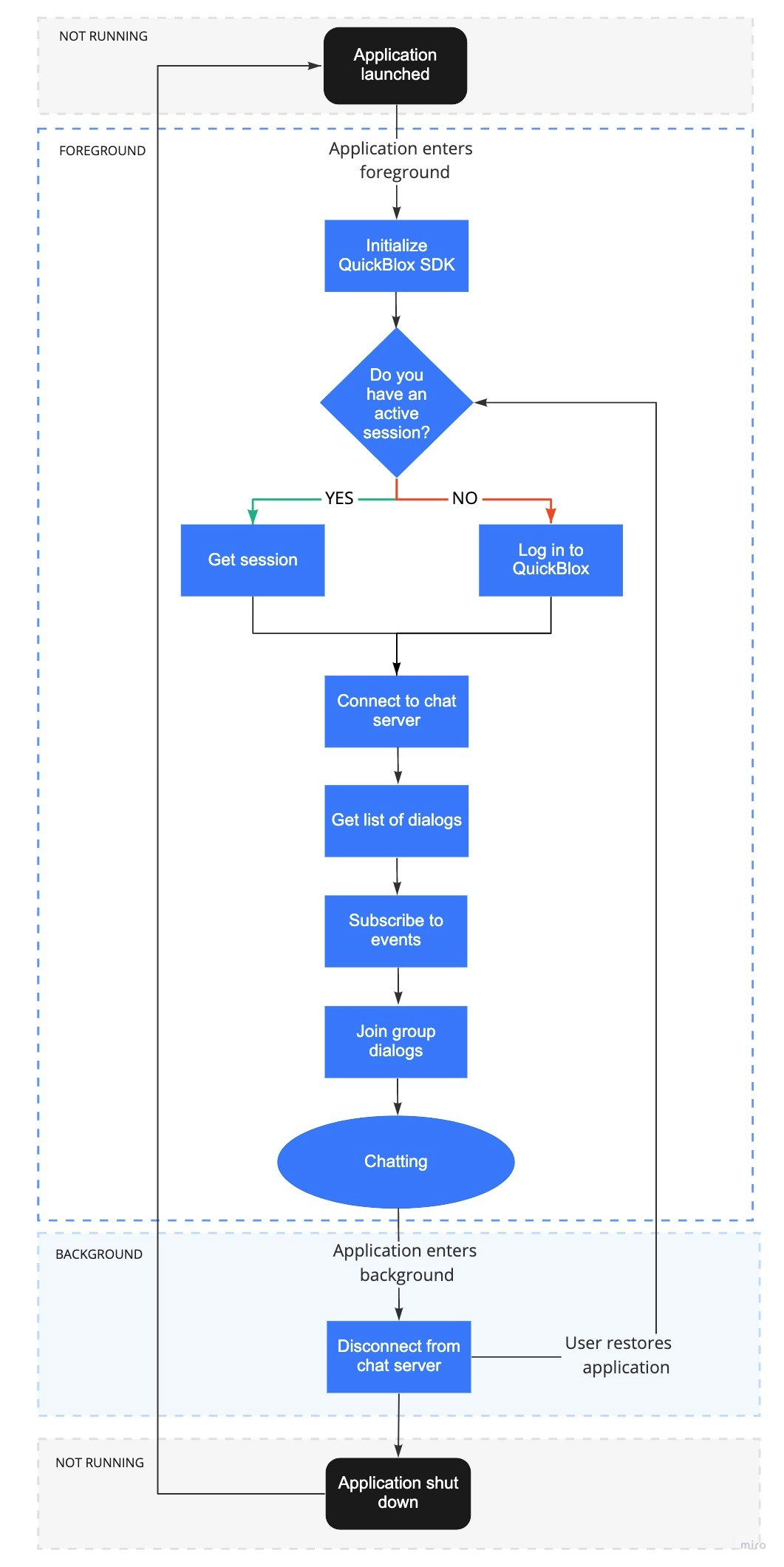
A sequence of steps a user takes to start a dialog by moving through the application lifecycle.