> ## Documentation Index
> Fetch the complete documentation index at: https://docs.quickblox.com/llms.txt
> Use this file to discover all available pages before exploring further.
# Custom Objects
> Learn how to store and sync data with QuickBlox key-value storage.
Custom Objects module provides flexibility to define any data structure (schema) you need, build one-to-many relations between schemas and control permissions for all operations made on data. Schema is defined in QuickBlox Dashboard.
There are two key concepts in Custom Objects:
\- **Class** represents your schema and contains field names and types.
\- **Record** represents the data you put into your schema.
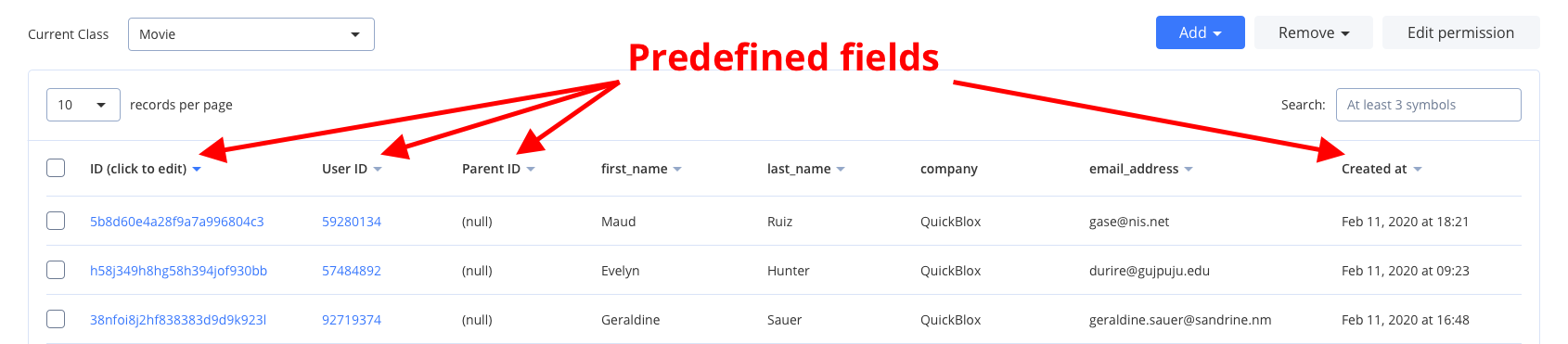
**Class** and **Record** are similar to table and row in relational database. Every class in Custom Object module comes with five mandatory predefined fields: `_id`, `user_id`, `parent_id`, `created_at`, and `updated_at`.
Allowed data types: **Integer** (or Array of Integer); **String** (or Array of String); **Float** (or Array of Float); **Boolean** (or Array of Boolean); **Location** (Array of \[\< longitude >, \< latitude >]); **File**; **Date**.
Visit [Key Concepts](/docs/key-concepts) page to learn the most important QuickBlox concepts.
## Before you begin
1. Register a [QuickBlox account](https://admin.quickblox.com/signin). This is a matter of a few minutes and you will be able to use this account to build your apps.
2. Configure QuickBlox SDK for your app. Check out [Setup](/sdks/ios-setup) page for more details.
3. Create a user session to be able to use QuickBlox functionality. See [Authentication](/sdks/ios-authentication) page to learn how to do it.
## Create class
To start using Custom Objects module, create a class:
1. Go to [QuickBlox Dashboard](https://admin.quickblox.com/signin).
2. Follow **Custom => Add => Add new class** direction. As a result, **Add new class** popup will appear.
3. Enter a class name, add any fields you want.
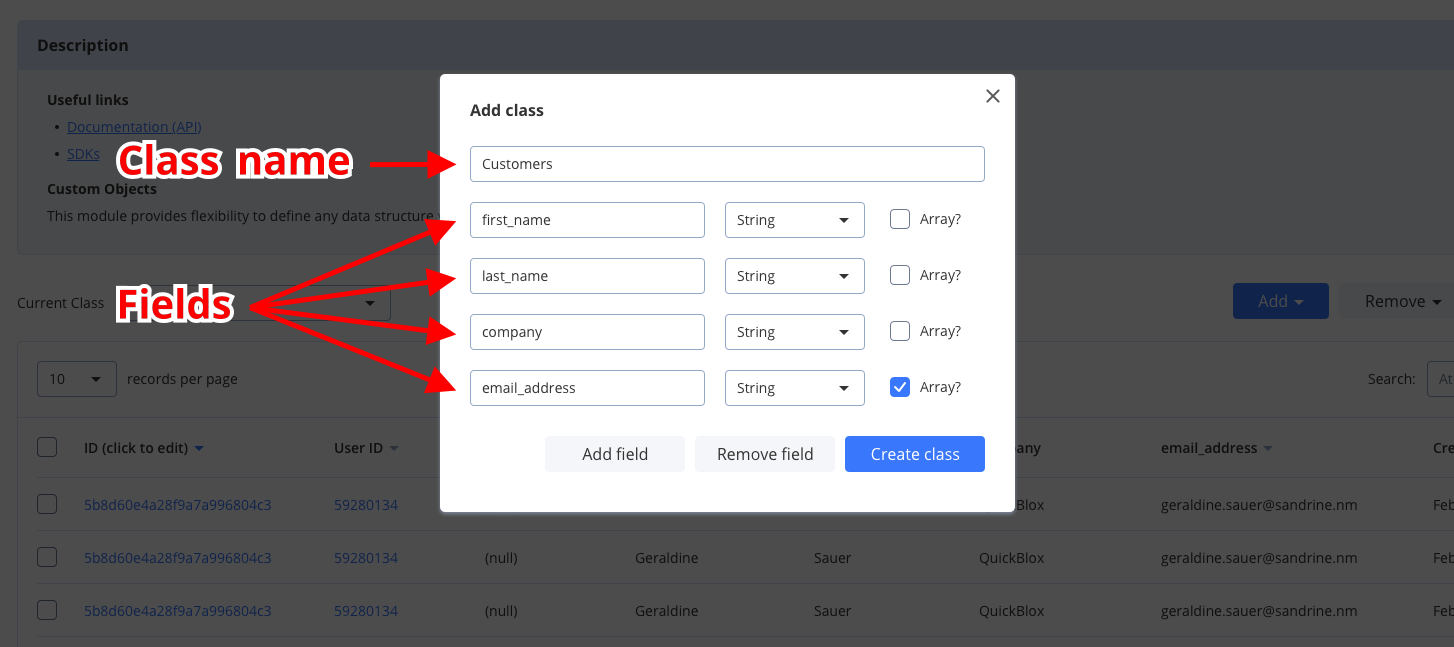 4. Click **Create class button** to create a new class.
 ## Create records
The easiest way to create a new record from the [QuickBlox Dashboard](https://admin.quickblox.com/signin), do the following:
1. Follow **Custom => Current class => Your Class** direction.
2. Click **Add => Add record** button and **Add new record** popup will appear.
3. Fill in any fields you want.
4. Click **Add record button** and a new record will be added and shown in the table.
To create a single object use the code snippet below.
```Swift theme={null}
let object = QBCOCustomObject()
object.className = "Movie" // your Class name
// Object fields
object.fields["name"] = "Star Wars"
object.fields["rating"] = 9.1
object.fields["documentary"] = "false"
object.fields["genre"] = "fantasy"
object.fields["descriptions"] = "Star Wars is an American epic space opera franchise consisting of a film series created by George Lucas."
QBRequest.createObject(object, successBlock: { (response, customObject) in
// do something when object is successfully created on a server
}, errorBlock: { (response) in
// error handling
debugPrint("error: \(response.error?.error?.localizedDescription)")
})
```
```Objective-C theme={null}
QBCOCustomObject *object = [QBCOCustomObject customObject];
object.className = @"Movie"; // your Class name
// Object fields
[object.fields setObject:@"Star Wars" forKey:@"name"];
[object.fields setObject:@9.1f forKey:@"rating"];
[object.fields setObject:@NO forKey:@"documentary"];
[object.fields setObject:@"fantasy" forKey:@"genre"];
[object.fields setObject:@"Star Wars is an American epic space opera franchise consisting of a film series created by George Lucas." forKey:@"descriptions"];
[QBRequest createObject:object successBlock:^(QBResponse *response, QBCOCustomObject *object) {
// do something when object is successfully created on a server
} errorBlock:^(QBResponse *response) {
// error handling
NSLog(@"Response error: %@", [response.error.error description]);
}];
```
To create multiple objects, use the code snippet below.
```Swift theme={null}
let object1 = QBCOCustomObject()
object1.fields["name"] = "The Avengers"
object1.fields["rating"] = 10.8
object1.fields["documentary"] = "false"
object1.fields["genre"] = "fantasy"
object1.fields["descriptions"] = "The Avengers is an American epic space opera franchise."
let object2 = QBCOCustomObject()
object2.fields["name"] = "Guardians of the Galaxy"
object2.fields["rating"] = 12
object2.fields["documentary"] = "false"
object2.fields["genre"] = "fantasy"
object2.fields["descriptions"] = "Guardians of the Galaxy is an American epic space opera franchise."
QBRequest.createObjects([object1, object2], className: "Movie", successBlock: { (response, customObjects) in
// response processing
}, errorBlock: { (response) in
// error handling
debugPrint("error: \(response.error?.error?.localizedDescription)")
})
```
```Objective-C theme={null}
QBCOCustomObject *object1 = [QBCOCustomObject customObject];
[object1.fields setObject:@"The Avengers" forKey:@"name"];
[object1.fields setObject:@10.8f forKey:@"rating"];
[object1.fields setObject:@NO forKey:@"documentary"];
[object1.fields setObject:@"fantasy" forKey:@"genre"];
[object1.fields setObject:@"The Avengers is an American epic space opera franchise." forKey:@"descriptions"];
QBCOCustomObject *object2 = [QBCOCustomObject customObject];
[object2.fields setObject:@"Guardians of the Galaxy" forKey:@"name"];
[object2.fields setObject:@12.0f forKey:@"rating"];
[object2.fields setObject:@NO forKey:@"documentary"];
[object2.fields setObject:@"fantasy" forKey:@"genre"];
[object2.fields setObject:@"Guardians of the Galaxy is an American epic space opera franchise." forKey:@"descriptions"];
[QBRequest createObjects:@[object1, object2] className:@"Movie" successBlock:^(QBResponse *response, NSArray *objects) {
// response processing
} errorBlock:^(QBResponse *response) {
// error handling
NSLog(@"Response error: %@", [response.error.error description]);
}];
```
## Retrieve records by IDs
To get records with a particular record ID, use the `objects(withClassName:ids:)` method. Go over [Sort operatos](/sdks/ios-custom-objects#sort-operators) and [Search operators](/sdks/ios-custom-objects#search-operators) sections to learn about filters and search operators you can use to retrieve records.elow.
```Swift theme={null}
let className = "Movie"
let ids = ["611fc6aece9db8005e270e1c", "61239cfbce9db8003c271452", "61239cfbce9db8003c271453"]
QBRequest.objects(withClassName: className, ids: ids, successBlock: { (response, objects) in
// response processing
}, errorBlock: { (response) in
// error handling
debugPrint("error: \(response.error?.error?.localizedDescription)")
})
```
```Objective-C theme={null}
NSString *className = @"Movie";
NSArray *ids = @[@"611fc6aece9db8005e270e1c", @"61239cfbce9db8003c271452", @"61239cfbce9db8003c271453"];
[QBRequest objectsWithClassName:className IDs:ids successBlock:^(QBResponse *response, NSArray *objects) {
// response processing
} errorBlock:^(QBResponse *response) {
// error handling
NSLog(@"Response error: %@", [response.error.error description]);
}];
```
| Parameters | Descriptions |
| ---------- | ------------------------------ |
| className | Name of a custom object class. |
| ids | Custom objects IDs. |
## Retrieve records
You can search for records of a particular class. The request below will return all records of the `Movie` class with the `rating` value greater than `5.5`, sorted in ascending order, and limited to 5 records on the page.
```Swift theme={null}
let className = "Movie"
var extendedRequest:[String: String] = [:]
extendedRequest["rating[gt]"] = "5.5"
extendedRequest["limit"] = "5"
extendedRequest["documentary"] = "false"
extendedRequest["sort_asc"] = "rating"
QBRequest.objects(withClassName: className, extendedRequest: (extendedRequest as NSDictionary).mutableCopy() as? NSMutableDictionary, successBlock: { (response, customObjects, page) in
// response processing
}, errorBlock: { (response) in
// error handling
debugPrint("error: \(response.error?.error?.localizedDescription)")
})
```
```Objective-C theme={null}
NSString *className = @"Movie";
NSMutableDictionary *extendedRequest = [NSMutableDictionary dictionary];
[extendedRequest setObject:@"5.5" forKey:@"rating[gt]"];
[extendedRequest setObject:@"5" forKey:@"limit"];
[extendedRequest setObject:[NSNumber numberWithBool:NO] forKey:@"documentary"];
[extendedRequest setObject:@"rating" forKey:@"sort_asc"];
[QBRequest objectsWithClassName:className extendedRequest:extendedRequest successBlock:^(QBResponse *response, NSArray *objects, QBResponsePage *page) {
// response processing
} errorBlock:^(QBResponse *response) {
// error handling
NSLog(@"Response error: %@", [response.error.error description]);
}];
```
| Argument | Required | Description |
| --------------- | -------- | -------------------------------------------------------------------------------------------------------------------------------------------------------------------------------- |
| className | yes | Name of a custom object class. |
| extendedRequest | yes | A dictionary that stores keys and values of the String type. The keys are formed as parameters of the [List Records](https://docs.quickblox.com/reference/list-records) request. |
If you want to retrieve only records updated after some specific date time and order the search results, you can apply operators. Thus, you can apply [search](/sdks/ios-custom-objects#search-operators) and [sort](/sdks/ios-custom-objects#sort-operators) operators to list records on the page so that it is easier to view specific records. The operators are set as key-value parameters in the `extendedRequest` dictionary.
If you want to get a paginated list of records from the server, you can set the following pagination parameters in the `extendedRequest` dictionary.
| Pagination parameter | Required | Description |
| -------------------- | -------- | ------------------------------------------------------------------------------------------- |
| skip | no | Skip N records in search results. Useful for pagination. Default (if not specified): **0**. |
| limit | no | Limit search results to N records. Useful for pagination. Default value: **100**. |
### Search operators
You can use search operators to get more specific search results. The request below will return records of the `Movie` class by the `rating` field with a value greater than `5.5`.
```Swift theme={null}
let className = "Movie"
var extendedRequest:[String: String] = [:]
extendedRequest["rating[gt]"] = "5.5"
QBRequest.objects(withClassName: className, extendedRequest: (extendedRequest as NSDictionary).mutableCopy() as? NSMutableDictionary, successBlock: { (response, customObjects, page) in
// response processing
}, errorBlock: { (response) in
// error handling
debugPrint("error: \(response.error?.error?.localizedDescription)")
})
```
```Objective-C theme={null}
NSString *className = @"Movie";
NSMutableDictionary *extendedRequest = [NSMutableDictionary dictionary];
[extendedRequest setObject:@"5.5" forKey:@"rating[gt]"];
[QBRequest objectsWithClassName:className extendedRequest:extendedRequest successBlock:^(QBResponse *response, NSArray *objects, QBResponsePage *page) {
// response processing
} errorBlock:^(QBResponse *response) {
// error handling
NSLog(@"Response error: %@", [response.error.error description]);
}];
```
Here are the search operators that you can use to search for the exact data that you need.
| Search operators | Applicable to types | Description |
| ---------------- | ------------------------------- | ---------------------------------------------------- |
| lt | integer, float | **Less Than** operator. |
| lte | integer, float | **Less Than** or **Equal** to operator. |
| gt | integer, float | **Greater Than** operator. |
| gte | integer, float | **Greater Than** or **Equal** to operator. |
| ne | integer, float, string, boolean | **Not Equal** to operator. |
| in | integer, float, string | **IN** array operator. |
| nin | integer, float, string | Not **IN** array operator. |
| all | array | **ALL** are contained in array. |
| or | integer, foat, string | All records that contain a value 1 **or** value 2. |
| ctn | string | All records that **contain** a particular substring. |
### Sort operators
You can use sort operators to order the search results. The request below will return records of the `Movie` class by the `rating` field sorted in ascending order.
```Swift theme={null}
let className = "Movie"
var extendedRequest:[String: String] = [:]
extendedRequest["sort_asc"] = "rating"
QBRequest.objects(withClassName: className, extendedRequest: (extendedRequest as NSDictionary).mutableCopy() as? NSMutableDictionary, successBlock: { (response, customObjects, page) in
// response processing
}, errorBlock: { (response) in
// error handling
debugPrint("error: \(response.error?.error?.localizedDescription)")
})
```
```Objective-C theme={null}
NSString *className = @"Movie";
NSMutableDictionary *extendedRequest = [NSMutableDictionary dictionary];
[extendedRequest setObject:@"rating" forKey:@"sort_asc"];
[QBRequest objectsWithClassName:className extendedRequest:extendedRequest successBlock:^(QBResponse *response, NSArray *objects, QBResponsePage *page) {
// response processing
} errorBlock:^(QBResponse *response) {
// error handling
NSLog(@"Response error: %@", [response.error.error description]);
}];
```
Here are the sort operators that you can use to order the search results
| Sort operator | Applicable to types | Description |
| ------------- | ------------------- | ------------------------------------------------------------------------- |
| sort\_asc | All types | Search results will be sorted in ascending order by the specified field. |
| sort\_desc | All types | Search results will be sorted in descending order by the specified field. |
## Get number of records
You can get a number of records using the `countObjects(withClassName:extendedRequest:)` method. The request below will return a count of records of the Movie class with the `documentary` field set to `false`.
```Swift theme={null}
let className = "Movie"
var extendedRequest:[String: String] = [:]
extendedRequest["documentary"] = "false"
QBRequest.countObjects(withClassName: className, extendedRequest: (extendedRequest as NSDictionary).mutableCopy() as? NSMutableDictionary, successBlock: { (response, count) in
// response processing
}, errorBlock: { (response) in
// error handling
debugPrint("error: \(response.error?.error?.localizedDescription)")
})
```
```Objective-C theme={null}
NSString *className = @"Movie";
NSMutableDictionary *extendedRequest = [NSMutableDictionary dictionary];
[extendedRequest setObject:@NO forKey:@"documentary"];
[QBRequest countObjectsWithClassName:className extendedRequest:extendedRequest successBlock:^(QBResponse * _Nonnull response, NSUInteger count) {
// response processing
} errorBlock:^(QBResponse *response) {
// error handling
NSLog(@"Response error: %@", [response.error.error description]);
}];
```
Here are the aggregation operators you can use to retrieve records.
| Aggregation operator | Required | Description |
| -------------------- | -------- | -------------------------------------------------------------------------------------------------------------------------------------------------------------------------------- |
| className | yes | A name of the custom object class. |
| extendedRequest | yes | A dictionary that stores keys and values of the String type. The keys are formed as parameters of the [List Records](https://docs.quickblox.com/reference/list-records) request. |
## Update records
You can update a single record using the code snippet below.
```Swift theme={null}
let object = QBCOCustomObject()
object.className = "Movie"
object.fields.setObject("7.88", forKey: NSString(string: "rating"))
object.id = "502f7c4036c9ae2163000002"
QBRequest.update(object, successBlock: { (response, customObject) in
// object updated
}, errorBlock: { (response) in
// error handling
debugPrint("error: \(response.error?.error?.localizedDescription)")
})
```
```Objective-C theme={null}
QBCOCustomObject *object = [QBCOCustomObject customObject];
object.className = @"Movie";
[object.fields setObject:@"7.88" forKey:@"rating"];
object.ID = @"502f7c4036c9ae2163000002";
[QBRequest updateObject:object successBlock:^(QBResponse *response, QBCOCustomObject *object) {
// object updated
} errorBlock:^(QBResponse *response) {
// error handling
NSLog(@"Response error: %@", [response.error.error description]);
}];
```
You can update multiple records using the code snippet below.
```Swift theme={null}
let object1 = QBCOCustomObject()
object1.fields.setObject("101", forKey: NSString(string: "rating"))
object1.id = "5228ad042195be5d8d41bd99"
let object2 = QBCOCustomObject()
object2.fields.setObject("201", forKey: NSString(string: "rating"))
object2.id = "5228ad042195be5d8d41bd9a"
let object3 = QBCOCustomObject()
object3.fields.setObject("31", forKey: NSString(string: "rating"))
object3.id = "5228ad042195be5d8d41bd9a33"
QBRequest.update([object1, object2, object3], className: "SuperSample", successBlock: { (response, customObjects, notFoundObjectsIds) in
// response processing
}, errorBlock: { (response) in
// error handling
debugPrint("error: \(response.error?.error?.localizedDescription)")
})
```
```Objective-C theme={null}
QBCOCustomObject *object1 = [QBCOCustomObject customObject];
object1.ID = @"5228ad042195be5d8d41bd99";
[object1.fields setObject:@"101" forKey:@"rating"];
//
QBCOCustomObject *object2 = [QBCOCustomObject customObject];
object2.ID = @"5228ad042195be5d8d41bd9a";
[object2.fields setObject:@"201" forKey:@"rating"];
//
QBCOCustomObject *object3 = [QBCOCustomObject customObject];
object3.ID = @"5228ad042195be5d8d41bd9a33";
[object3.fields setObject:@"31" forKey:@"rating"];
[QBRequest updateObjects:@[object1, object2, object3] className:@"SuperSample" successBlock:^(QBResponse *response, NSArray *objects, NSArray *notFoundObjectsIds) {
// response processing
} errorBlock:^(QBResponse *response) {
// error handling
NSLog(@"Response error: %@", [response.error.error description]);
}];
```
## Delete records
To delete a single record, use the code snippet below.
```Swift theme={null}
let iD = "502f83ed36c9aefa62000002"
let className = "Movie"
QBRequest.deleteObject(withID: iD, className: className, successBlock: { (response) in
// object deleted
}, errorBlock: { (response) in
})
```
```Objective-C theme={null}
NSString *iD = @"502f83ed36c9aefa62000002";
NSString *className = @"Movie";
[QBRequest deleteObjectWithID:iD className:className successBlock:^(QBResponse *response) {
// object deleted
} errorBlock:^(QBResponse *response) {
// error handling
NSLog(@"Response error: %@", [response.error.error description]);
}];
```
To delete multiple records, use the code snippet below.
```Swift theme={null}
let ids = ["51c9aafe535c127d98004a15", "51c9ab92535c12951b0032d6", "51c9ab92535c12951b0032da", "51c9ab92535c12951b0032de", "52283b38535c12fa32010efd"]
let className = "Movie"
QBRequest.deleteObjects(withIDs: ids, className: className, successBlock: { (response, deletedObjectsIDs, notFoundObjectsIDs, wrongPermissionsObjectsIDs) in
// response processing
}, errorBlock: { (response) in
})
```
```Objective-C theme={null}
NSArray *ids = @[@"51c9aafe535c127d98004a15", @"51c9ab92535c12951b0032d6", @"51c9ab92535c12951b0032da", @"51c9ab92535c12951b0032de", @"52283b38535c12fa32010efd"];
NSString *className = @"Movie";
[QBRequest deleteObjectsWithIDs:ids className:className
successBlock:^(QBResponse *response, NSArray *deletedObjectsIDs, NSArray *notFoundObjectsIDs, NSArray *wrongPermissionsObjectsIDs) {
// response processing
} errorBlock:^(QBResponse *response) {
// error handling
NSLog(@"Response error: %@", [response.error.error description]);
}];
```
## Relations
It is possible to create a relation between objects of **two different classes** via `_parent_id` field.
For example, we have the class **Rating** that contains `score`, `review`, and `comment` fields. We also have a **Movie** class. So we can create a record of class **Rating** that will point to the record of the class **Movie** via its `_parent_id` field, so the `_parent_id` field will contain the ID of record from class **Movie**.
This is not a simple soft link. This is actually a **hard link**. When you delete the **Movie** class record then all its children (records of class **Rating** with `_parent_id` field set to the **Movie** class record ID) will be automatically **deleted** as well.
If you need to retrieve all children, you can retrieve records with the filter `_parent_id=`.
## Permissions
Access Control list available **only** for Custom Objects module.
Access control list (ACL) is a list of permissions attached to some object. An ACL specifies which users have access to objects as well as what operations are allowed on given objects. Each entry in a typical ACL specifies a subject and an operation. ACL models may be applied to collections of objects as well as to individual entities within the system hierarchy.
### Permission schema
QuickBlox Permission schema contains **five** permissions levels:
* **Open (open)**
Such permission schema means that any user within the application can access the record/records in the class and is allowed to perform an action with the current permission level.
* **Owner (owner)**
Owner permission level means that only Owner (a user who created a record) is allowed to perform action with the current permission level.
* **Not allowed (not\_allowed)**
No one (except for the Account Administrator) can make a chosen action.
* **Open for groups (open\_for\_groups)**
Users having a specified tag/tags (see more info about how to set tags for the user in [Users](/sdks/ios-users) section) will be included in the group that is allowed to perform an action with the current permission level. The current permission level can consist of one or several groups (number of groups is **not** limited). Tags can be added/deleted in the user’s profile.
* **Open for user ids (open\_for\_users\_ids)**
Only users that are specified in the permission level can make a required action with a record. One or several users can be specified (the number of users is **not** limited).
### Actions available for the entity
* **Create**
Create a record.
* **Read**
Retrieve and read the info about the chosen record.
* **Update**
Update any parameter for the chosen record (only those parameters that can be set by the user can be updated).
* **Delete**
Delete a record.
### Permission levels
There are two access levels in the Permissions schema: **Class** and **Record**.
#### Class entity
Only the Account Administrator can create a class in the Custom object module and make all possible actions with it. Operations with **Class** entity are not allowed in API.
All actions (Create, Read, Update, and Delete) are available for the class entity and are applicable for all records in the class. Every action has a separate permission level available. The exception is a Create action that is not available for the **Owner** permission level.
To set a permission schema for the Class, do the following:
1. Go to the **Custom Objects** tab.
2. Open a required class.
3. Click **Edit permissions** button to open a class and edit it.
## Create records
The easiest way to create a new record from the [QuickBlox Dashboard](https://admin.quickblox.com/signin), do the following:
1. Follow **Custom => Current class => Your Class** direction.
2. Click **Add => Add record** button and **Add new record** popup will appear.
3. Fill in any fields you want.
4. Click **Add record button** and a new record will be added and shown in the table.
To create a single object use the code snippet below.
```Swift theme={null}
let object = QBCOCustomObject()
object.className = "Movie" // your Class name
// Object fields
object.fields["name"] = "Star Wars"
object.fields["rating"] = 9.1
object.fields["documentary"] = "false"
object.fields["genre"] = "fantasy"
object.fields["descriptions"] = "Star Wars is an American epic space opera franchise consisting of a film series created by George Lucas."
QBRequest.createObject(object, successBlock: { (response, customObject) in
// do something when object is successfully created on a server
}, errorBlock: { (response) in
// error handling
debugPrint("error: \(response.error?.error?.localizedDescription)")
})
```
```Objective-C theme={null}
QBCOCustomObject *object = [QBCOCustomObject customObject];
object.className = @"Movie"; // your Class name
// Object fields
[object.fields setObject:@"Star Wars" forKey:@"name"];
[object.fields setObject:@9.1f forKey:@"rating"];
[object.fields setObject:@NO forKey:@"documentary"];
[object.fields setObject:@"fantasy" forKey:@"genre"];
[object.fields setObject:@"Star Wars is an American epic space opera franchise consisting of a film series created by George Lucas." forKey:@"descriptions"];
[QBRequest createObject:object successBlock:^(QBResponse *response, QBCOCustomObject *object) {
// do something when object is successfully created on a server
} errorBlock:^(QBResponse *response) {
// error handling
NSLog(@"Response error: %@", [response.error.error description]);
}];
```
To create multiple objects, use the code snippet below.
```Swift theme={null}
let object1 = QBCOCustomObject()
object1.fields["name"] = "The Avengers"
object1.fields["rating"] = 10.8
object1.fields["documentary"] = "false"
object1.fields["genre"] = "fantasy"
object1.fields["descriptions"] = "The Avengers is an American epic space opera franchise."
let object2 = QBCOCustomObject()
object2.fields["name"] = "Guardians of the Galaxy"
object2.fields["rating"] = 12
object2.fields["documentary"] = "false"
object2.fields["genre"] = "fantasy"
object2.fields["descriptions"] = "Guardians of the Galaxy is an American epic space opera franchise."
QBRequest.createObjects([object1, object2], className: "Movie", successBlock: { (response, customObjects) in
// response processing
}, errorBlock: { (response) in
// error handling
debugPrint("error: \(response.error?.error?.localizedDescription)")
})
```
```Objective-C theme={null}
QBCOCustomObject *object1 = [QBCOCustomObject customObject];
[object1.fields setObject:@"The Avengers" forKey:@"name"];
[object1.fields setObject:@10.8f forKey:@"rating"];
[object1.fields setObject:@NO forKey:@"documentary"];
[object1.fields setObject:@"fantasy" forKey:@"genre"];
[object1.fields setObject:@"The Avengers is an American epic space opera franchise." forKey:@"descriptions"];
QBCOCustomObject *object2 = [QBCOCustomObject customObject];
[object2.fields setObject:@"Guardians of the Galaxy" forKey:@"name"];
[object2.fields setObject:@12.0f forKey:@"rating"];
[object2.fields setObject:@NO forKey:@"documentary"];
[object2.fields setObject:@"fantasy" forKey:@"genre"];
[object2.fields setObject:@"Guardians of the Galaxy is an American epic space opera franchise." forKey:@"descriptions"];
[QBRequest createObjects:@[object1, object2] className:@"Movie" successBlock:^(QBResponse *response, NSArray *objects) {
// response processing
} errorBlock:^(QBResponse *response) {
// error handling
NSLog(@"Response error: %@", [response.error.error description]);
}];
```
## Retrieve records by IDs
To get records with a particular record ID, use the `objects(withClassName:ids:)` method. Go over [Sort operatos](/sdks/ios-custom-objects#sort-operators) and [Search operators](/sdks/ios-custom-objects#search-operators) sections to learn about filters and search operators you can use to retrieve records.elow.
```Swift theme={null}
let className = "Movie"
let ids = ["611fc6aece9db8005e270e1c", "61239cfbce9db8003c271452", "61239cfbce9db8003c271453"]
QBRequest.objects(withClassName: className, ids: ids, successBlock: { (response, objects) in
// response processing
}, errorBlock: { (response) in
// error handling
debugPrint("error: \(response.error?.error?.localizedDescription)")
})
```
```Objective-C theme={null}
NSString *className = @"Movie";
NSArray *ids = @[@"611fc6aece9db8005e270e1c", @"61239cfbce9db8003c271452", @"61239cfbce9db8003c271453"];
[QBRequest objectsWithClassName:className IDs:ids successBlock:^(QBResponse *response, NSArray *objects) {
// response processing
} errorBlock:^(QBResponse *response) {
// error handling
NSLog(@"Response error: %@", [response.error.error description]);
}];
```
| Parameters | Descriptions |
| ---------- | ------------------------------ |
| className | Name of a custom object class. |
| ids | Custom objects IDs. |
## Retrieve records
You can search for records of a particular class. The request below will return all records of the `Movie` class with the `rating` value greater than `5.5`, sorted in ascending order, and limited to 5 records on the page.
```Swift theme={null}
let className = "Movie"
var extendedRequest:[String: String] = [:]
extendedRequest["rating[gt]"] = "5.5"
extendedRequest["limit"] = "5"
extendedRequest["documentary"] = "false"
extendedRequest["sort_asc"] = "rating"
QBRequest.objects(withClassName: className, extendedRequest: (extendedRequest as NSDictionary).mutableCopy() as? NSMutableDictionary, successBlock: { (response, customObjects, page) in
// response processing
}, errorBlock: { (response) in
// error handling
debugPrint("error: \(response.error?.error?.localizedDescription)")
})
```
```Objective-C theme={null}
NSString *className = @"Movie";
NSMutableDictionary *extendedRequest = [NSMutableDictionary dictionary];
[extendedRequest setObject:@"5.5" forKey:@"rating[gt]"];
[extendedRequest setObject:@"5" forKey:@"limit"];
[extendedRequest setObject:[NSNumber numberWithBool:NO] forKey:@"documentary"];
[extendedRequest setObject:@"rating" forKey:@"sort_asc"];
[QBRequest objectsWithClassName:className extendedRequest:extendedRequest successBlock:^(QBResponse *response, NSArray *objects, QBResponsePage *page) {
// response processing
} errorBlock:^(QBResponse *response) {
// error handling
NSLog(@"Response error: %@", [response.error.error description]);
}];
```
| Argument | Required | Description |
| --------------- | -------- | -------------------------------------------------------------------------------------------------------------------------------------------------------------------------------- |
| className | yes | Name of a custom object class. |
| extendedRequest | yes | A dictionary that stores keys and values of the String type. The keys are formed as parameters of the [List Records](https://docs.quickblox.com/reference/list-records) request. |
If you want to retrieve only records updated after some specific date time and order the search results, you can apply operators. Thus, you can apply [search](/sdks/ios-custom-objects#search-operators) and [sort](/sdks/ios-custom-objects#sort-operators) operators to list records on the page so that it is easier to view specific records. The operators are set as key-value parameters in the `extendedRequest` dictionary.
If you want to get a paginated list of records from the server, you can set the following pagination parameters in the `extendedRequest` dictionary.
| Pagination parameter | Required | Description |
| -------------------- | -------- | ------------------------------------------------------------------------------------------- |
| skip | no | Skip N records in search results. Useful for pagination. Default (if not specified): **0**. |
| limit | no | Limit search results to N records. Useful for pagination. Default value: **100**. |
### Search operators
You can use search operators to get more specific search results. The request below will return records of the `Movie` class by the `rating` field with a value greater than `5.5`.
```Swift theme={null}
let className = "Movie"
var extendedRequest:[String: String] = [:]
extendedRequest["rating[gt]"] = "5.5"
QBRequest.objects(withClassName: className, extendedRequest: (extendedRequest as NSDictionary).mutableCopy() as? NSMutableDictionary, successBlock: { (response, customObjects, page) in
// response processing
}, errorBlock: { (response) in
// error handling
debugPrint("error: \(response.error?.error?.localizedDescription)")
})
```
```Objective-C theme={null}
NSString *className = @"Movie";
NSMutableDictionary *extendedRequest = [NSMutableDictionary dictionary];
[extendedRequest setObject:@"5.5" forKey:@"rating[gt]"];
[QBRequest objectsWithClassName:className extendedRequest:extendedRequest successBlock:^(QBResponse *response, NSArray *objects, QBResponsePage *page) {
// response processing
} errorBlock:^(QBResponse *response) {
// error handling
NSLog(@"Response error: %@", [response.error.error description]);
}];
```
Here are the search operators that you can use to search for the exact data that you need.
| Search operators | Applicable to types | Description |
| ---------------- | ------------------------------- | ---------------------------------------------------- |
| lt | integer, float | **Less Than** operator. |
| lte | integer, float | **Less Than** or **Equal** to operator. |
| gt | integer, float | **Greater Than** operator. |
| gte | integer, float | **Greater Than** or **Equal** to operator. |
| ne | integer, float, string, boolean | **Not Equal** to operator. |
| in | integer, float, string | **IN** array operator. |
| nin | integer, float, string | Not **IN** array operator. |
| all | array | **ALL** are contained in array. |
| or | integer, foat, string | All records that contain a value 1 **or** value 2. |
| ctn | string | All records that **contain** a particular substring. |
### Sort operators
You can use sort operators to order the search results. The request below will return records of the `Movie` class by the `rating` field sorted in ascending order.
```Swift theme={null}
let className = "Movie"
var extendedRequest:[String: String] = [:]
extendedRequest["sort_asc"] = "rating"
QBRequest.objects(withClassName: className, extendedRequest: (extendedRequest as NSDictionary).mutableCopy() as? NSMutableDictionary, successBlock: { (response, customObjects, page) in
// response processing
}, errorBlock: { (response) in
// error handling
debugPrint("error: \(response.error?.error?.localizedDescription)")
})
```
```Objective-C theme={null}
NSString *className = @"Movie";
NSMutableDictionary *extendedRequest = [NSMutableDictionary dictionary];
[extendedRequest setObject:@"rating" forKey:@"sort_asc"];
[QBRequest objectsWithClassName:className extendedRequest:extendedRequest successBlock:^(QBResponse *response, NSArray *objects, QBResponsePage *page) {
// response processing
} errorBlock:^(QBResponse *response) {
// error handling
NSLog(@"Response error: %@", [response.error.error description]);
}];
```
Here are the sort operators that you can use to order the search results
| Sort operator | Applicable to types | Description |
| ------------- | ------------------- | ------------------------------------------------------------------------- |
| sort\_asc | All types | Search results will be sorted in ascending order by the specified field. |
| sort\_desc | All types | Search results will be sorted in descending order by the specified field. |
## Get number of records
You can get a number of records using the `countObjects(withClassName:extendedRequest:)` method. The request below will return a count of records of the Movie class with the `documentary` field set to `false`.
```Swift theme={null}
let className = "Movie"
var extendedRequest:[String: String] = [:]
extendedRequest["documentary"] = "false"
QBRequest.countObjects(withClassName: className, extendedRequest: (extendedRequest as NSDictionary).mutableCopy() as? NSMutableDictionary, successBlock: { (response, count) in
// response processing
}, errorBlock: { (response) in
// error handling
debugPrint("error: \(response.error?.error?.localizedDescription)")
})
```
```Objective-C theme={null}
NSString *className = @"Movie";
NSMutableDictionary *extendedRequest = [NSMutableDictionary dictionary];
[extendedRequest setObject:@NO forKey:@"documentary"];
[QBRequest countObjectsWithClassName:className extendedRequest:extendedRequest successBlock:^(QBResponse * _Nonnull response, NSUInteger count) {
// response processing
} errorBlock:^(QBResponse *response) {
// error handling
NSLog(@"Response error: %@", [response.error.error description]);
}];
```
Here are the aggregation operators you can use to retrieve records.
| Aggregation operator | Required | Description |
| -------------------- | -------- | -------------------------------------------------------------------------------------------------------------------------------------------------------------------------------- |
| className | yes | A name of the custom object class. |
| extendedRequest | yes | A dictionary that stores keys and values of the String type. The keys are formed as parameters of the [List Records](https://docs.quickblox.com/reference/list-records) request. |
## Update records
You can update a single record using the code snippet below.
```Swift theme={null}
let object = QBCOCustomObject()
object.className = "Movie"
object.fields.setObject("7.88", forKey: NSString(string: "rating"))
object.id = "502f7c4036c9ae2163000002"
QBRequest.update(object, successBlock: { (response, customObject) in
// object updated
}, errorBlock: { (response) in
// error handling
debugPrint("error: \(response.error?.error?.localizedDescription)")
})
```
```Objective-C theme={null}
QBCOCustomObject *object = [QBCOCustomObject customObject];
object.className = @"Movie";
[object.fields setObject:@"7.88" forKey:@"rating"];
object.ID = @"502f7c4036c9ae2163000002";
[QBRequest updateObject:object successBlock:^(QBResponse *response, QBCOCustomObject *object) {
// object updated
} errorBlock:^(QBResponse *response) {
// error handling
NSLog(@"Response error: %@", [response.error.error description]);
}];
```
You can update multiple records using the code snippet below.
```Swift theme={null}
let object1 = QBCOCustomObject()
object1.fields.setObject("101", forKey: NSString(string: "rating"))
object1.id = "5228ad042195be5d8d41bd99"
let object2 = QBCOCustomObject()
object2.fields.setObject("201", forKey: NSString(string: "rating"))
object2.id = "5228ad042195be5d8d41bd9a"
let object3 = QBCOCustomObject()
object3.fields.setObject("31", forKey: NSString(string: "rating"))
object3.id = "5228ad042195be5d8d41bd9a33"
QBRequest.update([object1, object2, object3], className: "SuperSample", successBlock: { (response, customObjects, notFoundObjectsIds) in
// response processing
}, errorBlock: { (response) in
// error handling
debugPrint("error: \(response.error?.error?.localizedDescription)")
})
```
```Objective-C theme={null}
QBCOCustomObject *object1 = [QBCOCustomObject customObject];
object1.ID = @"5228ad042195be5d8d41bd99";
[object1.fields setObject:@"101" forKey:@"rating"];
//
QBCOCustomObject *object2 = [QBCOCustomObject customObject];
object2.ID = @"5228ad042195be5d8d41bd9a";
[object2.fields setObject:@"201" forKey:@"rating"];
//
QBCOCustomObject *object3 = [QBCOCustomObject customObject];
object3.ID = @"5228ad042195be5d8d41bd9a33";
[object3.fields setObject:@"31" forKey:@"rating"];
[QBRequest updateObjects:@[object1, object2, object3] className:@"SuperSample" successBlock:^(QBResponse *response, NSArray *objects, NSArray *notFoundObjectsIds) {
// response processing
} errorBlock:^(QBResponse *response) {
// error handling
NSLog(@"Response error: %@", [response.error.error description]);
}];
```
## Delete records
To delete a single record, use the code snippet below.
```Swift theme={null}
let iD = "502f83ed36c9aefa62000002"
let className = "Movie"
QBRequest.deleteObject(withID: iD, className: className, successBlock: { (response) in
// object deleted
}, errorBlock: { (response) in
})
```
```Objective-C theme={null}
NSString *iD = @"502f83ed36c9aefa62000002";
NSString *className = @"Movie";
[QBRequest deleteObjectWithID:iD className:className successBlock:^(QBResponse *response) {
// object deleted
} errorBlock:^(QBResponse *response) {
// error handling
NSLog(@"Response error: %@", [response.error.error description]);
}];
```
To delete multiple records, use the code snippet below.
```Swift theme={null}
let ids = ["51c9aafe535c127d98004a15", "51c9ab92535c12951b0032d6", "51c9ab92535c12951b0032da", "51c9ab92535c12951b0032de", "52283b38535c12fa32010efd"]
let className = "Movie"
QBRequest.deleteObjects(withIDs: ids, className: className, successBlock: { (response, deletedObjectsIDs, notFoundObjectsIDs, wrongPermissionsObjectsIDs) in
// response processing
}, errorBlock: { (response) in
})
```
```Objective-C theme={null}
NSArray *ids = @[@"51c9aafe535c127d98004a15", @"51c9ab92535c12951b0032d6", @"51c9ab92535c12951b0032da", @"51c9ab92535c12951b0032de", @"52283b38535c12fa32010efd"];
NSString *className = @"Movie";
[QBRequest deleteObjectsWithIDs:ids className:className
successBlock:^(QBResponse *response, NSArray *deletedObjectsIDs, NSArray *notFoundObjectsIDs, NSArray *wrongPermissionsObjectsIDs) {
// response processing
} errorBlock:^(QBResponse *response) {
// error handling
NSLog(@"Response error: %@", [response.error.error description]);
}];
```
## Relations
It is possible to create a relation between objects of **two different classes** via `_parent_id` field.
For example, we have the class **Rating** that contains `score`, `review`, and `comment` fields. We also have a **Movie** class. So we can create a record of class **Rating** that will point to the record of the class **Movie** via its `_parent_id` field, so the `_parent_id` field will contain the ID of record from class **Movie**.
This is not a simple soft link. This is actually a **hard link**. When you delete the **Movie** class record then all its children (records of class **Rating** with `_parent_id` field set to the **Movie** class record ID) will be automatically **deleted** as well.
If you need to retrieve all children, you can retrieve records with the filter `_parent_id=`.
## Permissions
Access Control list available **only** for Custom Objects module.
Access control list (ACL) is a list of permissions attached to some object. An ACL specifies which users have access to objects as well as what operations are allowed on given objects. Each entry in a typical ACL specifies a subject and an operation. ACL models may be applied to collections of objects as well as to individual entities within the system hierarchy.
### Permission schema
QuickBlox Permission schema contains **five** permissions levels:
* **Open (open)**
Such permission schema means that any user within the application can access the record/records in the class and is allowed to perform an action with the current permission level.
* **Owner (owner)**
Owner permission level means that only Owner (a user who created a record) is allowed to perform action with the current permission level.
* **Not allowed (not\_allowed)**
No one (except for the Account Administrator) can make a chosen action.
* **Open for groups (open\_for\_groups)**
Users having a specified tag/tags (see more info about how to set tags for the user in [Users](/sdks/ios-users) section) will be included in the group that is allowed to perform an action with the current permission level. The current permission level can consist of one or several groups (number of groups is **not** limited). Tags can be added/deleted in the user’s profile.
* **Open for user ids (open\_for\_users\_ids)**
Only users that are specified in the permission level can make a required action with a record. One or several users can be specified (the number of users is **not** limited).
### Actions available for the entity
* **Create**
Create a record.
* **Read**
Retrieve and read the info about the chosen record.
* **Update**
Update any parameter for the chosen record (only those parameters that can be set by the user can be updated).
* **Delete**
Delete a record.
### Permission levels
There are two access levels in the Permissions schema: **Class** and **Record**.
#### Class entity
Only the Account Administrator can create a class in the Custom object module and make all possible actions with it. Operations with **Class** entity are not allowed in API.
All actions (Create, Read, Update, and Delete) are available for the class entity and are applicable for all records in the class. Every action has a separate permission level available. The exception is a Create action that is not available for the **Owner** permission level.
To set a permission schema for the Class, do the following:
1. Go to the **Custom Objects** tab.
2. Open a required class.
3. Click **Edit permissions** button to open a class and edit it.
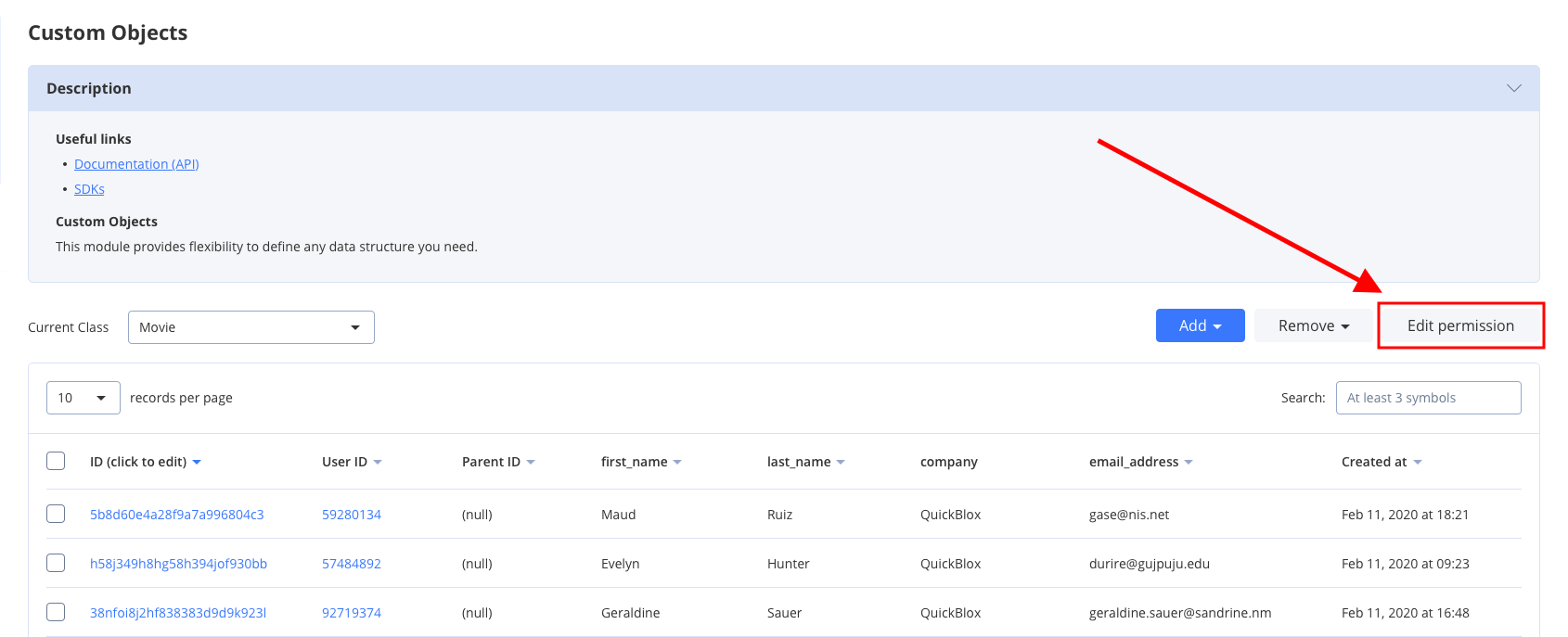 Default Class permission schema is used while creating a class:
* **Create**: Open
* **Read**: Open
* **Update**: Owner
* **Delete**: Owner
Mark checkboxes to **enable** class permissions.
#### Record entity
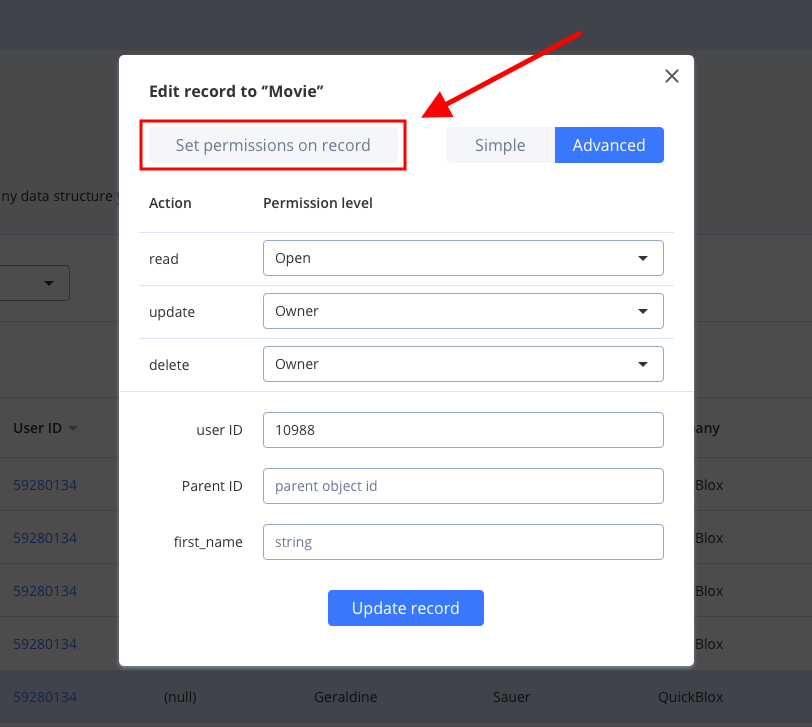
A record is an entity within the class in the Custom Objects module that has its own permission levels. You can create a record in the Dashboard and API (see [Create Record](#section-create-records) request for more details). All permission levels except for the **Not Allowed** are available for the record and there are only three actions available and applicable for the record: Read, Update, and Delete.
Default Record permission schema is used while creating a class:
* **Read**: Open
* **Update**: Owner
* **Delete**: Owner
To set a permission level open the required Class and click the record to edit it.
Default Class permission schema is used while creating a class:
* **Create**: Open
* **Read**: Open
* **Update**: Owner
* **Delete**: Owner
Mark checkboxes to **enable** class permissions.
#### Record entity
A record is an entity within the class in the Custom Objects module that has its own permission levels. You can create a record in the Dashboard and API (see [Create Record](#section-create-records) request for more details). All permission levels except for the **Not Allowed** are available for the record and there are only three actions available and applicable for the record: Read, Update, and Delete.
Default Record permission schema is used while creating a class:
* **Read**: Open
* **Update**: Owner
* **Delete**: Owner
To set a permission level open the required Class and click the record to edit it.
 ### Choosing a permission schema
Only **one** permission level can be applicable to the record: class permission schema or record permission schema. To apply class permission levels to **all** records in the class tick the checkbox in the **Use Class permissions** column near the required Action in the Dashboard.
### Choosing a permission schema
Only **one** permission level can be applicable to the record: class permission schema or record permission schema. To apply class permission levels to **all** records in the class tick the checkbox in the **Use Class permissions** column near the required Action in the Dashboard.
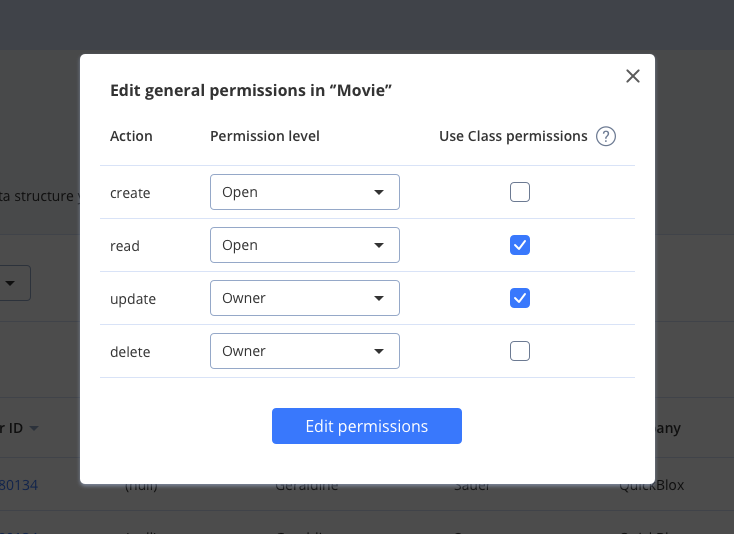 Using a class permission schema means that a record permission schema will **not** affect a reсord.
In case, the Admin **does not** tick the checkbox in the Dashboard a user **has** a possibility to change permission levels for every separate record in the table or create a new one with the ACL that a user requires.
### Create record with permissions
Let's create a record with the next permissions:
* READ: Open.
* UPDATE: Users in groups **golf**, **man**.
* DELETE: Users with IDs **3060**, **63635**.
```Swift theme={null}
let object = QBCOCustomObject()
object.className = "Movie" // your Class name
// Object fields
object.fields.setObject("Star Wars", forKey: NSString(string: "name"))
object.fields.setObject("fantasy", forKey: NSString(string: "genre"))
// permissions
let permissions = QBCOPermissions()
// READ
//
permissions.readAccess = QBCOPermissionsAccessOpen
// UPDATE
//
permissions.updateAccess = QBCOPermissionsAccessOpenForGroups
permissions.usersGroupsForUpdateAccess = ["golf", "man"]
// DELETE
//
permissions.deleteAccess = QBCOPermissionsAccessOpenForUsersIDs;
permissions.usersIDsForDeleteAccess = [3060, 63635]
object.permissions = permissions
QBRequest.createObject(object, successBlock: { (response, customObject) in
// do something when object is successfully created on a server
}, errorBlock: { (response) in
// error handling
debugPrint("error: \(response.error?.error?.localizedDescription)")
})
```
```Objective-C theme={null}
QBCOCustomObject *object = [QBCOCustomObject customObject];
object.className = @"Movie"; // your Class name
// Object fields
[object.fields setObject:@"Star Wars" forKey:@"name"];
[object.fields setObject:@"fantasy" forKey:@"genre"];
// permissions
QBCOPermissions *permissions = [QBCOPermissions permissions];
// READ
//
permissions.readAccess = QBCOPermissionsAccessOpen;
// UPDATE
//
permissions.updateAccess = QBCOPermissionsAccessOpenForGroups;
permissions.usersGroupsForUpdateAccess = @[@"golf", @"man"];
// DELETE
//
permissions.deleteAccess = QBCOPermissionsAccessOpenForUsersIDs;
permissions.usersIDsForDeleteAccess = @[@3060, @63635];
object.permissions = permissions;
[QBRequest createObject:object successBlock:^(QBResponse *response, QBCOCustomObject *object) {
// do something when object is successfully created on a server
} errorBlock:^(QBResponse *response) {
// error handling
NSLog(@"Response error: %@", [response.error.error description]);
}];
```
### Retrieve record permissions
You can obtain info about record permissions by its ID.
```Swift theme={null}
QBRequest.permissionsForObject(withClassName: "SuperSample", id: "51c9aafe535c127d98004a13", successBlock: { (response, permissions) in
// response processing
}, errorBlock: { (response) in
// error handling
debugPrint("error: \(response.error?.error?.localizedDescription)")
})
```
```Objective-C theme={null}
[QBRequest permissionsForObjectWithClassName:@"SuperSample" ID:@"51c9aafe535c127d98004a13" successBlock:^(QBResponse *response, QBCOPermissions *permissions) {
// response processing
} errorBlock:^(QBResponse *response) {
// error handling
NSLog(@"Response error: %@", [response.error.error description]);
}];
```
**Only** info about the user's own records is available.
### Update record permissions
Let's update record's permissions to next:
* READ: Users in groups **car, developers**.
* UPDATE: Owner.
* DELETE: Owner.
```Swift theme={null}
let object = QBCOCustomObject()
object.className = "Movie" // your Class name
// permissions
let permissions = QBCOPermissions()
// READ
//
permissions.readAccess = QBCOPermissionsAccessOpenForGroups
permissions.usersGroupsForUpdateAccess = ["car", "developers"]
// UPDATE
//
permissions.updateAccess = QBCOPermissionsAccessOwner
// DELETE
//
permissions.deleteAccess = QBCOPermissionsAccessOwner;
object.permissions = permissions
QBRequest.update(object, specialUpdateOperators: [:], successBlock: { (response, customObject) in
// object updated
}, errorBlock: { (response) in
// error handling
debugPrint("error: \(response.error?.error?.localizedDescription)")
})
```
```Objective-C theme={null}
QBCOCustomObject *object = [QBCOCustomObject customObject];
object.className = @"Movie"; // your Class name
// permissions
QBCOPermissions *permissions = [QBCOPermissions permissions];
// READ
//
permissions.readAccess = QBCOPermissionsAccessOpenForGroups;
permissions.usersGroupsForUpdateAccess = @[@"car", @"developers"];
// UPDATE
//
permissions.updateAccess = QBCOPermissionsAccessOwner;
// DELETE
//
permissions.deleteAccess = QBCOPermissionsAccessOwner;
object.permissions = permissions;
[QBRequest updateObject:object specialUpdateOperators:nil successBlock:^(QBResponse *response, QBCOCustomObject *object) {
// object updated
} errorBlock:^(QBResponse *response) {
// error handling
NSLog(@"Response error: %@", [response.error.error description]);
}];
```
## Files
Custom Objects module supports the `File` field type. It is created to work easily with content from the Custom Objects module. There is an ability to upload, download, update and delete the content of file fields.
## Upload/Update file
Use the code lines below to upload/update a file.
```Swift theme={null}
let file = QBCOFile()
file.name = "plus"
file.contentType = "image/png"
let imagePlus = UIImage(named: "plus")
guard let imageData = imagePlus?.pngData() else {
return
}
file.data = imageData
QBRequest.uploadFile(file, className: "Movie", objectID: "5256c265535c128020000182", fileFieldName: "imagePlus", successBlock: { (response, info) in
// uploaded
}, statusBlock: { (request, status) in
// handle progress
}, errorBlock: { (response) in
// error handling
debugPrint("error: \(response.error?.error?.localizedDescription)")
})
```
```Objective-C theme={null}
QBCOFile *file = [QBCOFile file];
file.name = @"plus";
file.contentType = @"image/png";
file.data = [NSData dataWithContentsOfFile:[[NSBundle mainBundle] pathForResource:@"plus" ofType:@"png"]];
[QBRequest uploadFile:file className:@"Movie" objectID:@"5256c265535c128020000182" fileFieldName:@"image" successBlock:^(QBResponse *response, QBCOFileUploadInfo *info) {
// uploaded
} statusBlock:^(QBRequest *request, QBRequestStatus *status) {
// handle progress
} errorBlock:^(QBResponse *response) {
// error handling
NSLog(@"Response error: %@", [response.error.error description]);
}];
```
## Download file
To download a file, use the code snippet below.
```Swift theme={null}
QBRequest.downloadFile(fromClassName: "Movie", objectID: "5256c265535c128020000182", fileFieldName: "imagePlus", successBlock: { (response, data) in
// file downloaded
}, statusBlock: { (request, status) in
// handle progress
}, errorBlock: { (response) in
// error handling
debugPrint("error: \(response.error?.error?.localizedDescription)")
})
```
```Objective-C theme={null}
[QBRequest downloadFileFromClassName:@"Movie" objectID:@"5256c265535c128020000182" fileFieldName:@"image" successBlock:^(QBResponse *response, NSData *loadedData) {
// file downloaded
} statusBlock:^(QBRequest *request, QBRequestStatus *status) {
// handle progress
} errorBlock:^(QBResponse *response) {
// error handling
NSLog(@"Response error: %@", [response.error.error description]);
}];
```
## Delete file
To delete a file, use the code snippet below.
```Swift theme={null}
QBRequest.deleteFile(fromClassName: "Movie", objectID: "5256c265535c128020000182", fileFieldName: "imagePlus", successBlock: { (response) in
// file deleted
}, errorBlock: { (response) in
// error handling
debugPrint("error: \(response.error?.error?.localizedDescription)")
})
```
```Objective-C theme={null}
[QBRequest deleteFileFromClassName:@"Movie" objectID:@"5256c265535c128020000182" fileFieldName:@"image" successBlock:^(QBResponse *response) {
// file deleted
} errorBlock:^(QBResponse *response) {
// error handling
NSLog(@"Response error: %@", [response.error.error description]);
}];
```
Using a class permission schema means that a record permission schema will **not** affect a reсord.
In case, the Admin **does not** tick the checkbox in the Dashboard a user **has** a possibility to change permission levels for every separate record in the table or create a new one with the ACL that a user requires.
### Create record with permissions
Let's create a record with the next permissions:
* READ: Open.
* UPDATE: Users in groups **golf**, **man**.
* DELETE: Users with IDs **3060**, **63635**.
```Swift theme={null}
let object = QBCOCustomObject()
object.className = "Movie" // your Class name
// Object fields
object.fields.setObject("Star Wars", forKey: NSString(string: "name"))
object.fields.setObject("fantasy", forKey: NSString(string: "genre"))
// permissions
let permissions = QBCOPermissions()
// READ
//
permissions.readAccess = QBCOPermissionsAccessOpen
// UPDATE
//
permissions.updateAccess = QBCOPermissionsAccessOpenForGroups
permissions.usersGroupsForUpdateAccess = ["golf", "man"]
// DELETE
//
permissions.deleteAccess = QBCOPermissionsAccessOpenForUsersIDs;
permissions.usersIDsForDeleteAccess = [3060, 63635]
object.permissions = permissions
QBRequest.createObject(object, successBlock: { (response, customObject) in
// do something when object is successfully created on a server
}, errorBlock: { (response) in
// error handling
debugPrint("error: \(response.error?.error?.localizedDescription)")
})
```
```Objective-C theme={null}
QBCOCustomObject *object = [QBCOCustomObject customObject];
object.className = @"Movie"; // your Class name
// Object fields
[object.fields setObject:@"Star Wars" forKey:@"name"];
[object.fields setObject:@"fantasy" forKey:@"genre"];
// permissions
QBCOPermissions *permissions = [QBCOPermissions permissions];
// READ
//
permissions.readAccess = QBCOPermissionsAccessOpen;
// UPDATE
//
permissions.updateAccess = QBCOPermissionsAccessOpenForGroups;
permissions.usersGroupsForUpdateAccess = @[@"golf", @"man"];
// DELETE
//
permissions.deleteAccess = QBCOPermissionsAccessOpenForUsersIDs;
permissions.usersIDsForDeleteAccess = @[@3060, @63635];
object.permissions = permissions;
[QBRequest createObject:object successBlock:^(QBResponse *response, QBCOCustomObject *object) {
// do something when object is successfully created on a server
} errorBlock:^(QBResponse *response) {
// error handling
NSLog(@"Response error: %@", [response.error.error description]);
}];
```
### Retrieve record permissions
You can obtain info about record permissions by its ID.
```Swift theme={null}
QBRequest.permissionsForObject(withClassName: "SuperSample", id: "51c9aafe535c127d98004a13", successBlock: { (response, permissions) in
// response processing
}, errorBlock: { (response) in
// error handling
debugPrint("error: \(response.error?.error?.localizedDescription)")
})
```
```Objective-C theme={null}
[QBRequest permissionsForObjectWithClassName:@"SuperSample" ID:@"51c9aafe535c127d98004a13" successBlock:^(QBResponse *response, QBCOPermissions *permissions) {
// response processing
} errorBlock:^(QBResponse *response) {
// error handling
NSLog(@"Response error: %@", [response.error.error description]);
}];
```
**Only** info about the user's own records is available.
### Update record permissions
Let's update record's permissions to next:
* READ: Users in groups **car, developers**.
* UPDATE: Owner.
* DELETE: Owner.
```Swift theme={null}
let object = QBCOCustomObject()
object.className = "Movie" // your Class name
// permissions
let permissions = QBCOPermissions()
// READ
//
permissions.readAccess = QBCOPermissionsAccessOpenForGroups
permissions.usersGroupsForUpdateAccess = ["car", "developers"]
// UPDATE
//
permissions.updateAccess = QBCOPermissionsAccessOwner
// DELETE
//
permissions.deleteAccess = QBCOPermissionsAccessOwner;
object.permissions = permissions
QBRequest.update(object, specialUpdateOperators: [:], successBlock: { (response, customObject) in
// object updated
}, errorBlock: { (response) in
// error handling
debugPrint("error: \(response.error?.error?.localizedDescription)")
})
```
```Objective-C theme={null}
QBCOCustomObject *object = [QBCOCustomObject customObject];
object.className = @"Movie"; // your Class name
// permissions
QBCOPermissions *permissions = [QBCOPermissions permissions];
// READ
//
permissions.readAccess = QBCOPermissionsAccessOpenForGroups;
permissions.usersGroupsForUpdateAccess = @[@"car", @"developers"];
// UPDATE
//
permissions.updateAccess = QBCOPermissionsAccessOwner;
// DELETE
//
permissions.deleteAccess = QBCOPermissionsAccessOwner;
object.permissions = permissions;
[QBRequest updateObject:object specialUpdateOperators:nil successBlock:^(QBResponse *response, QBCOCustomObject *object) {
// object updated
} errorBlock:^(QBResponse *response) {
// error handling
NSLog(@"Response error: %@", [response.error.error description]);
}];
```
## Files
Custom Objects module supports the `File` field type. It is created to work easily with content from the Custom Objects module. There is an ability to upload, download, update and delete the content of file fields.
## Upload/Update file
Use the code lines below to upload/update a file.
```Swift theme={null}
let file = QBCOFile()
file.name = "plus"
file.contentType = "image/png"
let imagePlus = UIImage(named: "plus")
guard let imageData = imagePlus?.pngData() else {
return
}
file.data = imageData
QBRequest.uploadFile(file, className: "Movie", objectID: "5256c265535c128020000182", fileFieldName: "imagePlus", successBlock: { (response, info) in
// uploaded
}, statusBlock: { (request, status) in
// handle progress
}, errorBlock: { (response) in
// error handling
debugPrint("error: \(response.error?.error?.localizedDescription)")
})
```
```Objective-C theme={null}
QBCOFile *file = [QBCOFile file];
file.name = @"plus";
file.contentType = @"image/png";
file.data = [NSData dataWithContentsOfFile:[[NSBundle mainBundle] pathForResource:@"plus" ofType:@"png"]];
[QBRequest uploadFile:file className:@"Movie" objectID:@"5256c265535c128020000182" fileFieldName:@"image" successBlock:^(QBResponse *response, QBCOFileUploadInfo *info) {
// uploaded
} statusBlock:^(QBRequest *request, QBRequestStatus *status) {
// handle progress
} errorBlock:^(QBResponse *response) {
// error handling
NSLog(@"Response error: %@", [response.error.error description]);
}];
```
## Download file
To download a file, use the code snippet below.
```Swift theme={null}
QBRequest.downloadFile(fromClassName: "Movie", objectID: "5256c265535c128020000182", fileFieldName: "imagePlus", successBlock: { (response, data) in
// file downloaded
}, statusBlock: { (request, status) in
// handle progress
}, errorBlock: { (response) in
// error handling
debugPrint("error: \(response.error?.error?.localizedDescription)")
})
```
```Objective-C theme={null}
[QBRequest downloadFileFromClassName:@"Movie" objectID:@"5256c265535c128020000182" fileFieldName:@"image" successBlock:^(QBResponse *response, NSData *loadedData) {
// file downloaded
} statusBlock:^(QBRequest *request, QBRequestStatus *status) {
// handle progress
} errorBlock:^(QBResponse *response) {
// error handling
NSLog(@"Response error: %@", [response.error.error description]);
}];
```
## Delete file
To delete a file, use the code snippet below.
```Swift theme={null}
QBRequest.deleteFile(fromClassName: "Movie", objectID: "5256c265535c128020000182", fileFieldName: "imagePlus", successBlock: { (response) in
// file deleted
}, errorBlock: { (response) in
// error handling
debugPrint("error: \(response.error?.error?.localizedDescription)")
})
```
```Objective-C theme={null}
[QBRequest deleteFileFromClassName:@"Movie" objectID:@"5256c265535c128020000182" fileFieldName:@"image" successBlock:^(QBResponse *response) {
// file deleted
} errorBlock:^(QBResponse *response) {
// error handling
NSLog(@"Response error: %@", [response.error.error description]);
}];
```