> ## Documentation Index
> Fetch the complete documentation index at: https://docs.quickblox.com/llms.txt
> Use this file to discover all available pages before exploring further.
# Basic
> Learn how to add peer-to-peer video calls to your app.
QuickBlox Video Calling API is built on top of [WebRTC](https://webrtc.org/). It allows adding real-time video communication features into your app similar to Skype using API easily. The communication is happening between peers representing camera devices. There are two **peer types**:
* **Local peer** is a device running the app right now.
* **Remote peer** is an opponent device.
Establishing real-time video communication between two peers involves 3 phases:
1. **Signaling**. At this phase, the peers’ local IPs and ports where they can be reached (ICE candidates) are exchanged as well their media capabilities and call session control messages.
2. **Discovery**. At this phase, the public IPs and ports at which endpoints can be reached are discovered by STUN/TURN server.
3. **Establishing a connection**. At this phase, the data are sent directly to each party of the communication process.
In order to start using Video Calling Module, you need to **connect to QuickBlox Chat first**. The signaling in the QuickBox WebRTC module is implemented over the XMPP protocol using QuickBlox Chat Module. It acts as a signaling transport for Video Calling API.
Please use this WebRTC Video Calling to make the Group Calls with **4 or fewer users**. Because of [Mesh architecture](https://webrtcglossary.com/mesh/) we use for multi-point where every participant sends and receives its media to all other participants, the current solution supports group calls with up to 4 people.
Visit [Key Concepts](/docs/key-concepts) page to learn the most important QuickBlox concepts.
## Before you begin
1. Register a [QuickBlox account](https://admin.quickblox.com/signin). This is a matter of a few minutes and you will be able to use this account to build your apps.
2. Configure QuickBlox SDK for your app. Check out [Setup](/sdks/js-setup) page for more details.
3. Create a user session to be able to use QuickBlox functionality. See [Authentication](/sdks/js-authentication) page to learn how to do it.
4. Connect to the Chat server to provide a signaling mechanism for Video Calling API. Follow our [Chat](/sdks/js-chat) page to learn about chat connection settings and configuration.
## Initiate a call
To initiate a call, proceed with the steps below.
### Create session
First, you need to create a call session. This is done by using the `createNewSession()` method. Pass opponent ID/IDs and a call type (video or audio) to it.
The session object can be received either as a result of the `createNewSession()` method or in each event listener callback. Learn more about the event listener in [this section](/sdks/js-video-calling#event-listener).
```JavaScript JavaScript theme={null}
var calleesIds = [56, 76, 34]; // Users' ids
var sessionType = QB.webrtc.CallType.VIDEO; // AUDIO is also possible
var additionalOptions = {};
var session = QB.webrtc.createNewSession(calleesIds, sessionType, null, additionalOptions);
```
| Argument | Required | Description |
| ----------- | -------- | -------------------------- |
| calleesIds | yes | IDs of opponents. |
| sessionType | yes | Call type: AUDIO or VIDEO. |
### Access local media stream
Once a call session is created, you need to get access to the user's devices (webcam/microphone) in order to make a call.
```JavaScript JavaScript theme={null}
var mediaParams = {
audio: true,
video: true,
options: {
muted: true,
mirror: true,
},
elemId: "localVideoElem",
};
session.getUserMedia(mediaParams, function (error, stream) {
if (error) {
} else {
//run call function here
}
});
```
| Parameters | Required | Description |
| ----------- | -------- | ------------------------------------------------------------------------------------- |
| mediaParams | yes | Media stream constrains. |
| function() | yes | Specifies the callback function which receives a local media stream once it is ready. |
The `mediaParams` object has the following fields:
| Fields | Required | Description |
| ------- | -------- | ------------------------------------------------------------------------------------------------------------------------------------------------ |
| audio | yes | Enable audio. Boolean parameter. true is enabled, false is disabled. |
| video | yes | Enable video. Boolean parameter. true is enabled, false is disabled. |
| options | no | Specifies two media options:- mute. Mute audio. true is muted, false is unmuted.- mirror. Enable the mirror. true is enabled, false is disabled. |
| elemId | no | ID attribute of the video element to attach a local video stream to. |
This method lets the browser ask the user for permission to use devices. You should allow this dialog to access the stream. Otherwise, the browser cannot obtain access and will throw an error for `getUserMedia` callback function.
For more information about possible audio/video constraints, here is a good code sample from WebRTC team on [how to work with getUserMedia constraints](https://webrtc.github.io/samples/src/content/getusermedia/resolution/).
### Attach local media stream
You also need to attach your local media stream to HTML video element. The method below attaches the Media Stream Object to your DOM element and autoplays it.
```JavaScript JavaScript theme={null}
session.attachMediaStream('myVideoElementId', stream);
```
The same method is used for attaching the **remote** video stream that is received from your opponents.
### Make a call
Now that you have attached the local media stream, you can initiate a call by calling the `call()` method.
```JavaScript JavaScript theme={null}
var extension = {};
session.call(extension, function(error) {
});
```
| Argument | Required | Description |
| --------- | -------- | ------------------------------------------------------------------------------------------------------ |
| extension | yes | Custom user data. Specify any key-value pairs. In each pair, the key and value are both string values. |
| fuction() | yes | Specifies the callback function. The error is received in case of unsuccessful callback. |
As a result, your opponent will receive an `onCallListener()` callback specifying that a new call session has been received.
```JavaScript JavaScript theme={null}
QB.webrtc.onCallListener = function(session, extension) {
// if you are going to take a call
session.getUserMedia(mediaParams, function (error, stream) {
if (error) {
} else {
//run accept function here
}
});
};
```
Your opponent receives an incoming call through either the established connection with the Chat server or a VoIP Push Notifications when the app is in the background.
## Accept a call
To accept a call request, call `accept()` method.
```JavaScript JavaScript theme={null}
var extension = {};
session.accept(extension);
```
After this, your opponents will get a confirmation in the following callback.
```JavaScript JavaScript theme={null}
QB.webrtc.onAcceptCallListener = function(session, userId, extension) {
//here you can stop the ringtone
};
```
Also, both the caller and opponents will get a special callback with the remote stream.
```JavaScript JavaScript theme={null}
QB.webrtc.onRemoteStreamListener = function(session, userID, remoteStream) {
// attach the remote stream to DOM element
session.attachMediaStream("remoteOpponentVideoElementId", remoteStream);
};
```
From this point, you and your opponents can see each other.
## Reject a call
To reject a call request, use `reject()` method.
```JavaScript JavaScript theme={null}
var extension = {};
session.reject(extension);
```
After this, the caller will get a confirmation in the following callback.
```JavaScript JavaScript theme={null}
QB.webrtc.onRejectCallListener = function(session, userId, extension) {
};
```
## End a call
To end a call, use `stop()` method and pass `sessionId` parameter to tell SDK which call session to end.
```JavaScript JavaScript theme={null}
var extension = {};
session.stop(extension);
```
After this, the opponents will get a confirmation in the following callback.
```JavaScript JavaScript theme={null}
QB.webrtc.onStopCallListener = function(session, userId, extension) {
};
```
## Call changes
Sometimes, you make changes during an active call (for example, applying some CSS filter to a video element) that needs to be fed to the opponents and updated. To allow for this, you can use `update()` method to send instructions to the opponents on how to update the UI.
```JavaScript JavaScript theme={null}
var extension = {
userInfo: {
videoFilter: "sepica"
}
};
session.update(extension);
```
Your opponents will receive the following callback.
```JavaScript JavaScript theme={null}
QB.webrtc.onUpdateCallListener = function(session, userId, extension) {
};
```
## Event listener
To process events such as incoming call, call reject, hang up, etc. you need to set up the event listener. The event listener processes various events that happen with the call session or peer connection in your app.
Using the callbacks provided by the event delegate, you can implement and execute the event-related processing code. For example, the `onAcceptCallListener` callback is received when your call has been accepted by the user. This callback receives information about the call session, user ID who accepted the call, and additional key-value data about the user.
QuickBlox JavaScript SDK persistently interacts with the server via XMPP connection that works as a signaling transport for establishing a call between two or more peers. It receives the callbacks of the asynchronous events which happen with the call and peer connection. This allows you to track these events and build your own video calling features around them.
To track call session and peer connection events, you should use the event listener. The supported event callbacks for a call session and peer connection are listed in the table below.
| Method | Invoked when |
| --------------------------------------- | -------------------------------------------------------------------------------------------------------------------------- |
| onCallListener | A new call session has been received. |
| onAcceptCallListener | A call has been accepted. |
| onRejectCallListener | A call has been rejected. |
| onStopCallListener | An accepted call has been ended by the peer by pressing the hang-up button. |
| onUserNotAnswerListener | A user did not respond to your call within the dedicated time interval. |
| onSessionCloseListener | A call session has been closed. |
| onCallStatsReport | An updated stats report, which is called by timeout, has been received for the user ID. |
| onSessionConnectionStateChangedListener | A peer connection state has been changed. View [Peer connection states](#peer-connection-states) section for more details. |
| onUpdateCallListener | Called when updates to the active call are made. |
| onInvalidEventsListener | Called when some operation cannot be performed (for example, `accept()` method is called on the closed call session). |
| onRemoteStreamListener | A user received a stream from the opponent. |
The following code lists all supported event callbacks.
```JavaScript JavaScript theme={null}
QB.webrtc.onCallListener = function(session, extension) { }
QB.webrtc.onAcceptCallListener = function(session, userId, extension) { }
QB.webrtc.onRejectCallListener = function(session, userId, extension) { }
QB.webrtc.onStopCallListener = function(session, userId, extension) { }
QB.webrtc.onUpdateCallListener = function(session, userId, extension) { }
QB.webrtc.onInvalidEventsListener = function(eventName, session, userId, userInfo) {}
QB.webrtc.onUserNotAnswerListener = function(session, userId) { }
QB.webrtc.onRemoteStreamListener = function(session, userId, stream) { }
QB.webrtc.onSessionConnectionStateChangedListener = function(session, userId, connectionState) { }
QB.webrtc.onSessionCloseListener = function(session) {}
QB.webrtc.onCallStatsReport = function(session, userId, stats, error) { }
```
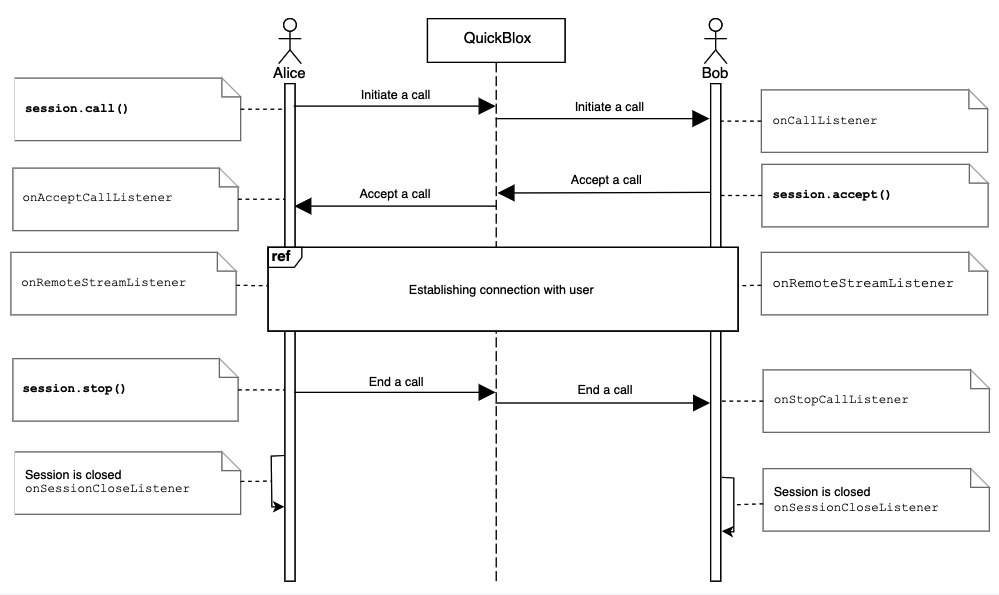
Go to the [Resources](#resources) section to see a sequence diagram for a regular call workflow.
### Call session states
The following table lists all supported call session states.
| State | Description |
| -------- | ------------------------------------------------------------------------------------------------ |
| NEW | A new call session has such a state. |
| ACTIVE | A call session gets this state when you initiated or accepted the incoming call. |
| HUNGUP | A call session gets this state when you hang up, before closing the call session. |
| REJECTED | A call session gets this state when you reject an incoming call before closing the call session. |
| CLOSED | A call session is closed. |
### Call reconnection states
Since version 2.15.0 Quickblox-WebRTC \`\`\`JavaScript JavaScript SDK supports reconnection functional.
### Manage reconnection
You could add onReconnectListener to your client code to define session states and manage reconnection states.
```JavaScript JavaScript theme={null}
QB.webrtc.onReconnectListener = function (session, userId, state) {
console.group('onReconnectListener');
console.log('Session: ', session);
console.log('User Id: ', userId);
console.log('Reconnection state: ', state);
console.groupEnd();
};
```
Doesn’t invoke in conference.
The following table lists all supported call reconnection states:
| State | Description |
| ------------------------------ | -------------------------------------------------------------------------------- |
| ReconnectionState.RECONNECTING | A connection with opponent in reconnection progress after ICE connection failed. |
| ReconnectionState.RECONNECTED | A connection with opponent was successfully established. |
| ReconnectionState.FAILED | A connection with opponent isn’t restored by disconnect time interval. |
You can also increase disconnect timeout. By default the time is set to 30 seconds. Minimal time is 10 seconds. It’s time while users can have availability to reconnect. You could set the disconnectTimeInterval in the `CONFIG` object and then call the `init()` method.
```JavaScript JavaScript theme={null}
var APPLICATION_ID = 41;
var AUTH_KEY = "lkjdueksu7392kj";
var AUTH_SECRET = "iiohfdija792hj";
var ACCOUNT_KEY = "sdjfnksnlk2bk1k34kb";
var CONFIG = {
// other settings
webrtc: {
disconnectTimeInterval: 30,
}
// other settings
};
QB.init(APPLICATION_ID, AUTH_KEY, AUTH_SECRET, ACCOUNT_KEY, CONFIG);
```
### Peer connection states
The following table lists all supported states of peer connection:
| State | Description |
| ------------------------------------------- | ---------------------------------------------------------------------------------------------------------------------------------------------------------------------------------------------------------------------------------------------------- |
| QB.webrtc.SessionConnectionState.CONNECTING | The ICE agent has been given one or more remote candidates and is checking pairs of local and remote candidates against one another to try to find a compatible match, but has not yet found a pair which will allow the peer connection to be made. |
| QB.webrtc.SessionConnectionState.CONNECTED | A usable pairing of local and remote candidates has been found for all components of the connection, and the connection has been established. |
| QB.webrtc.SessionConnectionState.CLOSED | A peer connection was closed. But the call session can still be open because there can several peer connections in a single call session.The ICE agent for this RTCPeerConnection has shut down and is no longer handling requests. |
| QB.webrtc.SessionConnectionState.FAILED | One or more of the ICE transports on the connection is in the failed state. This can occur in different circumstances, for example, bad network, etc. |
| QB.webrtc.SessionConnectionState.COMPLETED | The ICE agent has finished gathering candidates, has checked all pairs against one another, and has found a connection for all components. |
## Resources
A regular call workflow.