> ## Documentation Index
> Fetch the complete documentation index at: https://docs.quickblox.com/llms.txt
> Use this file to discover all available pages before exploring further.
# Dialogs
> Learn how to create and manage dialogs.
## Before you begin
1. Register a [QuickBlox account](https://admin.quickblox.com/signin). This is a matter of a few minutes and you will be able to use this account to build your apps.
2. Configure QuickBlox SDK for your app. Check out [Setup](/sdks/react-native-setup) page for more details.
3. Create a user session to be able to use QuickBlox functionality. See [Authentication](/sdks/react-native-authentication) page to learn how to do it.
4. Connect to the Chat server. See [Connection](/sdks/react-native-chat-connection) page to learn how to do it.
Visit [Key Concepts](/docs/key-concepts) page to learn the most important QuickBlox concepts.
## Dialog types
All chats between users are organized in dialogs. There are 3 types of dialogs:
* **private dialog** - a dialog between 2 users.
* **group dialog** - a dialog between the specified list of users.
* **public dialog** - an open dialog. Any user from your app can be added to it.
You need to create a new dialog and then use it to chat with other users. You also can obtain a list of your existing dialogs.
## Create dialog
To create a **private** dialog, you need to set the ID of the opponent you want to create a chat with.
```JavaScript JavaScript theme={null}
const createDialogParam = {
type: QB.chat.DIALOG_TYPE.CHAT,
occupantsIds: [12345]
};
QB.chat
.createDialog(createDialogParam)
.then(function (dialog) {
// handle as neccessary, i.e.
// subscribe to chat events, typing events, etc.
})
.catch(function (e) {
// handle error
});
```
To create a **group** dialog for a predefined number of occupants, you need to set IDs of opponents you want to create a chat with.
```JavaScript JavaScript theme={null}
const createDialogParam = {
type: QB.chat.DIALOG_TYPE.GROUP_CHAT,
name: 'Group Chat',
occupantsIds: [12345, 12346, 12347],
photo: "some photo url"
};
QB.chat
.createDialog(createDialogParam)
.then(function (dialog) {
// handle as neccessary, i.e.
// subscribe to chat events, typing events, etc.
})
.catch(function (e) {
// handle error
});
```
It's possible to create a **public** dialog, so any user from your application can be joined to it. There is no list of occupants. This dialog is open for everybody.
```JavaScript JavaScript theme={null}
const createDialogParam = {
type: QB.chat.DIALOG_TYPE.PUBLIC_CHAT,
name: 'Awesome Public Chat'
};
QB.chat
.createDialog(createDialogParam)
.then(function (dialog) {
// handle as neccessary, i.e.
// subscribe to chat events, typing events, etc.
})
.catch(function (e) {
// handle error
});
```
The `createDialog()` method accepts one argument of the object type that has the following fields:
| Field | Required | Description |
| ------------ | -------- | ----------------------------------------------------------------------------------------------------------------------------------------------------------------------------------------------------------------------------------------------------------------------------------------------------------------------------------- |
| name | yes | A name of the dialog. Required only for **group** and **public** dialog types. Not needed for **private** dialog. |
| occupantsIds | yes | A list of opponents IDs.- If the occupantsIds array is empty and type is not provided, the **public** dialog is created.- If the occupantsIds has a single user and type is not provided, the **private** dialog is created.- If the occupantsIds has more then one userId and type is not provided, a **group** dialog is created. |
| type | no | A type of the dialog. Possible values: `QB.chat.DIALOG\_TYPE.CHAT`, `QB.chat.DIALOG\_TYPE.GROUP\_CHAT` or `QB.chat.DIALOG\_TYPE.PUBLIC\_CHAT`. By default, the **public** dialog is created. |
| photo | no | A URL of the image. Can be a link to a file in Content module, Custom Objects module or just a web link. **Must** be a String. |
## Create dialog with custom parameters
A dialog can be extended with additional parameters. These parameters can be used to store additional data. Also, these parameters can be used in dialogs retrieval requests.
To start using additional parameters, create an additional schema of your parameters. This is a custom objects class. Just create an empty class with all fields that you need. These fields will be additional parameters in your dialog. See [this section](/sdks/react-native-custom-objects) to learn how to create a schema using Custom Objects. Then, specify the parameters defined in the schema in a new dialog.
```JavaScript JavaScript theme={null}
const createDialogParam = {
type: QB.chat.DIALOG_TYPE.GROUP_CHAT,
occupantsIds: [12345, 12346, 12347],
name: 'My friends',
customData: {
"class_name":"CoolDialog",
"category":"friends"
}
};
QB.chat
.createDialog(createDialogParam)
.then(function (dialog) {
// handle as neccessary, i.e.
// subscribe to chat events, typing events, etc.
})
.catch(function (e) {
// handle error
});
```
## Join dialog
Before you start chatting in a **group** or **public** dialog, you need to join it by calling the `joinDialog()` method. If you've successfully joined the dialog, you can send/receive messages in real-time. See [this section](/sdks/react-native-chat-messaging#send-text-message) to learn how to send/receive messages.
```JavaScript JavaScript theme={null}
const joinDialogParam = { dialogId: 'dsfsd934329hjhkda98793j2' };
// First check if the dialog is joined using QB.chat.isJoinedDialog
QB.chat.isJoinedDialog(joinDialogParam)
.then(isJoined => {
if (isJoined) {
return;
}
QB.chat
.joinDialog(joinDialogParam)
.then(function () { // Handle successful leave })
.catch(function (e) { // Handle error });
})
.catch(function (e) { // Handle error checking if the dialog is joined });
```
Let's see, how the `join()` method is used with regard to the dialog type.
| Capabilities | Public | Group | Private |
| ------------ | ------ | ----- | ------- |
| Join | ✓ | ✓ | ✗ |
You can join a group dialog **only** if your user ID is present in the `occupantsIds` array, in the dialog model.
Your user ID is added to the `occupantsIds` array if you create a dialog **or** you are added to the dialog by the other user. See [this section](/sdks/react-native-chat-dialogs#add-occupants) to learn how to add/remove occupants to the group dialog.
## Leave dialog
You can leave the **group** and **public** dialog by calling the `leaveDialog()` method. If the dialog is left, you can't send/receive messages. To be able to receive/send messages, you need to join it.
```JavaScript JavaScript theme={null}
const leaveDialogParam = { dialogId: 'dsfsd934329hjhkda98793j2' };
// First check if the dialog is joined using QB.chat.isJoinedDialog
QB.chat.isJoinedDialog(leaveDialogParam)
.then(isJoined => {
if (isJoined === false) {
return;
}
QB.chat
.leaveDialog(leaveDialogParam)
.then(function () { // Handle successful leave })
.catch(function (e) { // Handle error });
})
.catch(function (e) { // Handle error checking if the dialog is joined });
```
Let's see, how the `leaveDialog()` method is used with regard to the dialog type.
| Capabilities | Public | Group | Private |
| ------------ | ------ | ----- | ------- |
| Leave | ✓ | ✓ | ✗ |
When a **group** dialog is left, your user ID is removed `occupantsIds` array, in the dialog model. As a result, the dialog is removed from the list of dialogs and you won't have access to the chat history.
To remove a dialog for all users, use the `deleteDialog()` method. See [this section](/sdks/react-native-chat-dialogs#delete-dialog) to learn how to delete the dialog completely for all users.
## Retrieve list of dialogs
It's common to request all your dialogs or only a number of recently updated dialogs on every app login. The request below will return a list of **private**, **group**, and **public** dialogs containing `chat` in their names, sorted by the `QB.chat.DIALOGS_SORT.FIELD.LAST_MESSAGE_DATE_SENT` field in ascending order, and limited to 10 dialogs on the page.
```JavaScript JavaScript theme={null}
// * @param {Object} result
// * @param {Dialog[]} result.dialogs
// * @param {number} result.skip
// * @param {number} result.limit
// * @param {number} result.total
function processDialogs(result) {
// dialogs found matching filter and sort
}
// get dialogs with 'chat' in name
const filter = {
field: chat.DIALOGS_FILTER.FIELD.NAME,
operator: chat.DIALOGS_FILTER.OPERATOR.CTN,
value: 'chat'
};
// sorted ascending by "last_message_date_sent"
const sort = {
field: QB.chat.DIALOGS_SORT.FIELD.LAST_MESSAGE_DATE_SENT,
ascending: true
};
const getDialogsQuery = {
filter: filter,
sort: sort,
limit: 10,
skip: 0
};
QB.chat
.getDialogs(getDialogsQuery)
.then(processDialogs)
.catch(function (e) {
// handle error
});
```
The method `getDialogs()` accepts one (optional) argument of the object type that has the following fields:
| Field | Required | Description |
| ------ | -------- | ------------------------------------------------------------------------------------------- |
| filter | no | Specifies filtering criteria for the field. |
| sort | no | Specifies sorting criteria for the field. |
| skip | no | Skip N records in search results. Useful for pagination. Default (if not specified): **0**. |
| limit | no | Limit search results to N records. Useful for pagination. Default value: **100**. |
If you want to retrieve only dialogs updated after some specific date time and order the search results, you can apply operators. This is useful if you cache dialogs somehow and do not want to obtain the whole list of your dialogs on every app start. Thus, you can apply [search](/sdks/react-native-users#search-operators) and [sort](/sdks/react-native-users#sort-operators) operators to list dialogs on the page so that it is easier to view specific dialogs.
### Search operators
You can use search operators to get more specific search results. The request below will return all **private** and **group** dialogs excluding **public** dialogs.
```JavaScript JavaScript theme={null}
function processDialogs(result) {}
// get dialogs excluding public chats
const filter = {
field: QB.chat.DIALOGS_FILTER.FIELD.TYPE,
operator: QB.chat.DIALOGS_FILTER.OPERATOR.NE,
value: QB.chat.DIALOG_TYPE.PUBLIC_CHAT.toString()
};
const getDialogsQuery = {
filter: filter,
};
QB.chat
.getDialogs(getDialogsQuery)
.then(processDialogs)
.catch(function (e) {
// handle error
});
```
Here are the search operators that you can use to search for the exact data that you need.
| Search operators | Applicable to types | Applicable to fields | Description |
| ---------------- | -------------------- | --------------------------------------------------- | ---------------------------------------------------- |
| lt | number, string, date | last\_message\_date\_sent, created\_at, updated\_at | **Less Than** operator. |
| lte | number, string, date | last\_message\_date\_sent, created\_at, updated\_at | **Less Than** or **Equal** to operator. |
| gt | number, string, date | last\_message\_date\_sent, created\_at, updated\_at | **Greater Than** operator. |
| gte | number, string, date | last\_message\_date\_sent, created\_at, updated\_at | **Greater Than** or **Equal** to operator. |
| ne | number, string, date | \_id, name, last\_message\_date\_sent | **Not Equal** to operator. |
| in | number, string, date | type, last\_message\_date\_sent, name | **IN** array operator. |
| nin | number, string, date | last\_message\_date\_sent | **IN** array operator. |
| all | number | occupants\_ids | **ALL** are contained in array. |
| ctn | string | name | All records that **contain** a particular substring. |
### Sort operators
You can use sort operators to order the search results. The request below will return dialogs sorted in ascending order by the `QB.chat.DIALOGS_SORT.FIELD.LAST_MESSAGE_DATE_SENT` field.
```JavaScript JavaScript theme={null}
function processDialogs(result) {}
const sort = {
field: QB.chat.DIALOGS_SORT.FIELD.LAST_MESSAGE_DATE_SENT,
ascending: true
};
const getDialogsQuery = {
sort: sort,
};
QB.chat
.getDialogs(getDialogsQuery)
.then(processDialogs)
.catch(function (e) {
// handle error
});
```
Here are the sort options that you can use to order search results.
| Sort options | Applicable to types | Applicable to fields | Description |
| ------------ | ------------------- | ------------------------------------------------ | ----------------------------------------------------------------------- |
| ascending | All types | id, created\_at, name, last\_message\_date\_sent | Sort results in the ascending order by setting the ascending as true. |
| descending | All types | id, created\_at, name, last\_message\_date\_sent | Sort results in the descending order by setting the ascending as false. |
## Retrieve dialogs by ID
You can get a list of dialogs by their IDs using the `getDialogs()` method. The request below will return the specified dialogs limited to 5 dialogs per page with 2 dialogs skipped at the beginning of the page.
```JavaScript JavaScript theme={null}
const dialogsIds = [
'1234567890',
'1234567891',
'1234567892',
'1234567893',
'1234567894',
'1234567895',
'1234567896',
'1234567897',
'1234567898',
'1234567899',
];
const filter = {
field: QB.chat.DIALOGS_FILTER.FIELD.ID,
operator: QB.chat.DIALOGS_FILTER.OPERATOR.IN,
value: dialogsIds.join()
};
const getDialogsQuery = {
filter: filter,
limit: 5,
skip: 2
};
QB.chat
.getDialogs(getDialogsQuery)
.then(function (result) {
// dialogs found matching filter and sorted
})
.catch(function (e) {
// handle error
});
```
## Update dialog
You can update the information for a **private**, **group**, and **public** dialog.
```JavaScript JavaScript theme={null}
const updateDialogParam = {
dialogId: 'dsfsd934329hjhkda98793j2',
name: 'Team room'
};
QB.chat
.updateDialog(updateDialogParam)
.then(function (updatedDialog) {
// handle as necessary
})
.catch(function (e) {
// handle error
});
```
Let's see what capabilities a particular user role has with regard to the dialog type.
| Capabilities | Public dialog | Group dialog | Private dialog |
| ------------------------ | -------------- | -------------- | -------------- |
| Update a dialog name | Owner | Owner | ✗ |
| Update a photo | Owner | Owner | ✗ |
| Update custom parameters | Owner,Occupant | Owner,Occupant | Owner,Occupant |
## Add occupant
Set the `addUsers` field to add occupants to the dialog. As a result, the occupant ID will be added to the `occupantsIds` array.
```JavaScript JavaScript theme={null}
const updateDialogParam = {
dialogId: 'dsfsd934329hjhkda98793j2',
addUsers: [12340],
};
QB.chat
.updateDialog(updateDialogParam)
.then(function (updatedDialog) {
// handle as necessary
})
.catch(function (e) {
// handle error
});
```
The `updateDialog()` method accepts one argument of the object type that has the following fields:
| Fields | Required | Description |
| -------- | -------- | ------------------------------------------- |
| dialogId | yes | ID of the dialog |
| addUsers | yes | IDs of occupants to be added to the dialog. |
Let's see what capabilities a particular user role has with regard to the dialog type.
| Capabilities | Public dialog | Group dialog | Private dialog |
| --------------- | ------------- | -------------- | -------------- |
| Add other users | ✗ | Owner,Occupant | ✗ |
## Remove occupant
Set the `removeUsers` field remove occupants from a **group** dialog. As a result, the occupant ID will be removed from the `occupantsIds` array.
```JavaScript JavaScript theme={null}
const updateDialogParam = {
dialogId: 'dsfsd934329hjhkda98793j2',
removeUsers: [12345],
};
QB.chat
.updateDialog(updateDialogParam)
.then(function (updatedDialog) {
// handle as necessary
})
.catch(function (e) {
// handle error
});
```
The `updateDialog()` method accepts one argument of the object type that has the following fields:
| Fields | Required | Description |
| ----------- | -------- | ----------------------------------------------- |
| dialogId | yes | ID of the dialog |
| removeUsers | yes | IDs of occupants to be removed from the dialog. |
Let's see what capabilities a particular user role has with regard to the dialog type.
| Capabilities | Public dialog | Group dialog | Private dialog |
| ------------------ | ------------- | -------------- | -------------- |
| Remove other users | ✗ | Owner | ✗ |
| Remove yourself | ✗ | Owner,Occupant | ✗ |
## Delete dialog
Use the `deleteDialog()` method to delete a dialog for all users. When deleting a **group** dialog, all user IDs will be removed from the `occupantsIds` array in the dialog model. You can also delete multiple dialogs in a single request.
To delete a dialog for yourself, just leave the dialog. See [this section](/sdks/react-native-chat-dialogs#leave-dialog) for more information.
```JavaScript JavaScript theme={null}
const deleteDialogParam = { dialogId: 'dsfsd934329hjhkda98793j2' };
QB.chat
.deleteDialog(deleteDialogParam)
.then(function () {
// dialog was removed successfully
})
.catch(function (e) {
// handle error
});
```
Let's see what capabilities a particular user role has with regard to the dialog type.
| Capabilities | Public | Group | Private |
| ----------------------------- | ------ | ----- | ------- |
| Delete a dialog for all users | Owner | Owner | Owner |
## Resources
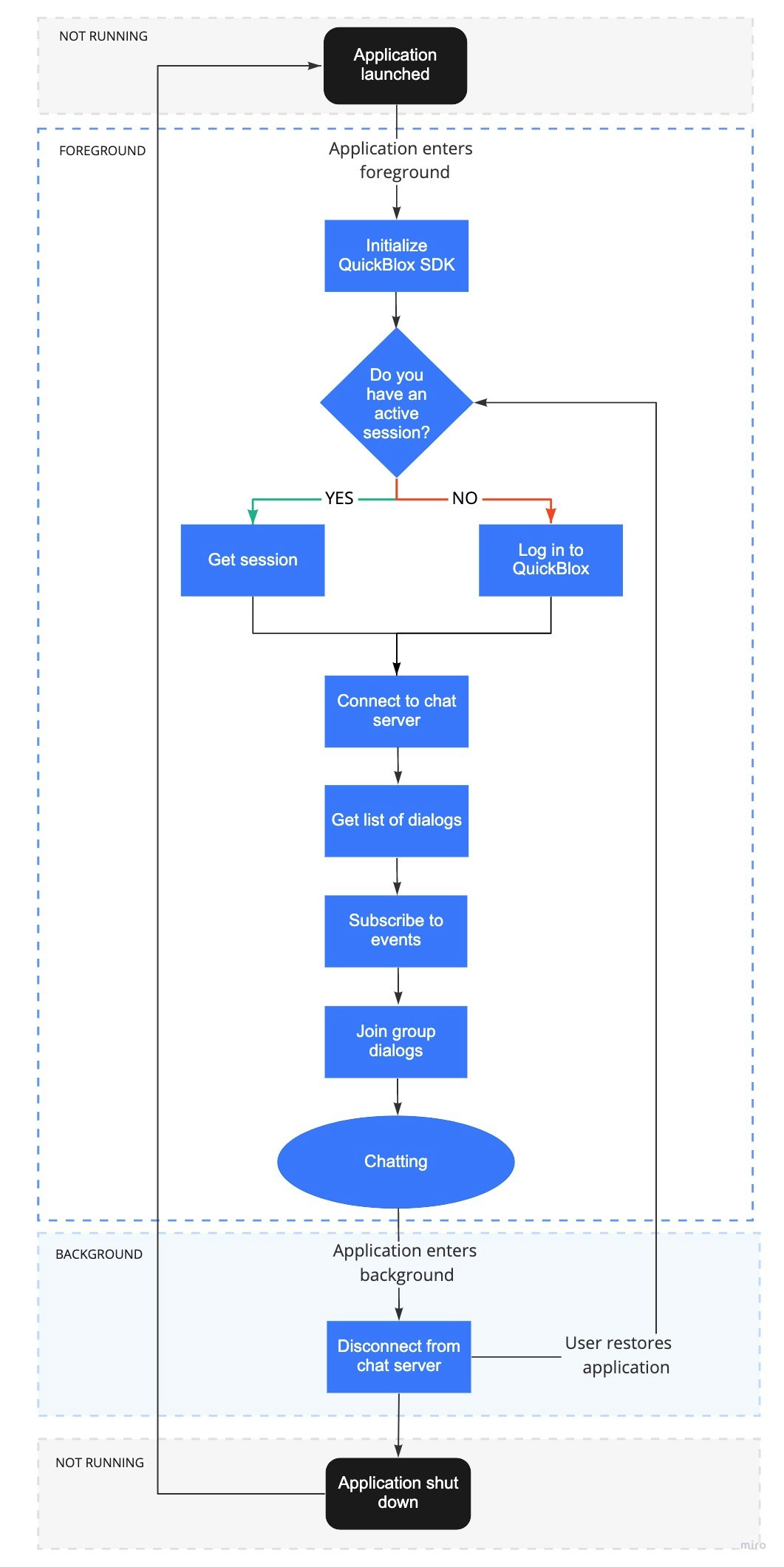
A sequence of steps a user takes to start a dialog by moving through the application lifecycle.