> ## Documentation Index
> Fetch the complete documentation index at: https://docs.quickblox.com/llms.txt
> Use this file to discover all available pages before exploring further.
# Knowledge base
> Learn how to manage SmartChat Assistant knowledge base
### Manage knowledge base content
In this section, you can add websites, separate webpages or upload files that will be used as a knowledge base source by your SmartChat Assistant.
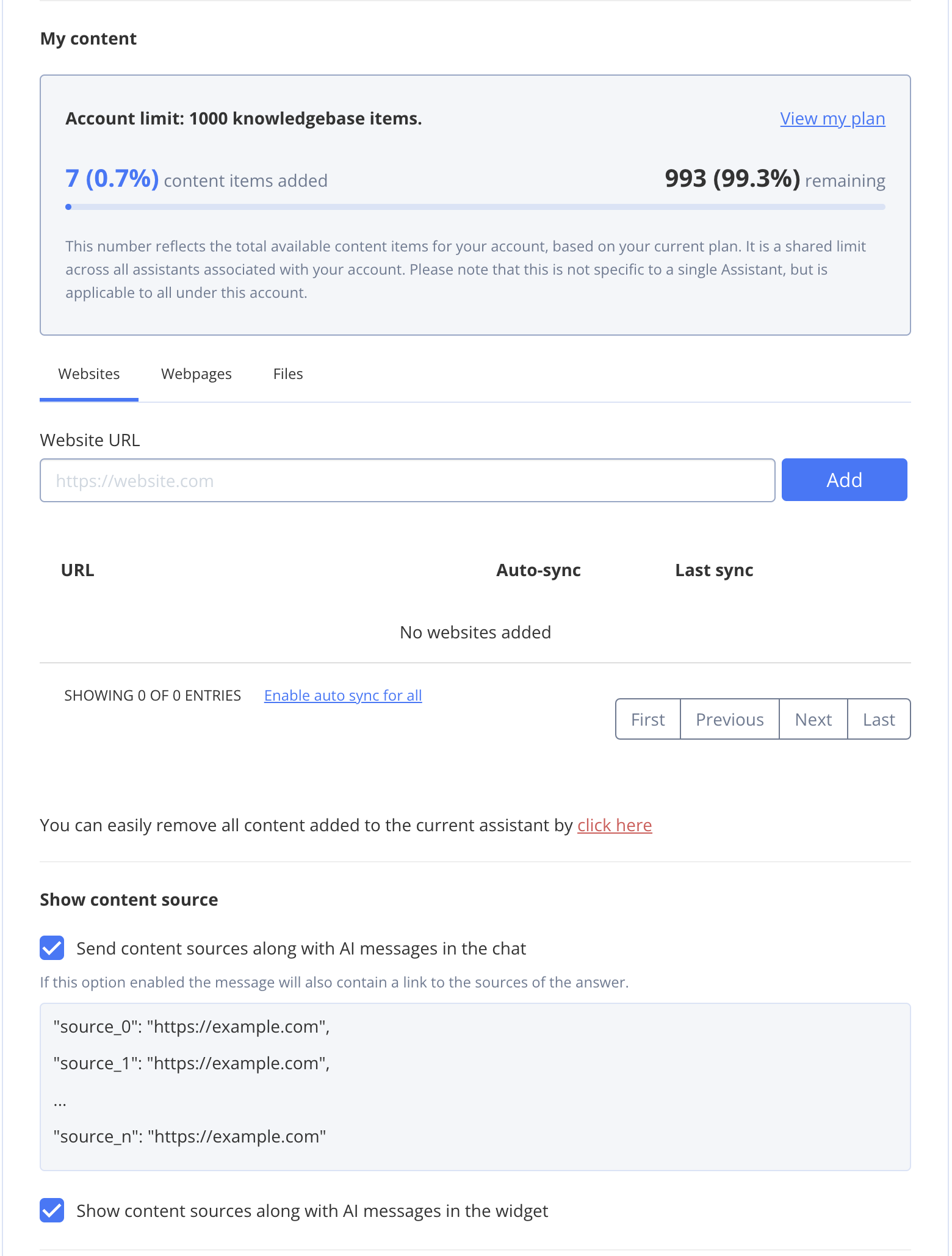 #### Add websites
To add a website to the SmartChat Assistant, follow these steps:
1. Go to ***Dashboard => YOUR\_APP => SmartChat Assistant***.
2. Find the SmartChat Assistant you want to update and click on its ID.
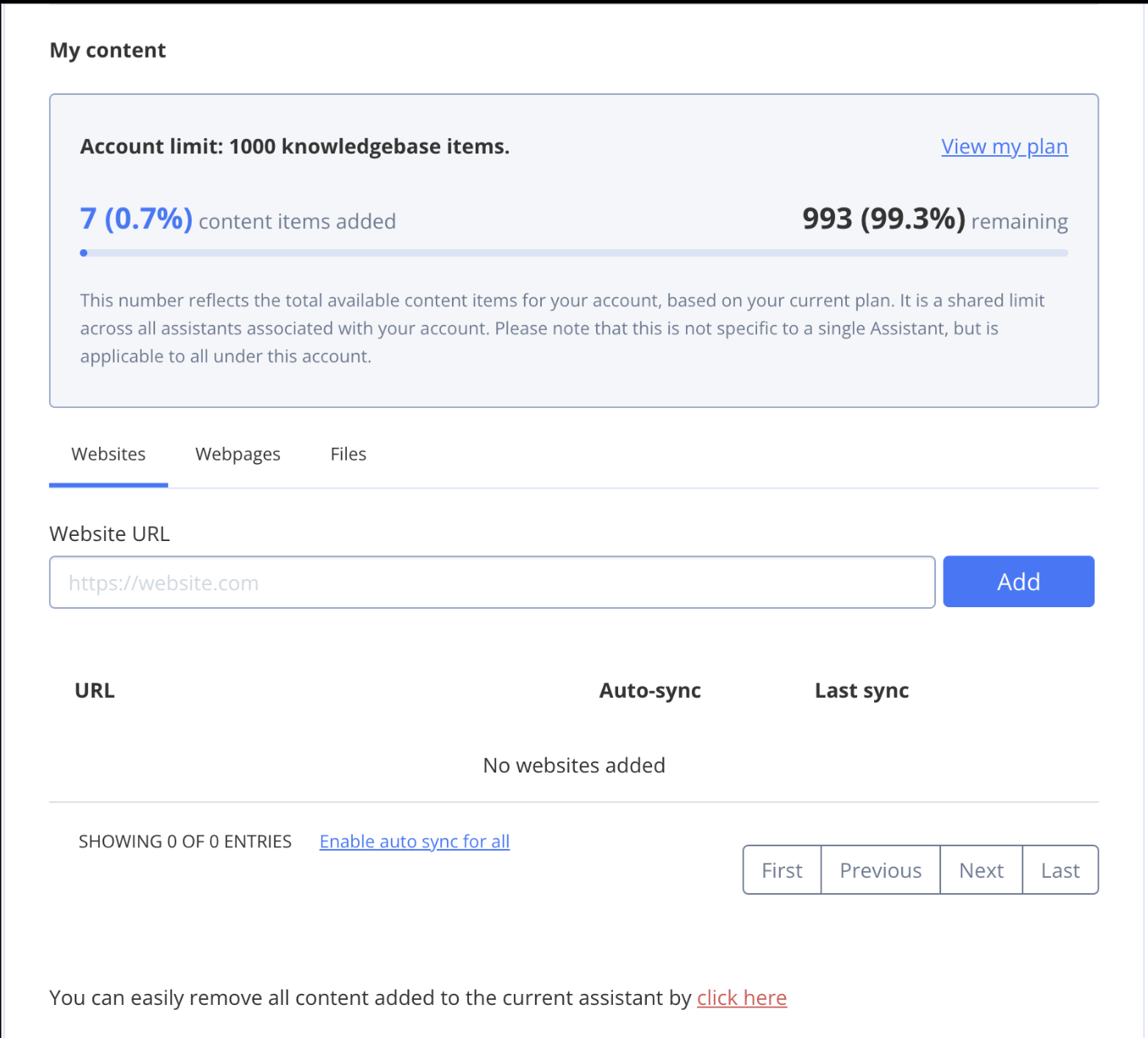
3. Scroll down to the **My content** section.
4. Enter the website URL.
5. Click Add.
#### Add websites
To add a website to the SmartChat Assistant, follow these steps:
1. Go to ***Dashboard => YOUR\_APP => SmartChat Assistant***.
2. Find the SmartChat Assistant you want to update and click on its ID.
3. Scroll down to the **My content** section.
4. Enter the website URL.
5. Click Add.
 6. Select the pages you want to add, or click **Select all** to add every page.
7. To automatically add new pages from the website, check **Enable auto sync for website**.
If you enable auto sync, **ALL** pages from the website will be added.
6. Select the pages you want to add, or click **Select all** to add every page.
7. To automatically add new pages from the website, check **Enable auto sync for website**.
If you enable auto sync, **ALL** pages from the website will be added.
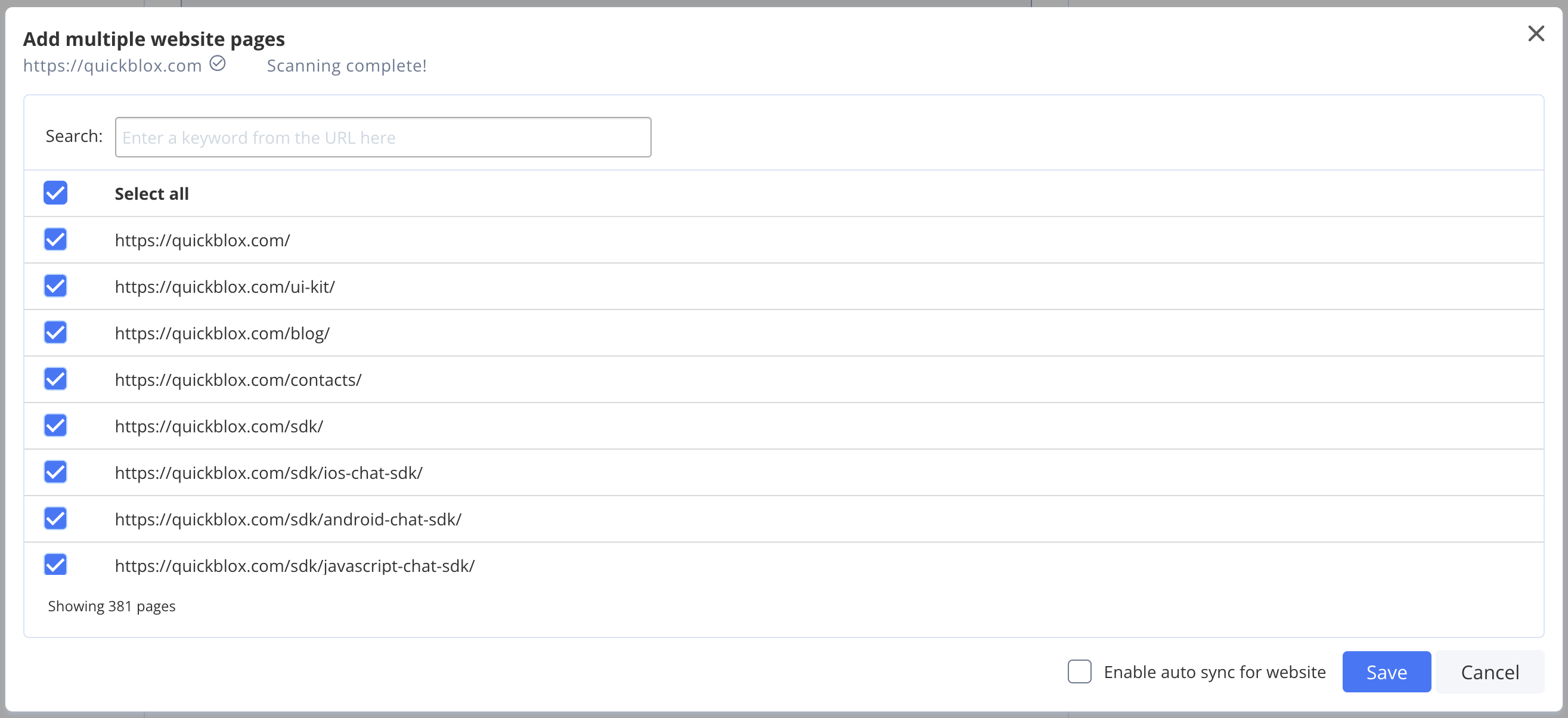 8. Click Save.
Please note that when you add a web page you are adding this particular web page and not the whole website.
When you remove a website, all pages associated with that website will also be automatically removed.
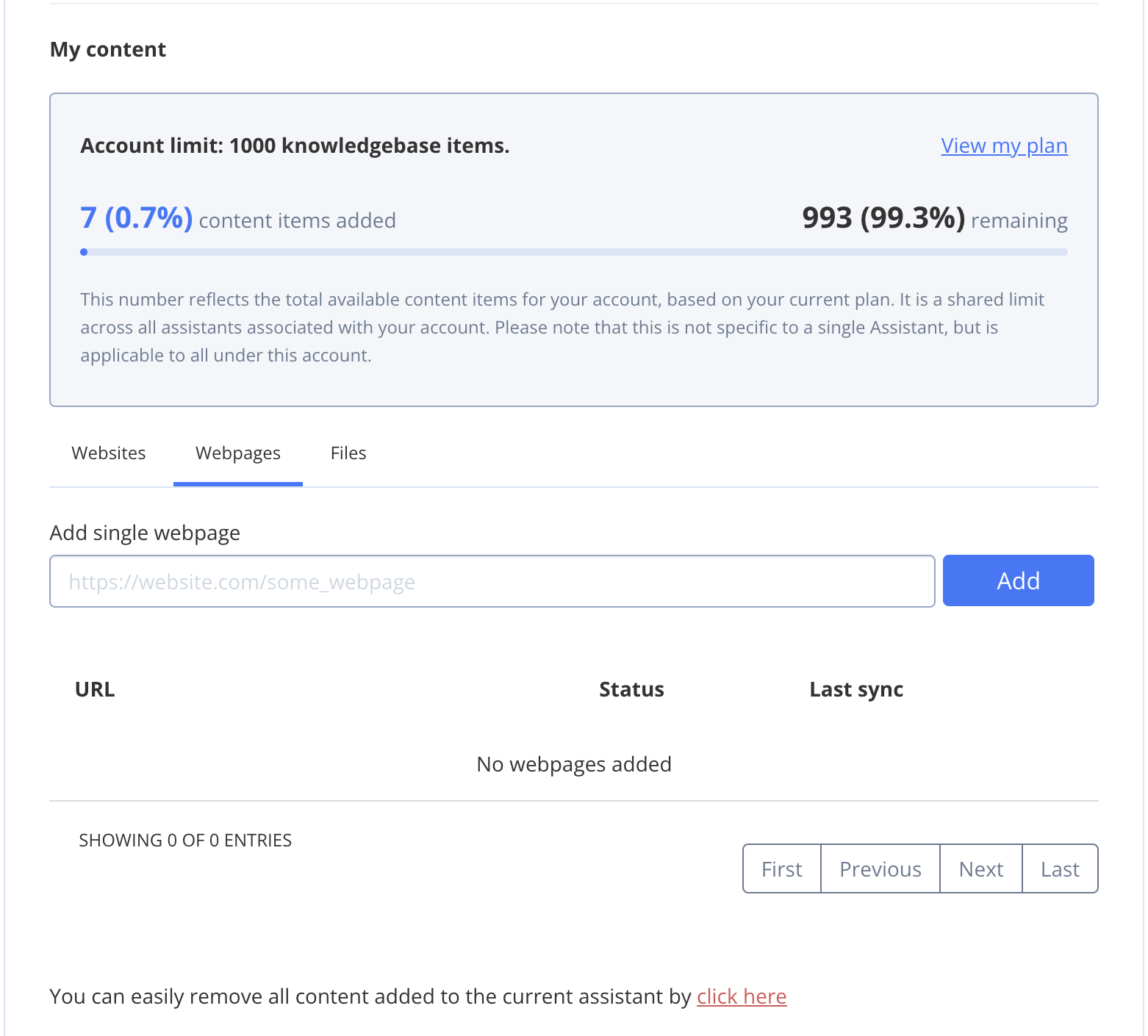
#### Add webpages
To add a webpage to the SmartChat Assistant, follow these steps:
1. Go to ***Dashboard => YOUR\_APP => SmartChat Assistant***.
2. Find the SmartChat Assistant you want to update and click on its ID.
3. Scroll down to the **My content** section.
4. Click on **Webpages** tab.
5. Enter the webpage URL(including https\:// or http\://).
6. Click Add.
8. Click Save.
Please note that when you add a web page you are adding this particular web page and not the whole website.
When you remove a website, all pages associated with that website will also be automatically removed.
#### Add webpages
To add a webpage to the SmartChat Assistant, follow these steps:
1. Go to ***Dashboard => YOUR\_APP => SmartChat Assistant***.
2. Find the SmartChat Assistant you want to update and click on its ID.
3. Scroll down to the **My content** section.
4. Click on **Webpages** tab.
5. Enter the webpage URL(including https\:// or http\://).
6. Click Add.
 #### Add files
To add a webpage to the SmartChat Assistant, follow these steps:
1. Go to ***Dashboard => YOUR\_APP => SmartChat Assistant***.
2. Find the SmartChat Assistant you want to update and click on its ID.
3. Scroll down to the **My content** section.
4. Click on **Files** tab.
5. Click on Browse button and select file(or drag and drop file).
#### Add files
To add a webpage to the SmartChat Assistant, follow these steps:
1. Go to ***Dashboard => YOUR\_APP => SmartChat Assistant***.
2. Find the SmartChat Assistant you want to update and click on its ID.
3. Scroll down to the **My content** section.
4. Click on **Files** tab.
5. Click on Browse button and select file(or drag and drop file).
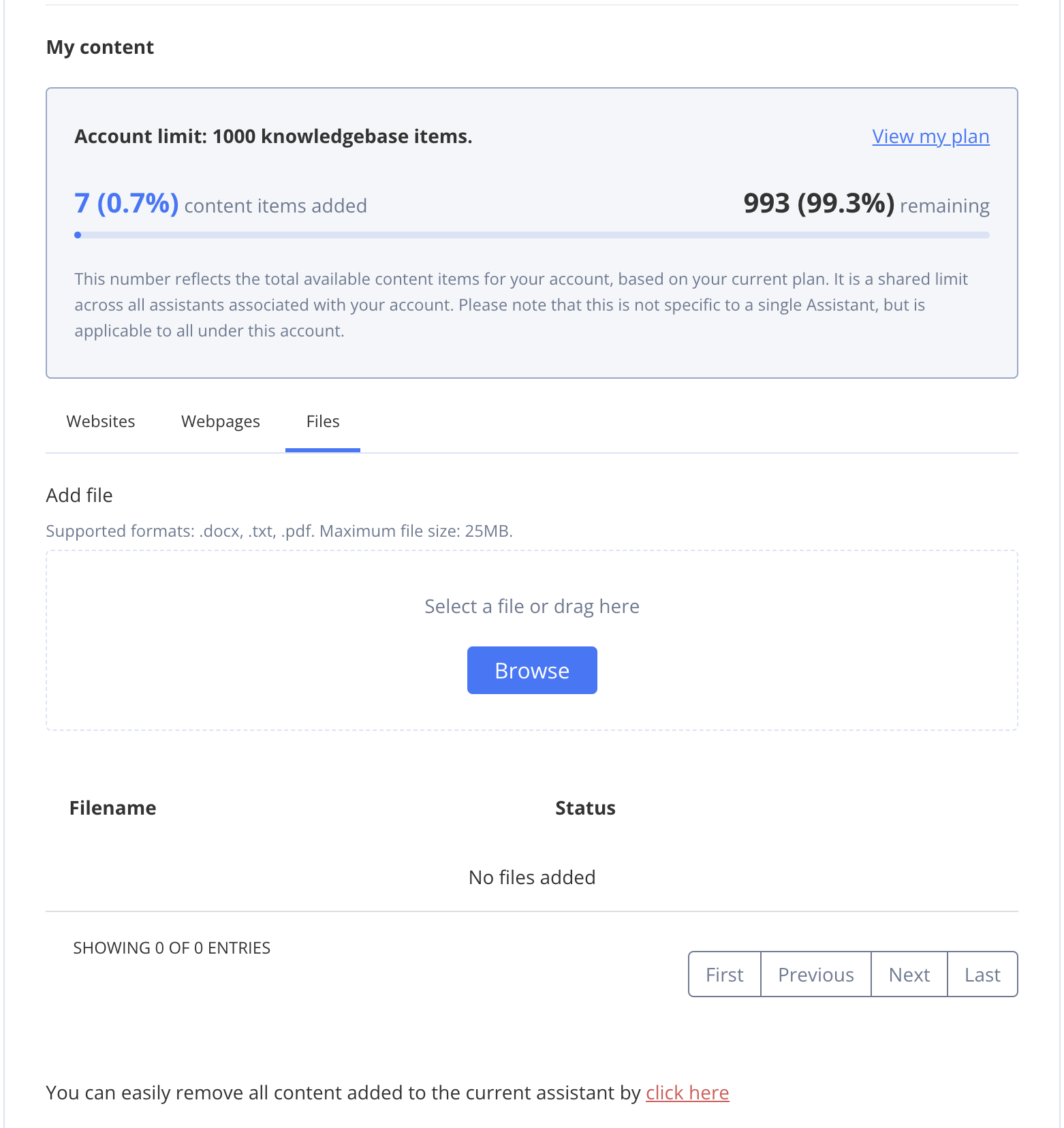 You can upload .docx, .txt, and .pdf files with a max size of up to 25MB