> ## Documentation Index
> Fetch the complete documentation index at: https://docs.quickblox.com/llms.txt
> Use this file to discover all available pages before exploring further.
# AI Features
> QuickBlox AI for Android provides a range of features to enhance the chat experience.
### Overview
With essential messaging functionalities such as answer assistant, users can engage in more interactive conversations, and **AI Translate** can improve cross-language communication.
**Supported features**
| name | description |
| ------------------- | -------------------------------------- |
| AI Answer assistant | Provides answers based on chat history |
| AI Translate | Provides translation of chat message |
| AI Rephrase | Provides multiple variants of text |
## AI Answer assistant
**QuickBlox Android UIKit** provides answer assistant functionality that helps users effortlessly send various answers considering chat history.
### How to use
In Android UIKit version 0.10.0 and above, with Android QuickBlox SDK v4.2.1, you should enable QuickBlox AI Answer Assistant using your Smart ChatAssist ID from the QuickBlox admin panel.
#### Enable AI Extensions
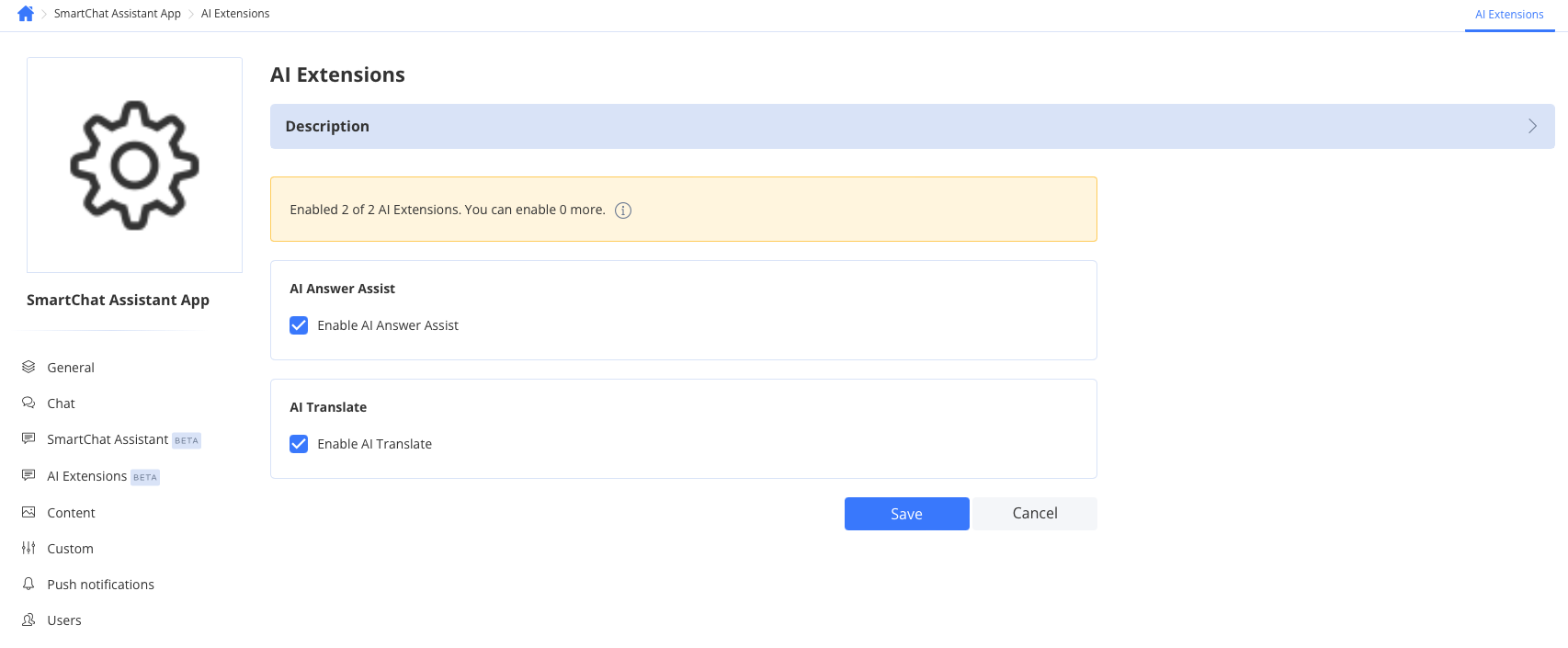
1. Navigate to the **Dashboard => *YOUR\_APP* => AI Extensions** page
2. Select the checkboxes for the features you want to enable.
3. Click the Save button to save changes.
#### Review your SmartChat Assistant
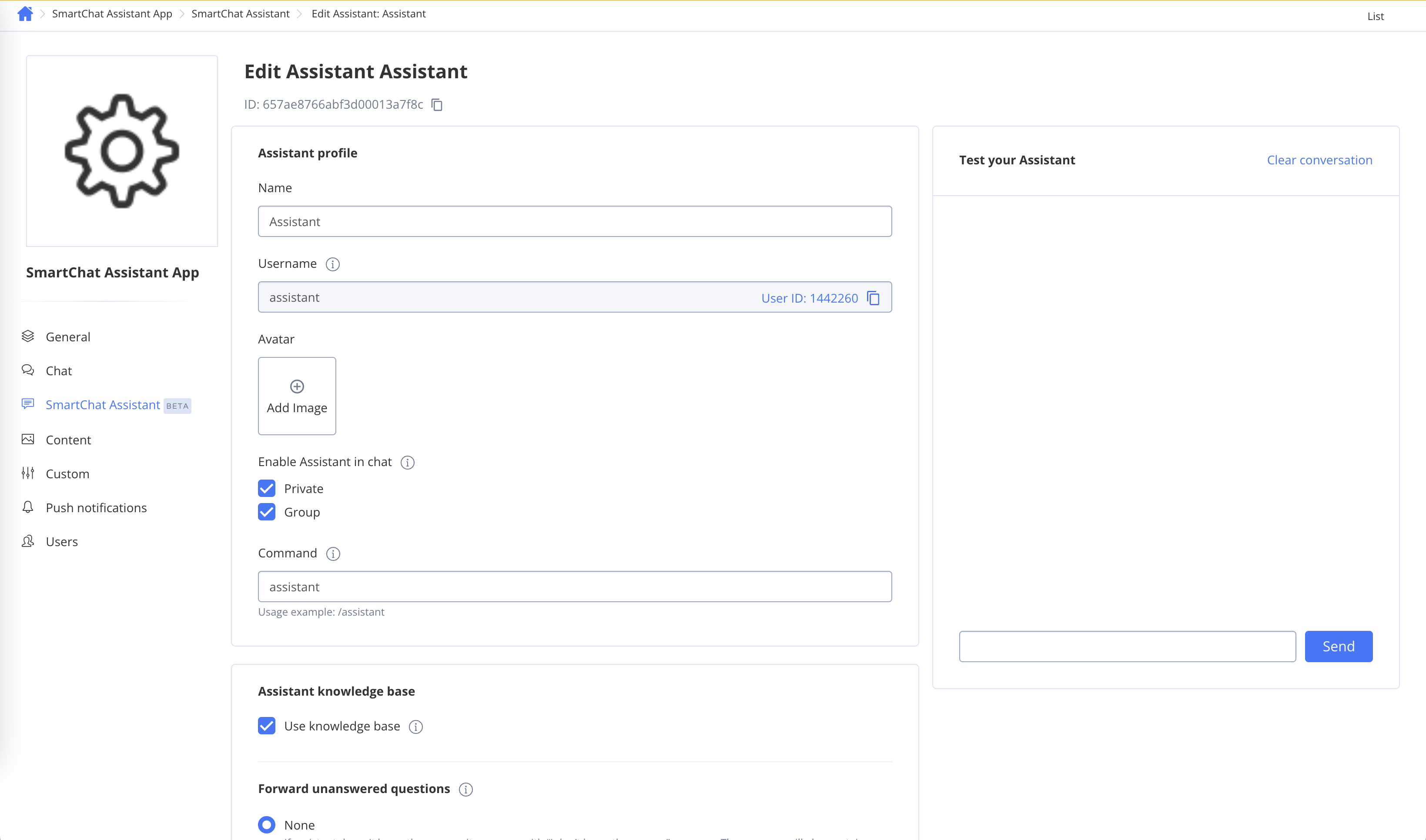
To get **ID** of SmartChat Assistant to use it as `smartChatAssistantId` param follow the steps below:
1. Navigate to the **Dashboard => *YOUR\_APP* => SmartChat Assistant** page
2. Choose the ID of the SmartChat Assistant you want to update and click on it.
3. Edit the SmartChat Assistant settings.
4. Click the Save button to save changes.
#### Enable with Smart Chat Assistant ID
```Kotlin Kotlin theme={null}
val smartChatAssistantId = "XXXXXXXXXXXXXXXXXXXXXXXX"
QuickBloxUiKit.enableAIAnswerAssistantWithSmartChatAssistantId(smartChatAssistantId)
```
| parameter name | type | description |
| :------------------- | :----- | :-------------------------------------------------------------------------------------------------------------------------------------------------------------------------- |
| smartChatAssistantId | String | This field should hold your actual Smart Chat Assistant ID that you'll receive from the QuickBlox account. This ID is used to authenticate your requests to the AI service. |
#### Enable with Open AI Token or Proxy server
**Recommendation**
The code snippets below are not recommended for use with Android UIKit version 0.10.0 and above, as they will be deprecated. In the latest version of our Android UIKit, AI Assist customizations are no longer supported.
The [QuickBlox QBAIAnswerAssistant library](https://github.com/QuickBlox/android-ai-releases/tree/main/com/quickblox/android-ai-answer-assistant) is based on OpenAI functional and provides the simplest way to communicate with API.
All AI features in **QuickBlox UIKit for Android** are enabled by default, but for this functionality to work, you need to set either an **Open AI token** or a **Proxy server**.
There are 2 configurations to use the **AIAnswerAssistant** functionality in **QuickBlox Android UIKit**.
1. **Directly**. Using the **AIAnswerAssistant** with raw **Open AI token**. The **QuickBlox Android UIKit** will communicate directly with OpenAI API. This is not the preferred way because we using **Open AI token** directly. It's a good solution for development flow, not for release
2. **Proxy**. Using the **AIAnswerAssistant** with QuickBlox session token and with a proxy server. The **QuickBlox Android UIKit** will communicate through a proxy server (not directly) with OpenAI API. This is the preferred safety way because we encapsulate the **Open AI token** inside the proxy server. It's a good solution for release flow.
**Directly using**
```Kotlin Kotlin theme={null}
val openAIToken = "open_ai_token" // our raw open ai token
QuickBloxUiKit.enableAIAnswerAssistantWithOpenAIToken(openAIToken)
```
| parameter name | type | description |
| -------------- | ------ | ---------------------------------- |
| openAIToken | String | The token for access to OpenAI API |
**Proxy using**
```Kotlin Kotlin theme={null}
val serverProxyUrl = "https://my.proxy-server.com" // our proxy server url
QuickBloxUiKit.enableAIAnswerAssistantWithProxyServer(serverProxyUrl)
```
| parameter name | type | description |
| -------------- | ------ | ------------------------- |
| serverProxyUrl | String | The URL of a proxy server |
Recommendation
We recommended using our **proxy server** which you can find by link [https://github.com/QuickBlox/qb-ai-assistant-proxy-server/releases](https://github.com/QuickBlox/qb-ai-assistant-proxy-server/releases) Please use the latest release.
#### Disable AIAnswerAssistant
To disable the **AIAnswerAssistant** functionality in **QuickBlox Android UIKit** you can call the method:
```Kotlin Kotlin theme={null}
QuickBloxUiKit.disableAIAnswerAssistant()
```
#### Customization
**QuickBlox Android UIKit** has the ability to set additional query parameters for **AIAnswerAssistant**, for example:
```Kotlin Kotlin theme={null}
val openAIModel: Model = Model.GPT_3_5_TURBO
val maxRequestTokens: Int = 3000
val maxResponseTokens: Int = 1000
val organization: String = "Organization"
val temperature: Float = 0.5f
QuickBloxUiKit.setOpenAIModelForAIAnswerAssistant(openAIModel)
QuickBloxUiKit.setMaxRequestTokensForAIAnswerAssistant(maxRequestTokens)
QuickBloxUiKit.setMaxResponseTokensForAIAnswerAssistant(maxResponseTokens)
QuickBloxUiKit.setOrganizationForAIAnswerAssistant(organization)
QuickBloxUiKit.setTemperatureForAIAnswerAssistant(temperature)
```
| parameter name | type | description |
| ----------------- | ------ | ------------------------------------------------------------------------------------------------------------------------------- |
| openAIModel | Model | Model of Open AI |
| maxRequestTokens | Int | Maximum number of tokens for a request |
| maxResponseTokens | Int | Maximum number of tokens for a response |
| organization | String | The organization ID is the unique identifier for your organization which can be used in API requests. |
| temperature | Float | The sampling temperature, between 0 and 1. Higher values like 0.8 will make the output more random, while lower values like 0.2 |
## AI Translate
QuickBlox provides Translate functionality that helps users simplify cross-lingual communication by providing instant message translation services.
### How to use
In Android UIKit version 0.10.0 and above, with Android QuickBlox SDK v4.2.1, you should enable QuickBlox AI Translate using your Smart ChatAssist ID from the QuickBlox admin panel.
#### Enable AI Extensions
1. Navigate to the **Dashboard => *YOUR\_APP* => AI Extensions** page
2. Select the checkboxes for the features you want to enable.
3. Click the Save button to save changes.
#### Review your SmartChat Assistant
To get **ID** of SmartChat Assistant to use it as `smartChatAssistantId` param follow the steps below:
1. Navigate to the **Dashboard => *YOUR\_APP* => SmartChat Assistant** page
2. Choose the ID of the SmartChat Assistant you want to update and click on it.
3. Edit the SmartChat Assistant settings.
4. Click the Save button to save changes.
#### Enable with Smart Chat Assistant ID
```Kotlin Kotlin theme={null}
val smartChatAssistantId = "XXXXXXXXXXXXXXXXXXXXXXXX"
QuickBloxUiKit.enableAITranslateWithSmartChatAssistantId(smartChatAssistantId)
```
| parameter name | type | description |
| :------------------- | :----- | :-------------------------------------------------------------------------------------------------------------------------------------------------------------------------- |
| smartChatAssistantId | String | This field should hold your actual Smart Chat Assistant ID that you'll receive from the QuickBlox account. This ID is used to authenticate your requests to the AI service. |
#### Enable with Open AI Token or Proxy server
**Recommendation**
The code snippets below are not recommended for use with Android UIKit version 0.10.0 and above, as they will be deprecated. In the latest version of our Android UIKit, AI Assist customizations are no longer supported.
The [QuickBlox AITranslate library](https://github.com/QuickBlox/android-ai-releases/tree/main/com/quickblox/android-ai-translate) is based on OpenAI functional and provides the simplest way to communicate with API.
All AI features in QuickBlox UIKit for Android are enabled by default, but for this functionality to work, you need to set either an **Open AI token** or a **Proxy server**.
There are 2 configurations to use the **AITranslate** functionality in **QuickBlox Android UIKit**.
1. **Directly**. Using the **AITranslate** with raw **Open AI token**. The **QuickBlox UIKit** will communicate directly with OpenAI API. This is not the preferred way because we using **Open AI token** directly. It's a good solution for development flow, not for release
2. **Proxy**. Using the **AITranslate** with QuickBlox session token and with a proxy server. The **QuickBlox UIKit** will communicate through a proxy server (not directly) with OpenAI API. This is the preferred safety way because we encapsulate the **Open AI token** inside the proxy server. It's a good solution for release flow.
**Directly using**
```Kotlin Kotlin theme={null}
val openAIToken = "open_ai_token" // our raw open ai token
QuickBloxUiKit.enableAITranslateWithOpenAIToken(openAIToken)
```
| parameter name | type | description |
| -------------- | ------ | ---------------------------------- |
| openAIToken | String | The token for access to OpenAI API |
**Proxy using**
```Kotlin theme={null}
val serverProxyUrl = "https://my.proxy-server.com" // our proxy server url
QuickBloxUiKit.enableAITranslateWithProxyServer(serverProxyUrl)
```
| parameter name | type | description |
| -------------- | ------ | ------------------------- |
| serverProxyUrl | String | The URL of a proxy server |
Recommendation
We recommended using our **proxy server** which you can find by link [https://github.com/QuickBlox/qb-ai-assistant-proxy-server/releases](https://github.com/QuickBlox/qb-ai-assistant-proxy-server/releases) Please use the latest release.
#### Disable AITranslate
To disable the **AITranslate** functionality in **QuickBlox Android UIKit** you can call the method:
```Kotlin Kotlin theme={null}
QuickBloxUiKit.disableAITranslate()
```
#### Customization
**QuickBlox Android UIKit** uses the language set in the device system to translate messages. You can also set the custom language for translation using the method:
```Kotlin Kotlin theme={null}
QuickBloxUiKit.setupLanguageToAITranslate(Languages.ITALIAN)
```
If **QuickBlox Android UIKit** does not support the language of your system or the one you want to set, then the default language will be `Languages.ENGLISH`.
**QuickBlox Android UIKit** also has the ability to set additional query parameters for **AITranslate**, for example:
```Kotlin Kotlin theme={null}
val openAIModel: Model = Model.GPT_3_5_TURBO
val maxRequestTokens: Int = 3000
val maxResponseTokens: Int = 1000
val organization: String = "Organization"
val temperature: Float = 0.5f
QuickBloxUiKit.setOpenAIModelForAITranslate(openAIModel)
QuickBloxUiKit.setMaxRequestTokensForAITranslate(maxRequestTokens)
QuickBloxUiKit.setMaxResponseTokensForAITranslate(maxResponseTokens)
QuickBloxUiKit.setOrganizationForAITranslate(organization)
QuickBloxUiKit.setTemperatureForAITranslate(temperature)
```
| parameter name | type | description |
| ----------------- | ------ | ------------------------------------------------------------------------------------------------------------------------------- |
| openAIModel | Model | Model of Open AI |
| maxRequestTokens | Int | Maximum number of tokens for a request |
| maxResponseTokens | Int | Maximum number of tokens for a response |
| organization | String | The organization ID is the unique identifier for your organization which can be used in API requests. |
| temperature | Float | The sampling temperature, between 0 and 1. Higher values like 0.8 will make the output more random, while lower values like 0.2 |
## AI Rephrase
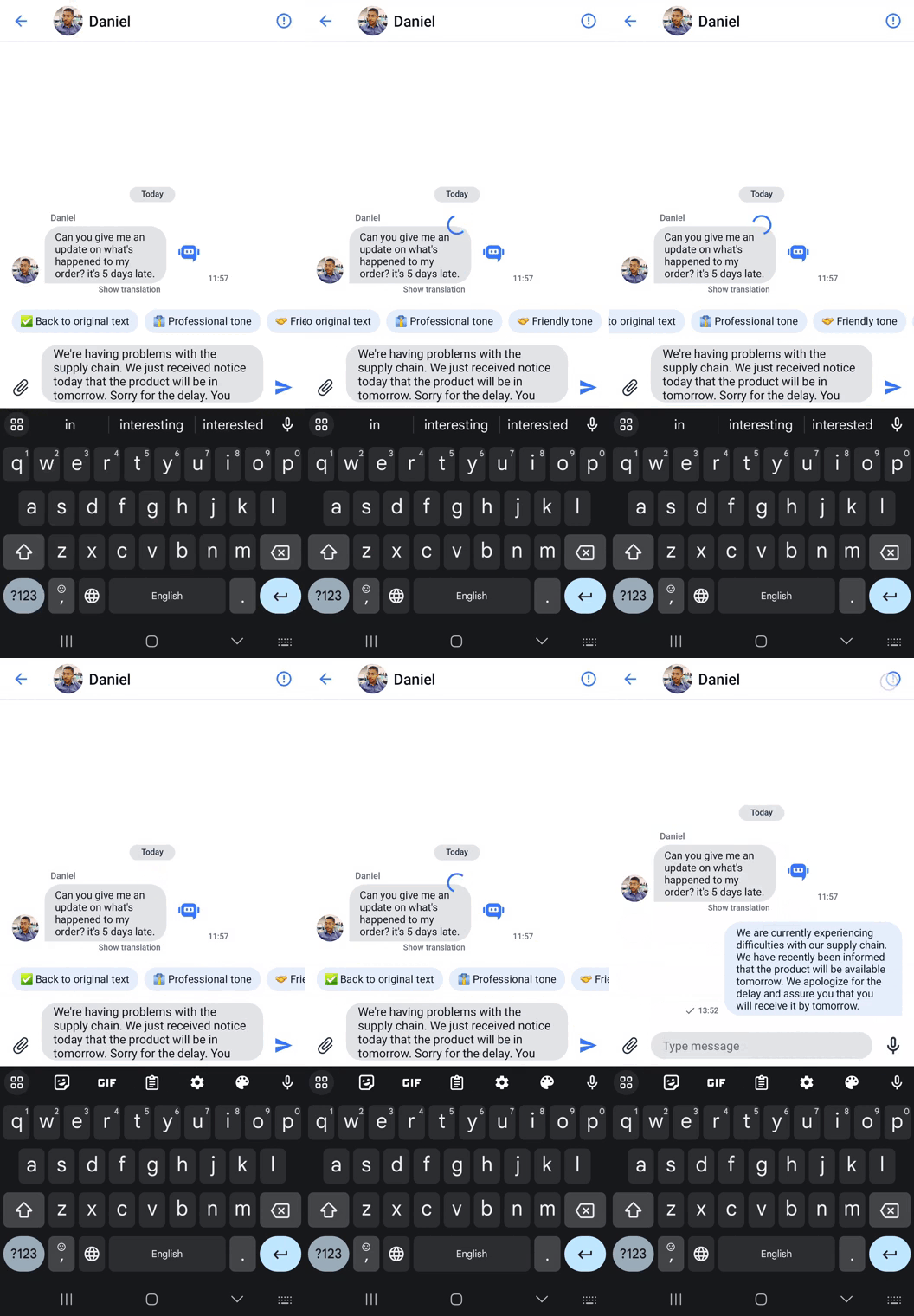
**QuickBlox UIKit for Android** provides AI Rephrase functionality that helps users effortlessly modify text with multiple variants using the [QuickBlox AIRephrase library](https://github.com/QuickBlox/android-ai-releases/tree/main/com/quickblox/android-ai-editing-assistant).
### How to use
All AI features in **QuickBlox UIKit for Android** are enabled by default, but for this functionality to work, you need to set either an **Open AI token** or a **Proxy server**.
#### Enable with Open AI Token or Proxy server
There are 2 configurations to use the **AIRephrase** functionality in **QuickBlox Android UIKit**.
1. **Directly**. Using the **AIRephrase** with raw **Open AI token**. The **QuickBlox Android UIKit** will communicate directly with OpenAI API. This is not the preferred way because we using **Open AI token** directly. It's a good solution for development flow, not for release
2. **Proxy**. Using the **AIRephrase** with QuickBlox session token and with a proxy server. The **QuickBlox Android UIKit** will communicate through a proxy server (not directly) with OpenAI API. This is the preferred safety way because we encapsulate the **Open AI token** inside the proxy server. It's a good solution for release flow.
**Directly using**
```Kotlin Kotlin theme={null}
val openAIToken = "open_ai_token" // our raw open ai token
QuickBloxUiKit.enableAIRephraseWithOpenAIToken(openAIToken)
```
| parameter name | type | description |
| -------------- | ------ | ---------------------------------- |
| openAIToken | String | The token for access to OpenAI API |
**Proxy using**
```Kotlin Kotlin theme={null}
val serverProxyUrl = "https://my.proxy-server.com" // our proxy server url
QuickBloxUiKit.enableAIRephraseWithProxyServer(serverProxyUrl)
```
| parameter name | type | description |
| -------------- | ------ | ------------------------- |
| serverProxyUrl | String | The URL of a proxy server |
Recommendation
We recommended using our **proxy server** which you can find by link [https://github.com/QuickBlox/qb-ai-assistant-proxy-server/releases](https://github.com/QuickBlox/qb-ai-assistant-proxy-server/releases) Please use the latest release.
#### Disable AIRephrase
To disable the **AIRephrase** functionality in **QuickBlox Android UIKit** you can call the method:
```Kotlin Kotlin theme={null}
QuickBloxUiKit.disableAIRephrase()
```
#### Customization
The developer has the ability to set his own list of tones, for example:
```Kotlin Kotlin theme={null}
val tones = mutableListOf()
val professionalTone = AIRephraseToneEntityImpl("Professional",
"This would edit messages to sound more formal, using technical vocabulary, clear sentence structures, and maintaining a respectful tone. It would avoid colloquial language and ensure appropriate salutations and sign-offs.",
"\uD83D\uDC54")
val friendlyTone = AIRephraseToneEntityImpl("Friendly",
"This would adjust messages to reflect a casual, friendly tone. It would incorporate casual language, use emoticons, exclamation points, and other informalities to make the message seem more friendly and approachable.",
"\uD83E\uDD1D")
tones.add(professionalTone)
tones.add(friendlyTone)
QuickBloxUiKit.setRephraseTones(tones)
```
| parameter name | type | description |
| -------------- | ---- | -------------------- |
| tones | List | List of custom tones |
**QuickBlox Android UIKit** also has the ability to set additional query parameters for **AIRephrase**, for example:
```Kotlin Kotlin theme={null}
val openAIModel: Model = Model.GPT_3_5_TURBO
val maxRequestTokens: Int = 3000
val maxResponseTokens: Int = 1000
val organization: String = "Organization"
val temperature: Float = 0.5f
QuickBloxUiKit.setOpenAIModelForAIRephrase(openAIModel)
QuickBloxUiKit.setMaxRequestTokensForAIRephrase(maxRequestTokens)
QuickBloxUiKit.setMaxResponseTokensForAIRephrase(maxResponseTokens)
QuickBloxUiKit.setOrganizationForAIRephrase(organization)
QuickBloxUiKit.setTemperatureForAIRephrase(temperature)
```
| parameter name | type | description |
| ----------------- | ------ | ------------------------------------------------------------------------------------------------------------------------------- |
| openAIModel | Model | Model of Open AI |
| maxRequestTokens | Int | Maximum number of tokens for a request |
| maxResponseTokens | Int | Maximum number of tokens for a response |
| organization | String | The organization ID is the unique identifier for your organization which can be used in API requests. |
| temperature | Float | The sampling temperature, between 0 and 1. Higher values like 0.8 will make the output more random, while lower values like 0.2 |
**Default tones**
* **Professional tone**. This will allow you to edit messages to sound more formal, using technical language, clear sentence structures, and maintaining a respectful tone. This would avoid colloquial language and ensure appropriate greetings and signatures.
* **Friendly tone**. This will allow you to tailor your messages to reflect a casual, friendly tone. It will include casual language, use emoticons, exclamation points, and other informal elements to make the message seem more friendly and approachable.
* **Encouraging tone**. This tone will be useful for motivation and encouragement. It will include positive words, and affirmations and express support and faith in the recipient
* **Empathic tone**. This tone will be used to show understanding and empathy. This will require softer language, acknowledgment of feelings, and demonstrations of compassion and support.
* **Neutral tone**. For when you want to maintain an even, impartial, and objective tone. He will avoid harsh statements and emotional words, preferring clear and direct communication
* **Assertive tone**. This tone is useful for making a clear statement, asserting a position, or in negotiations. He uses direct speech, is confident, and does not soften his words.
* **Instructive tone**. This tone would be useful for tutorials, guides, or other teaching and learning materials. It is clear, concise and logically guides the reader through the steps or processes.
* **Persuasive tone**. This tone can be used when trying to convince someone or to argue your point. He uses persuasive language, strong words, and logical reasoning.
* **Sarcastic/Ironic tone**. This tone can make the communication more humorous or convey an ironic attitude. It is more difficult to implement because it requires the AI to understand the nuances of the language and may not always be perceived by the reader as intended.
* **Poetic tone**. This will add an artistic touch to messages by using figurative language, rhyme, and rhythm to create more expressive text.
 #### Review your SmartChat Assistant
To get **ID** of SmartChat Assistant to use it as `smartChatAssistantId` param follow the steps below:
1. Navigate to the **Dashboard => *YOUR\_APP* => SmartChat Assistant** page
2. Choose the ID of the SmartChat Assistant you want to update and click on it.
3. Edit the SmartChat Assistant settings.
4. Click the Save button to save changes.
#### Review your SmartChat Assistant
To get **ID** of SmartChat Assistant to use it as `smartChatAssistantId` param follow the steps below:
1. Navigate to the **Dashboard => *YOUR\_APP* => SmartChat Assistant** page
2. Choose the ID of the SmartChat Assistant you want to update and click on it.
3. Edit the SmartChat Assistant settings.
4. Click the Save button to save changes.
 #### Enable with Smart Chat Assistant ID
```Kotlin Kotlin theme={null}
val smartChatAssistantId = "XXXXXXXXXXXXXXXXXXXXXXXX"
QuickBloxUiKit.enableAIAnswerAssistantWithSmartChatAssistantId(smartChatAssistantId)
```
| parameter name | type | description |
| :------------------- | :----- | :-------------------------------------------------------------------------------------------------------------------------------------------------------------------------- |
| smartChatAssistantId | String | This field should hold your actual Smart Chat Assistant ID that you'll receive from the QuickBlox account. This ID is used to authenticate your requests to the AI service. |
#### Enable with Open AI Token or Proxy server
#### Enable with Smart Chat Assistant ID
```Kotlin Kotlin theme={null}
val smartChatAssistantId = "XXXXXXXXXXXXXXXXXXXXXXXX"
QuickBloxUiKit.enableAIAnswerAssistantWithSmartChatAssistantId(smartChatAssistantId)
```
| parameter name | type | description |
| :------------------- | :----- | :-------------------------------------------------------------------------------------------------------------------------------------------------------------------------- |
| smartChatAssistantId | String | This field should hold your actual Smart Chat Assistant ID that you'll receive from the QuickBlox account. This ID is used to authenticate your requests to the AI service. |
#### Enable with Open AI Token or Proxy server
 ### How to use
In Android UIKit version 0.10.0 and above, with Android QuickBlox SDK v4.2.1, you should enable QuickBlox AI Translate using your Smart ChatAssist ID from the QuickBlox admin panel.
#### Enable AI Extensions
1. Navigate to the **Dashboard => *YOUR\_APP* => AI Extensions** page
2. Select the checkboxes for the features you want to enable.
3. Click the Save button to save changes.
### How to use
In Android UIKit version 0.10.0 and above, with Android QuickBlox SDK v4.2.1, you should enable QuickBlox AI Translate using your Smart ChatAssist ID from the QuickBlox admin panel.
#### Enable AI Extensions
1. Navigate to the **Dashboard => *YOUR\_APP* => AI Extensions** page
2. Select the checkboxes for the features you want to enable.
3. Click the Save button to save changes.
 ### How to use
All AI features in **QuickBlox UIKit for Android** are enabled by default, but for this functionality to work, you need to set either an **Open AI token** or a **Proxy server**.
#### Enable with Open AI Token or Proxy server
There are 2 configurations to use the **AIRephrase** functionality in **QuickBlox Android UIKit**.
1. **Directly**. Using the **AIRephrase** with raw **Open AI token**. The **QuickBlox Android UIKit** will communicate directly with OpenAI API. This is not the preferred way because we using **Open AI token** directly. It's a good solution for development flow, not for release
2. **Proxy**. Using the **AIRephrase** with QuickBlox session token and with a proxy server. The **QuickBlox Android UIKit** will communicate through a proxy server (not directly) with OpenAI API. This is the preferred safety way because we encapsulate the **Open AI token** inside the proxy server. It's a good solution for release flow.
**Directly using**
```Kotlin Kotlin theme={null}
val openAIToken = "open_ai_token" // our raw open ai token
QuickBloxUiKit.enableAIRephraseWithOpenAIToken(openAIToken)
```
| parameter name | type | description |
| -------------- | ------ | ---------------------------------- |
| openAIToken | String | The token for access to OpenAI API |
**Proxy using**
```Kotlin Kotlin theme={null}
val serverProxyUrl = "https://my.proxy-server.com" // our proxy server url
QuickBloxUiKit.enableAIRephraseWithProxyServer(serverProxyUrl)
```
| parameter name | type | description |
| -------------- | ------ | ------------------------- |
| serverProxyUrl | String | The URL of a proxy server |
### How to use
All AI features in **QuickBlox UIKit for Android** are enabled by default, but for this functionality to work, you need to set either an **Open AI token** or a **Proxy server**.
#### Enable with Open AI Token or Proxy server
There are 2 configurations to use the **AIRephrase** functionality in **QuickBlox Android UIKit**.
1. **Directly**. Using the **AIRephrase** with raw **Open AI token**. The **QuickBlox Android UIKit** will communicate directly with OpenAI API. This is not the preferred way because we using **Open AI token** directly. It's a good solution for development flow, not for release
2. **Proxy**. Using the **AIRephrase** with QuickBlox session token and with a proxy server. The **QuickBlox Android UIKit** will communicate through a proxy server (not directly) with OpenAI API. This is the preferred safety way because we encapsulate the **Open AI token** inside the proxy server. It's a good solution for release flow.
**Directly using**
```Kotlin Kotlin theme={null}
val openAIToken = "open_ai_token" // our raw open ai token
QuickBloxUiKit.enableAIRephraseWithOpenAIToken(openAIToken)
```
| parameter name | type | description |
| -------------- | ------ | ---------------------------------- |
| openAIToken | String | The token for access to OpenAI API |
**Proxy using**
```Kotlin Kotlin theme={null}
val serverProxyUrl = "https://my.proxy-server.com" // our proxy server url
QuickBloxUiKit.enableAIRephraseWithProxyServer(serverProxyUrl)
```
| parameter name | type | description |
| -------------- | ------ | ------------------------- |
| serverProxyUrl | String | The URL of a proxy server |