

Manage knowledge base content
In this section, you can add websites, separate webpages, or upload files that will be used as knowledge base sources by your AI Agent.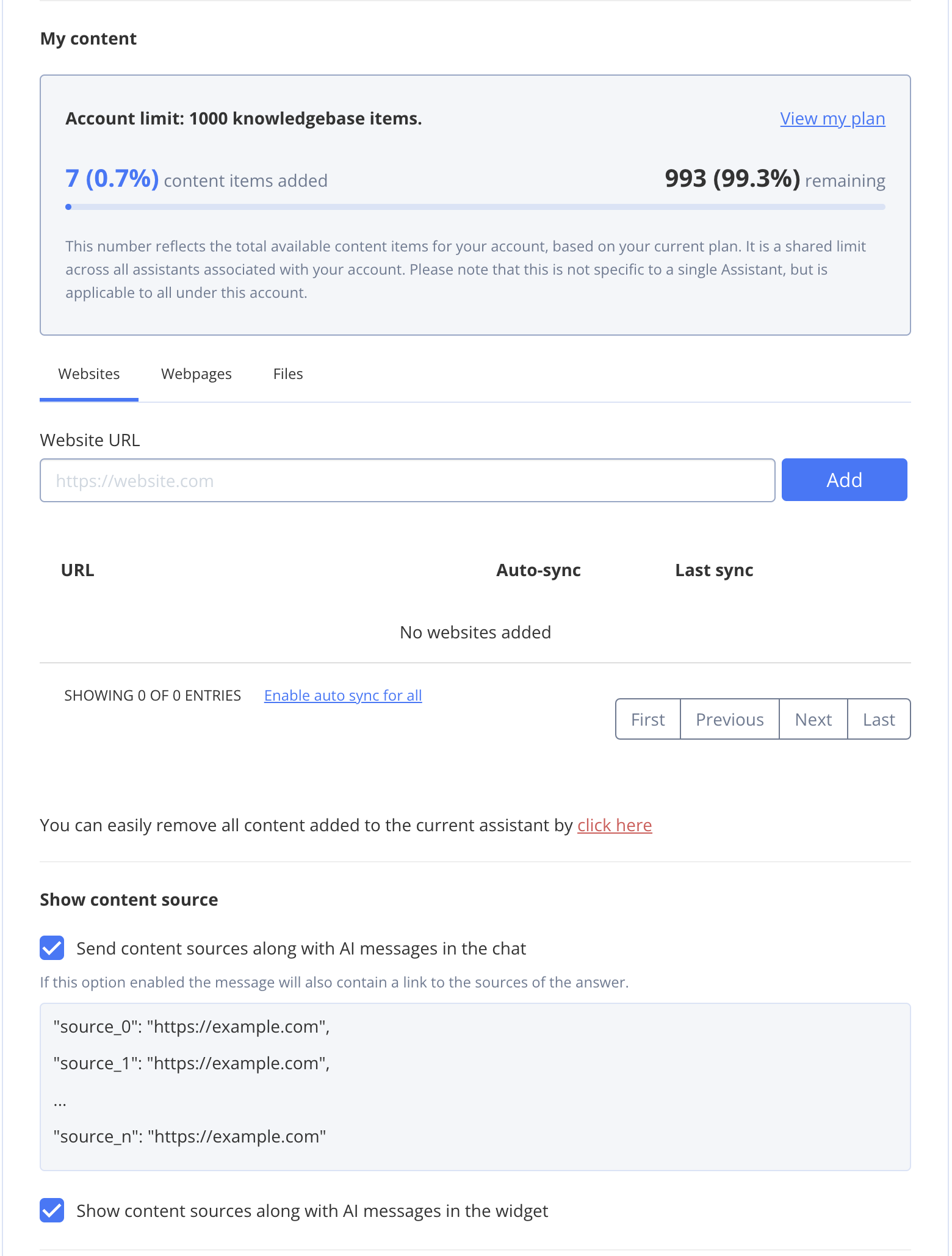
Add websites
To add a website to the AI Agent, follow these steps:- Go to Dashboard => YOUR_APP => AI Agent.
- Find the AI Agent you want to update and click on its ID.
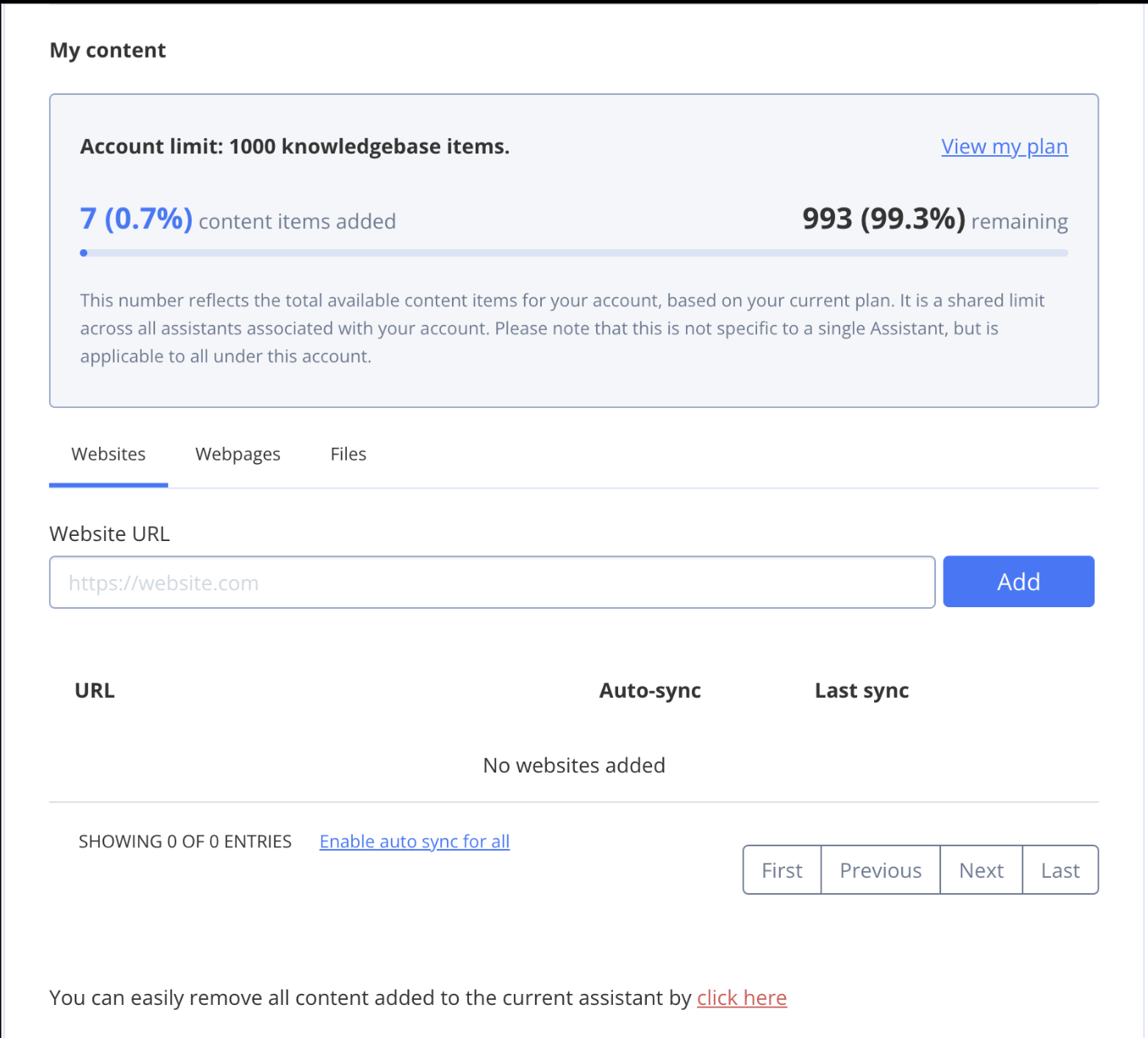
- Scroll down to the My content section.
- Enter the website URL.
- Click Add.
- Select the pages you want to add, or click Select all to add every page.
- To automatically add new pages from the website, check Enable auto sync for website.
If you enable auto sync, ALL pages from the website will be added.
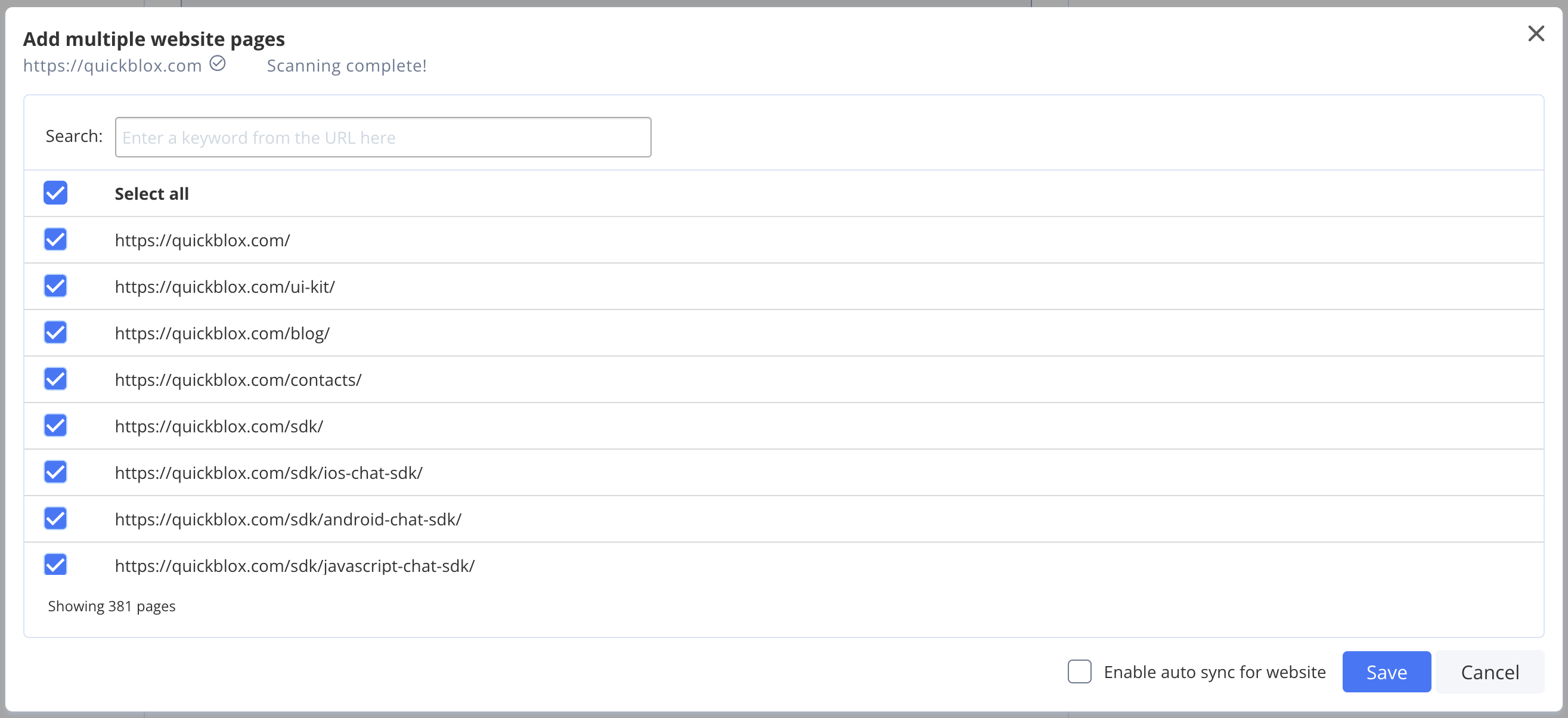
- Click Save.
Add webpages
To add a webpage to the AI Agent, follow these steps:- Go to Dashboard => YOUR_APP => AI Agent.
- Find the AI Agent you want to update and click on its ID.
- Scroll down to the My content section.
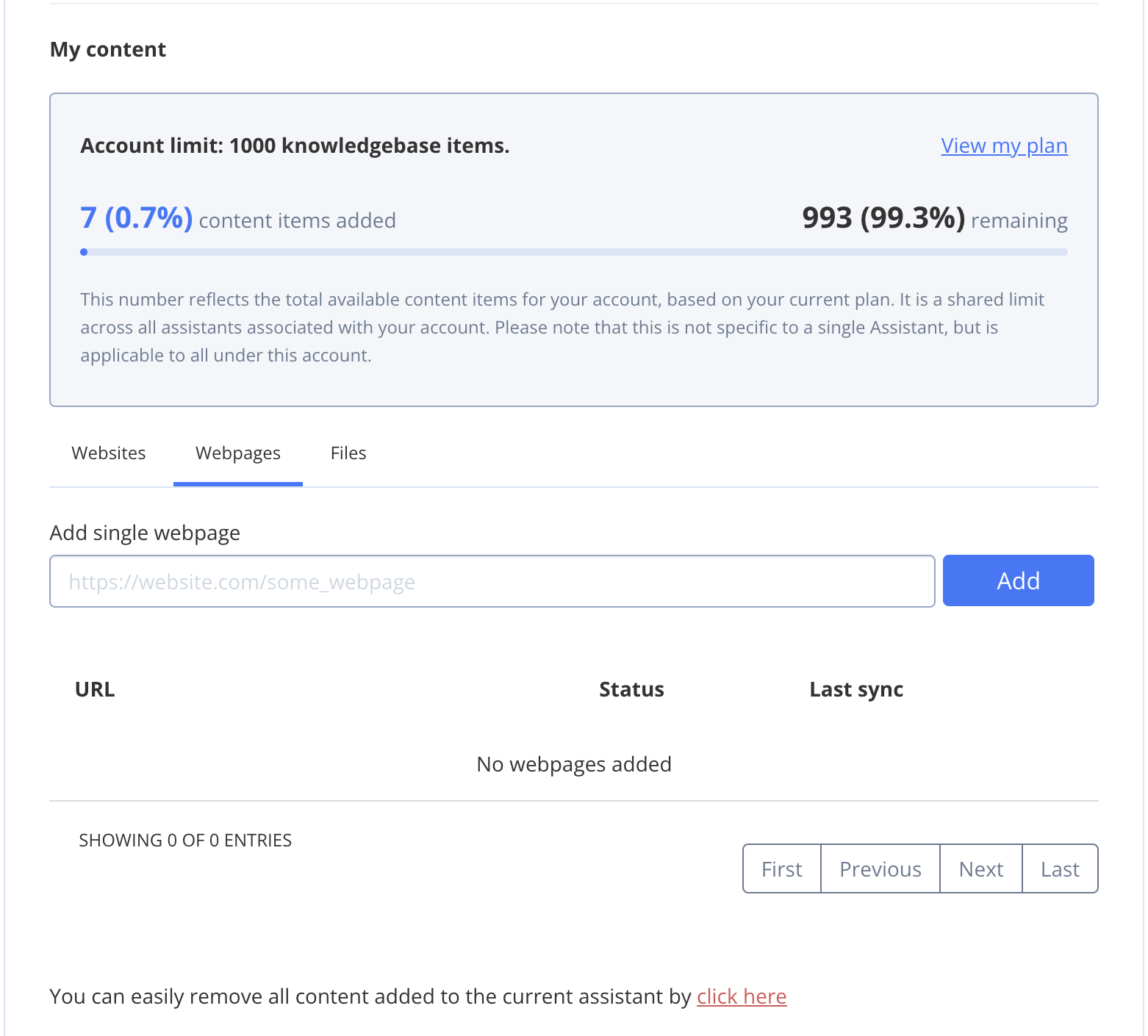
- Click on the Webpages tab.
- Enter the webpage URL (including https:// or http://).
- Click Add.
Add files
To add a file to the AI Agent, follow these steps:- Go to Dashboard => YOUR_APP => AI Agent.
- Find the AI Agent you want to update and click on its ID.
- Scroll down to the My content section.
- Click on the Files tab.
- Click the Browse button and select a file (or drag and drop the file).
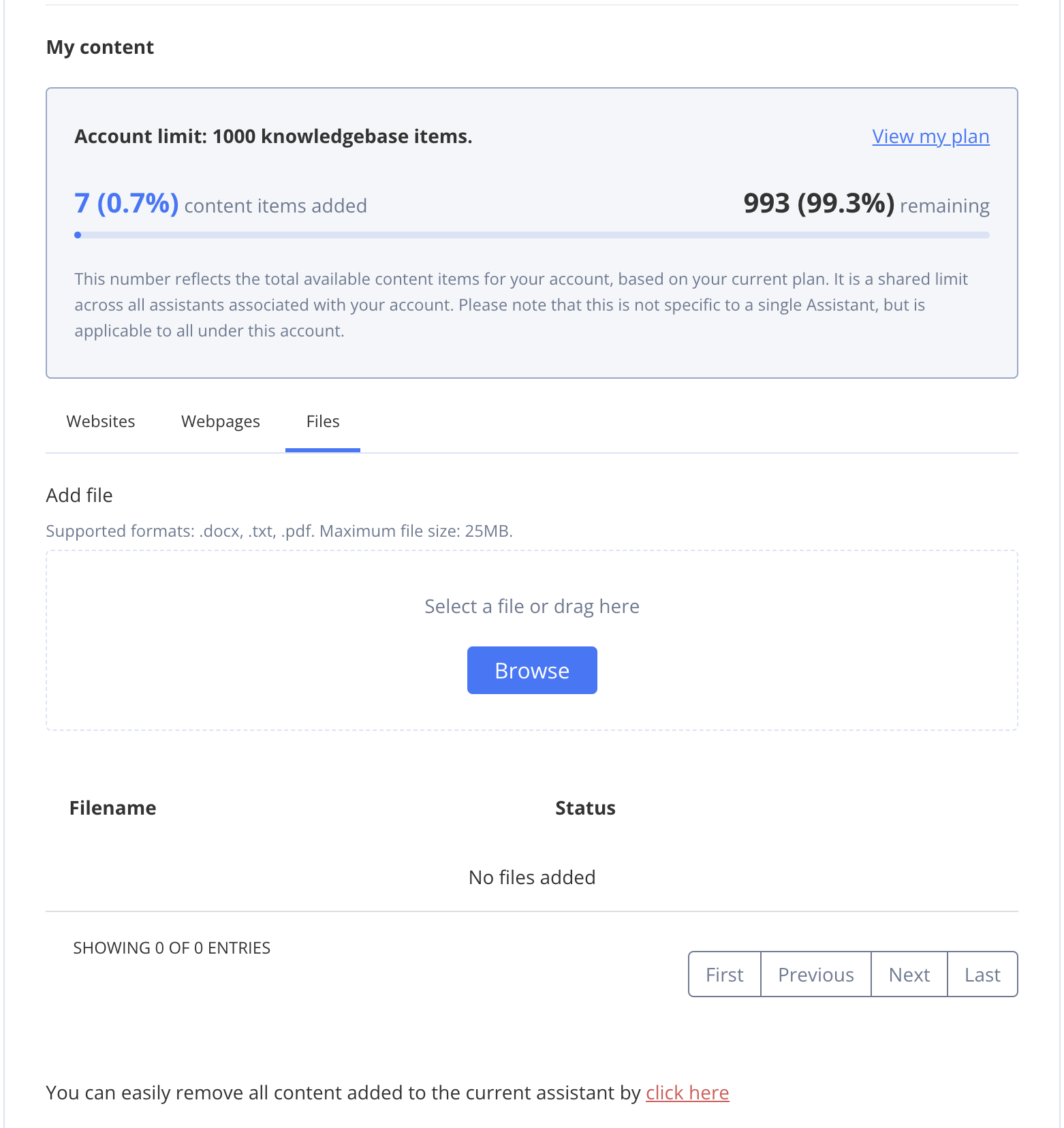
You can upload .docx, .txt, and .pdf files with a max size of up to 25 MB.